To see hidden files on Windows 10, open File Explorer, click the View tab, and check Hidden items in the Show/hide group. Hidden files and folders appear right away, slightly faded so you can tell them apart. To also see protected operating system files, open View > Options > View tab and uncheck Hide protected operating system files (Recommended).
Below you’ll find every way to show hidden files, how to hide them again, how to unhide a specific file, and how to use Command Prompt if File Explorer isn’t cooperating.
Method 1: Use the View tab in File Explorer
- Press Windows + E to open File Explorer.
- Click the View tab at the top.
- In the Show/hide group, check Hidden items.
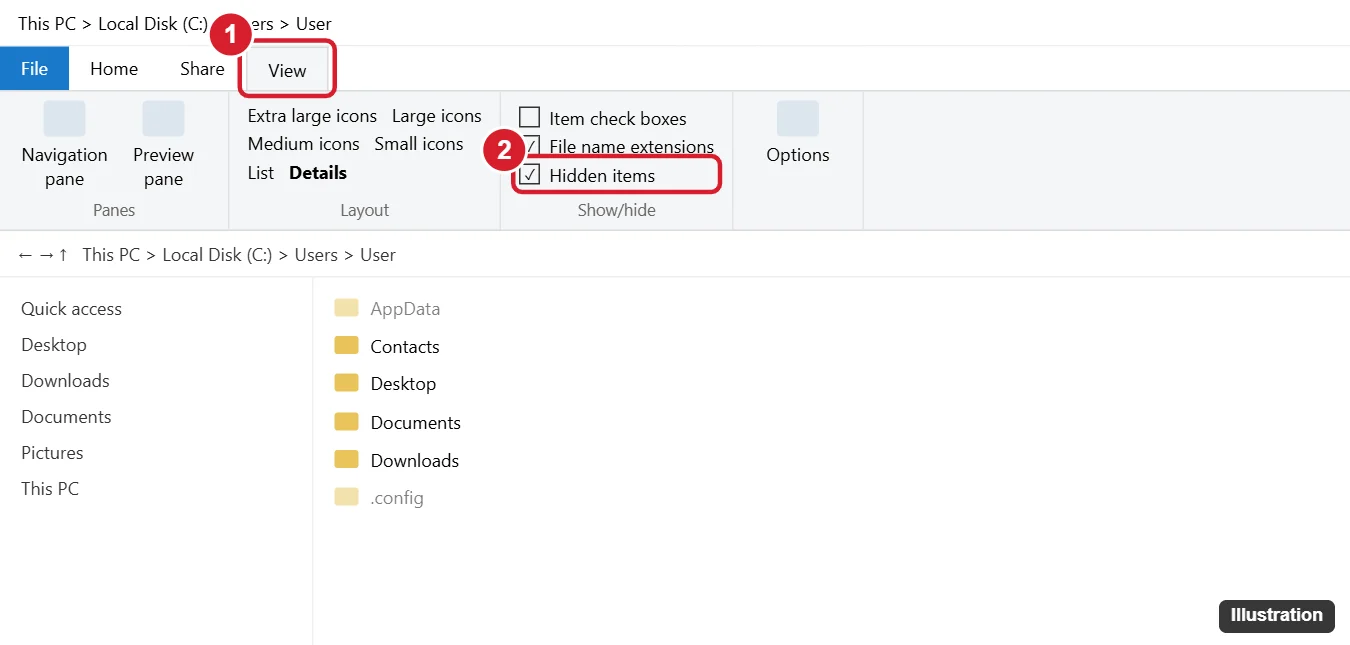
This setting applies to every folder, not just the one you have open. Uncheck Hidden items to hide them again.
Method 2: Use Folder Options
- In File Explorer, click View > Options. Or search for File Explorer Options in the Start menu.
- Open the View tab.
- Under Hidden files and folders, select Show hidden files, folders, and drives.
- Click OK.
Show protected operating system files
Some system files stay hidden even after you turn on Hidden items. To see them, uncheck Hide protected operating system files (Recommended) in the same View tab and click Yes on the warning. Only do this if you need to, and don’t delete or move these files. Turn the setting back on when you’re done.
Method 3: Use the Settings app
- Open Settings > Update & Security > For developers.
- Under File Explorer, turn on Change settings to show hidden and system files, then click Apply.
This option is available in recent versions of Windows 10. If you don’t see it, use Method 1 or 2.
How to unhide a specific file or folder
- Turn on Hidden items so you can see the file.
- Right-click the file and choose Properties.
- On the General tab, uncheck Hidden and click OK.
- For a folder, choose whether to apply the change to its subfolders and files too.
To hide a file, follow the same steps and check Hidden. You can also select it and click Hide selected items on the View tab.
How to show hidden files with Command Prompt
This helps when a virus or USB problem has hidden your files and the Hidden checkbox is grayed out.
- Type cmd in the Start menu search and open Command Prompt.
- To list hidden files in a folder, go to the folder with cd and type dir /a:h.
- To unhide everything on a USB drive, type attrib -h -r -s /s /d E:\*.*, replacing E with your drive letter, and press Enter.
Only run the attrib command on your own data drives, not on C:\ or the Windows folder. If files keep getting hidden, scan the drive with Windows Security.
Common hidden folders you might be looking for
| Folder | Location | What’s in it |
|---|---|---|
| AppData | C:\Users\YourName\AppData | App settings, caches, and some saved game files |
| ProgramData | C:\ProgramData | Settings shared by all users |
| $Recycle.Bin | Root of each drive | Recycle Bin contents (protected system folder) |
Tip: you can open AppData without showing hidden files. Press Windows + R, type %appdata%, and press Enter.
To find files you opened recently, see how to check recently opened files.
Camera photos showing no preview? See how to view RAW files on Windows 10.
On Windows 11 you can also make File Explorer open to This PC.
For files you just downloaded, see finding the Downloads folder.
Prefer a brighter File Explorer? Learn how to switch back to light mode.
You can also hide recent files in Quick access.
Frequently asked questions
Why are some files hidden in Windows 10?
Windows and apps hide files that most people don’t need to change, such as settings and system files. Hiding them helps prevent accidental deletion.
Is it safe to leave hidden files showing?
Yes, as long as you don’t delete or edit files you don’t recognize. Leave protected operating system files hidden unless you have a specific reason.
How do I show file extensions too?
On the same View tab, check File name extensions.

Kermit Matthews is a freelance writer based in Philadelphia, Pennsylvania with more than a decade of experience writing technology guides. He has a Bachelor’s and Master’s degree in Computer Science and has spent much of his professional career in IT management.
He specializes in writing content about iPhones, Android devices, Microsoft Office, and many other popular applications and devices.