To hide apps on Windows 11, right-click the app in the Start menu or taskbar and choose Unpin from Start or Unpin from taskbar, then open Settings > Personalization > Start and turn off Show recently added apps, Show most used apps, and recommendations. To remove an app from the All apps list without uninstalling it, move its shortcut out of the Start Menu Programs folder. For real privacy, give other people their own user account, since each account has its own Start menu and settings.
Windows 11 doesn’t have a single “hide app” button, so this guide walks through every place an app can appear—Start, the All apps list, the taskbar, the desktop, search, the system tray, and Installed apps—and how to hide it from each. It also covers what these methods don’t do, so you know how private your setup really is.
Method 1: Unpin the app from Start
- Click Start.
- Right-click the app in the Pinned section.
- Choose Unpin from Start.
Method 2: Turn off recent, most used, and recommended items
- Open Settings (Windows + I).
- Go to Personalization > Start.
- Turn off Show recently added apps and Show most used apps.
- Turn off Show recommended files in Start, recent files in File Explorer, and items in Jump Lists so recently opened files don’t reveal which apps you’ve used.
Option names can vary slightly between Windows 11 updates, and some versions add extra toggles such as showing app suggestions or a phone companion panel in Start. Turn off anything that shows apps you want to keep out of view.
Method 3: Hide an app from the All apps list
Windows builds the All apps list from shortcuts in two folders. Moving an app’s shortcut out of those folders hides it from the list and from Start search, while the app stays installed.
- Click Start > All apps, right-click the app, and choose More > Open file location. (If that option doesn’t appear, it’s a Store app; see the note below.)
- File Explorer opens one of these folders:
- For all users:
C:\ProgramData\Microsoft\Windows\Start Menu\Programs - For your account only:
%AppData%\Microsoft\Windows\Start Menu\Programs
- For all users:
- Cut the shortcut (Ctrl + X) and paste it into a folder of your choice, such as a private folder in Documents. Moving it from the all-users folder requires admin permission.
- To open the app later, double-click the shortcut where you saved it. To restore it to Start, move the shortcut back.
Microsoft Store apps don’t use shortcuts in these folders, so they can’t be hidden this way. You can unpin them, but they’ll stay in All apps unless you uninstall them.
Method 4: Hide apps from the taskbar and system tray
- Taskbar – right-click the app’s icon and choose Unpin from taskbar. Running apps still show while open.
- System tray – go to Settings > Personalization > Taskbar > Other system tray icons (or Taskbar corner overflow in some versions) and turn off the app, so it moves to the hidden overflow menu.
- Task View and widgets – in the same Taskbar settings, you can hide the Task View, Widgets, and Search buttons.
Method 5: Hide desktop shortcuts
- Delete the app’s desktop shortcut (this doesn’t uninstall the app), or move it into a folder.
- To hide every desktop icon, right-click the desktop and choose View > uncheck Show desktop icons.
Method 6: Hide an app’s folder
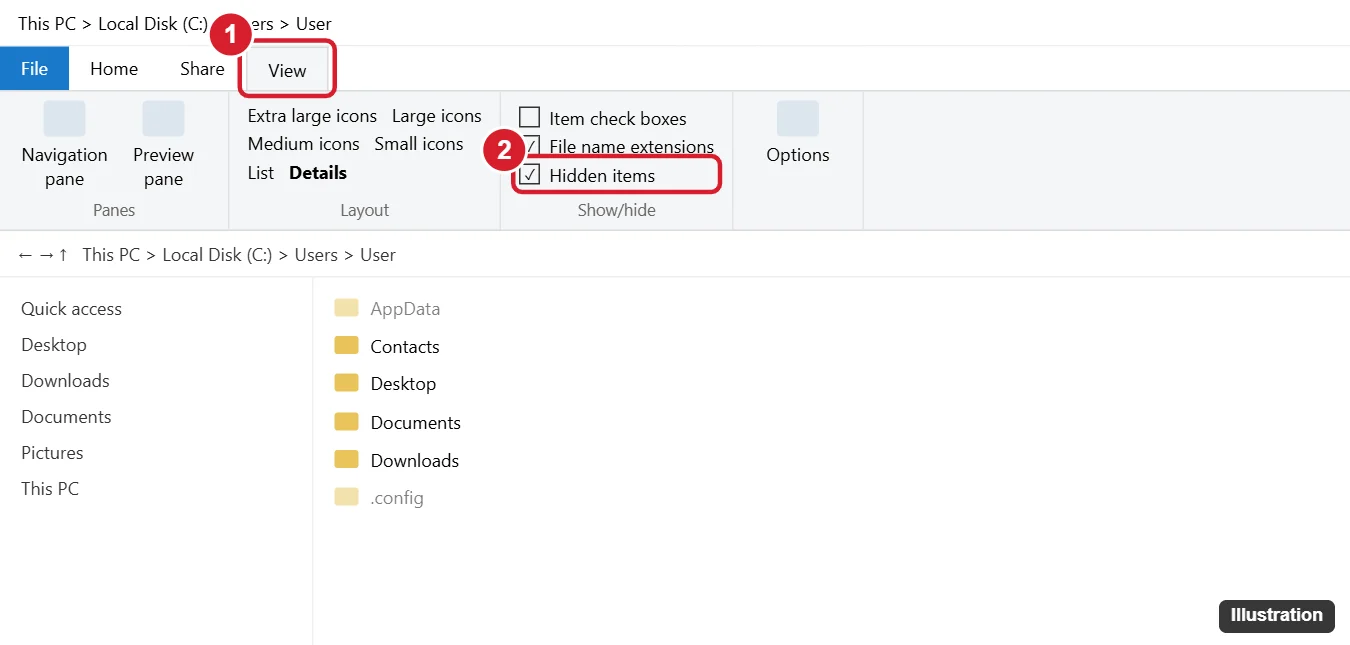
If you store a portable app or files in a folder, right-click the folder, choose Properties, check Hidden, and click OK. It disappears from File Explorer unless View > Show > Hidden items is turned on. This is easy for anyone to undo, so it isn’t real security.
Method 7: Use a separate user account
The most effective way to keep apps private on a shared PC is to give each person their own account. Each account has its own Start menu, taskbar, desktop, and recent files, and apps installed for only one user don’t appear for others. Go to Settings > Accounts > Other users > Add account. For children, use Family accounts with parental controls to block apps.
What these methods don’t hide
- Apps still appear in Settings > Apps > Installed apps, Task Manager while running, and Control Panel’s Programs list. Anyone with the same account can find them there.
- Searching for an app by name may still find it if its shortcut is anywhere Windows indexes. Move hidden shortcuts to a folder that’s excluded from search in Settings > Privacy & security > Searching Windows.
- Hiding an app doesn’t stop it from running in the background or at startup. Manage that in Settings > Apps > Startup.
Frequently asked questions
Can I lock an app with a password in Windows 11?
Windows 11 doesn’t include a per-app password lock. Separate user accounts are the built-in way to keep apps private. Some third-party tools offer app locking, but vet them carefully.
Does unpinning an app delete it?
No. Unpinning only removes the tile or icon. The app stays installed and appears in All apps.
How do I get a hidden app back?
Search for it or find it in All apps and choose Pin to Start or Pin to taskbar. If you moved its shortcut, move the shortcut back to the Start Menu Programs folder.

Kermit Matthews is a freelance writer based in Philadelphia, Pennsylvania with more than a decade of experience writing technology guides. He has a Bachelor’s and Master’s degree in Computer Science and has spent much of his professional career in IT management.
He specializes in writing content about iPhones, Android devices, Microsoft Office, and many other popular applications and devices.