Early versions of Windows 11 pinned a Chat icon to the taskbar that opened personal Microsoft Teams messaging. Later updates replaced Chat with a separate Microsoft Teams (free) app, which may still appear on the taskbar. Whichever version you have, you can hide the icon in a few seconds, and you can remove the app completely if you never use it.
Quick Answer
Right-click the taskbar, choose Taskbar settings and turn off Chat under Taskbar items. On newer builds without that switch, right-click the Teams icon and choose Unpin from taskbar.
How to Remove Chat from the Windows 11 Taskbar
- Right-click an empty part of the taskbar and choose Taskbar settings.
- Under Taskbar items, turn off Chat if it is listed. The icon disappears right away.
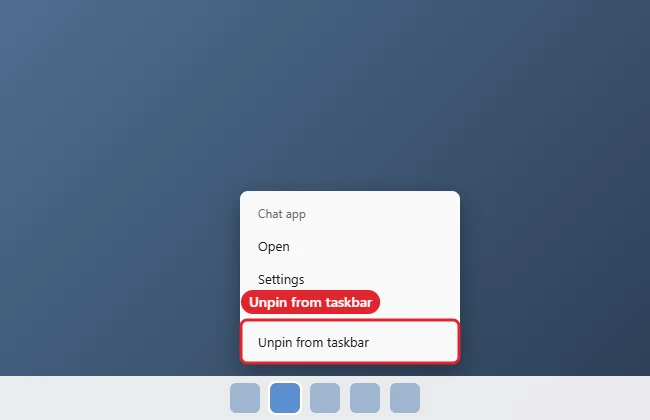
- If Chat is not listed, your PC has the newer Teams app instead. Right-click the Chat or Teams icon on the taskbar.
- Choose Unpin from taskbar.
- To remove the app completely, open Settings, Apps, Installed apps, find Microsoft Teams and choose Uninstall.
Which Version Do You Have?
If the Taskbar items list shows a Chat switch alongside Search, Task view and Widgets, you are on an older build and the switch is all you need. If there is no Chat switch, the icon is an ordinary pinned app, so unpinning it works the same way as removing any other program from the taskbar. You can check your version under Settings, System, About.
Options at a Glance
| Option | What it does |
|---|---|
| Taskbar items switch | Hides the Chat icon (older builds) |
| Unpin from taskbar | Removes the icon; the app stays installed |
| Uninstall Microsoft Teams (free) | Removes the personal Teams app |
| Stop at startup | Settings, Apps, Startup |
Stop Teams Opening at Startup
Hiding the icon does not stop Teams from launching when you sign in. Open Settings, Apps, Startup and turn off Microsoft Teams. This can also shave a little time off your boot if you rarely use the app.
Troubleshooting
- Icon returns after updates: unpin it again or uninstall the app.
- Work Teams needed: do not uninstall the work or school version. It is a separate app that your organisation may require.
- Cannot find the icon: it may already be removed, or the taskbar may be set to hide automatically. See unlocking the taskbar if items will not change.
- Related: getting help in Windows 11 and switching desktops.
Frequently Asked Questions
Will this delete my Teams chats?
No. Chats are stored in your Microsoft account, so they are still there if you sign in to Teams again later.
What did Chat do?
It opened a small window for personal Teams messaging and calls with friends and family.
Can I get it back?
Yes. Turn the Chat switch back on, or reinstall Microsoft Teams from the Microsoft Store and pin it to the taskbar.
Does unpinning affect other taskbar icons?
No. Only the icon you unpin is removed; everything else stays where it is.
Summary
- Open Taskbar settings.
- Turn off Chat if listed.
- Otherwise unpin the Teams icon.
- Uninstall Teams or turn it off at startup if you like.
- Check again after major updates.

Kermit Matthews is a freelance writer based in Philadelphia, Pennsylvania with more than a decade of experience writing technology guides. He has a Bachelor’s and Master’s degree in Computer Science and has spent much of his professional career in IT management.
He specializes in writing content about iPhones, Android devices, Microsoft Office, and many other popular applications and devices.