Screen sharing on Windows can mean three things: showing your screen to people in a video meeting, letting someone help you remotely, or mirroring your display to a TV or projector. Windows 10 and 11 handle all three, using meeting apps, the built-in Quick Assist tool, and wireless casting. This guide walks through each method.
Quick Answer
- In a meeting: click Share or Share screen in Teams, Zoom, or Google Meet, then pick a window or your entire screen.
- For remote help: press Ctrl + Windows + Q to open Quick Assist, enter the code from the person helping you, and allow screen sharing.
- To a TV or projector: press Windows + K and choose a wireless display.
Method 1: Share Your Screen in a Video Meeting
- Microsoft Teams: in a meeting, click Share (the arrow icon) and choose a screen, window, or PowerPoint file. Turn on Include sound if you’re playing video.
- Zoom: click Share Screen (or Share), select a window or Screen, and click Share. Check Share sound for audio.
- Google Meet (browser): click Present now (or the share icon), choose Entire screen, Window, or Tab, and click Share.
Tip: sharing a single window instead of your whole screen keeps notifications and other apps private.
Method 2: Quick Assist for Remote Help
Quick Assist is built into Windows 10 and 11 and lets a trusted person view or control your PC.
- Helper: opens Quick Assist (search Start or press Ctrl + Windows + Q), clicks Help someone, signs in with a Microsoft account, and shares the security code.
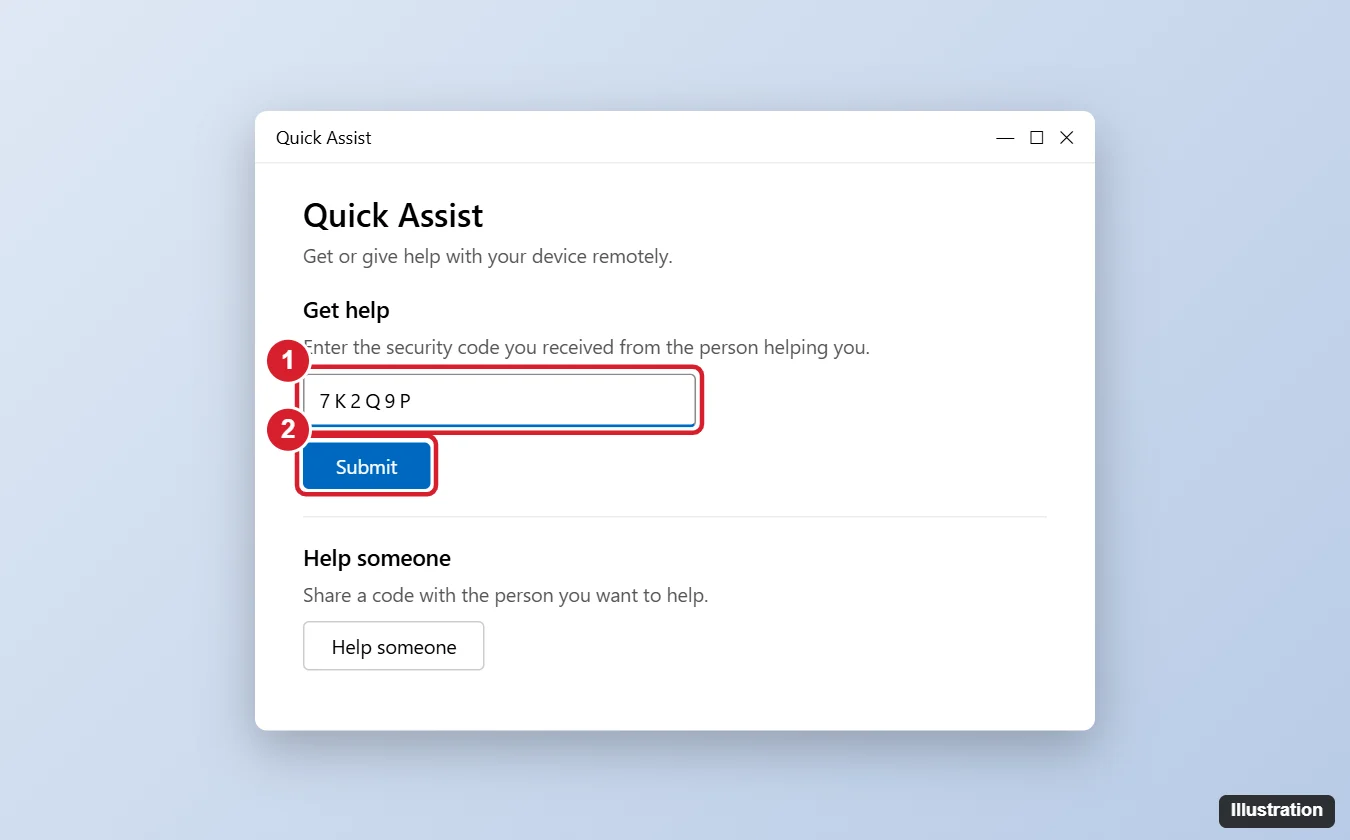
- Person getting help: opens Quick Assist, types the code under Get help, and clicks Submit.
- Review the sharing request and click Allow. The helper can view your screen, and can request full control if you approve.
- Click Leave or close the window to end the session.
Safety: only use Quick Assist with people you know and trust. Microsoft and legitimate companies won’t call you unexpectedly asking you to open Quick Assist; that’s a common scam.
Method 3: Cast Your Screen to a TV or Projector
- Make sure the TV, projector, or streaming device supports Miracast and is on the same network (or in screen mirroring mode).
- Press Windows + K (or open Quick Settings > Cast).
- Choose your display from the list.
- Press Windows + P to switch between Duplicate, Extend, or Second screen only.
For a wired option, connect an HDMI cable and press Windows + P.
If others hear static when you talk, fix mic static on Windows before your next meeting.
Troubleshooting
- Black screen when sharing: some apps block screen capture (streaming services). Share a different window or check the meeting app’s hardware acceleration settings.
- Browser asks for permission: browser-based meetings may ask to allow screen sharing; click Allow.
- Quick Assist missing: install it from the Microsoft Store.
- Display not found for casting: restart the TV or adapter and make sure your PC supports Miracast (Settings > System > Display > Multiple displays).
Frequently Asked Questions
Can people see my notifications when I share?
If you share your entire screen, yes. Share a single window or turn on Do not disturb first.
Is Quick Assist free?
Yes. It’s included with Windows.
Summary
- Use your meeting app’s Share screen button for calls.
- Use Quick Assist (Ctrl + Windows + Q) for trusted remote help.
- Press Windows + K to cast to a TV or projector.
- Share a single window to keep other content private.

Kermit Matthews is a freelance writer based in Philadelphia, Pennsylvania with more than a decade of experience writing technology guides. He has a Bachelor’s and Master’s degree in Computer Science and has spent much of his professional career in IT management.
He specializes in writing content about iPhones, Android devices, Microsoft Office, and many other popular applications and devices.