To reset Microsoft Word to its default settings on a Mac, quit Word, open Finder, press Shift + Command + G, paste ~/Library/Group Containers/UBF8T346G9.Office/User Content/Templates, press Return, and rename Normal.dotm to Normal-old.dotm. When you reopen Word, it creates a fresh default template, which resets your fonts, styles, and margins. To reset the rest of Word’s preferences, you can also move its preferences file (com.microsoft.Word.plist) out of its folder, as described below.
None of these steps delete your documents. Work through them in order, and stop when Word behaves normally.
Step 1: Reset the Normal template
- Quit Word completely with Command + Q.
- In Finder, click Go > Go to Folder (or press Shift + Command + G).
- Paste ~/Library/Group Containers/UBF8T346G9.Office/User Content/Templates and press Return.
- Rename Normal.dotm to Normal-old.dotm.
- Open Word. It builds a new Normal.dotm with default settings.
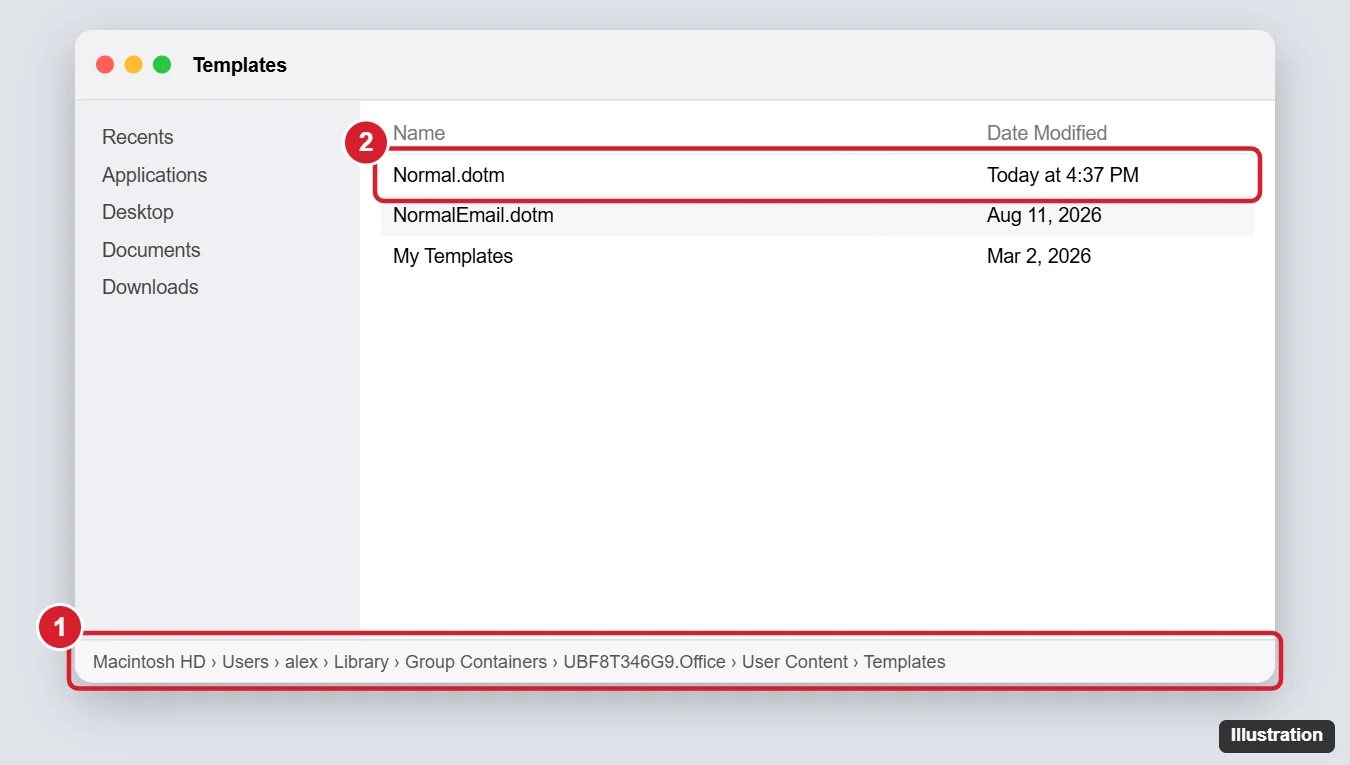
If you lose custom styles or macros you need, quit Word, delete the new Normal.dotm, and rename Normal-old.dotm back.
Step 2: Reset the ribbon and toolbar
- In Word, click Word > Settings (or Preferences on older versions).
- Click Ribbon & Toolbar.
- Click the gear or Customizations menu at the bottom and choose Reset All Customizations, or the Reset option shown in your version.
- Click Save.
Step 3: Reset Word’s preferences file
This resets most settings, like view options, recent files, and AutoSave preferences.
- Quit Word.
- In Finder, press Shift + Command + G, paste ~/Library/Containers/com.microsoft.Word/Data/Library/Preferences, and press Return.
- Drag com.microsoft.Word.plist to your Desktop to keep it as a backup.
- Restart your Mac, then open Word.
macOS caches preferences, so restarting helps make sure the reset takes effect. To undo, quit Word and move the file back.
Step 4: Check AutoCorrect and add-ins
- AutoCorrect: Word > Settings > AutoCorrect. Remove entries you added or reset options.
- Add-ins: Click Insert > Add-ins > My Add-ins and remove ones you don’t use.
- Default font: Click Format > Font, choose a font, and click Default to set it for new documents.
Step 5: Reinstall Word (last resort)
- Quit all Office apps.
- Drag Microsoft Word from the Applications folder to the Trash.
- Reinstall it from the Mac App Store or from your Microsoft account at account.microsoft.com/services.
Reinstalling doesn’t reset settings stored in your Library folder, so do Steps 1 and 3 as well if you want a completely fresh start.
Frequently asked questions
Why can’t I see the Library folder?
It’s hidden by default. Using Go to Folder with the paths above opens it directly. You can also hold Option and click the Go menu to see Library.
Will this reset Excel and PowerPoint too?
No. Each app has its own preferences. Normal.dotm only affects Word.
How do I reset Word on Windows?
See how to reset Word to default settings on Windows.

Kermit Matthews is a freelance writer based in Philadelphia, Pennsylvania with more than a decade of experience writing technology guides. He has a Bachelor’s and Master’s degree in Computer Science and has spent much of his professional career in IT management.
He specializes in writing content about iPhones, Android devices, Microsoft Office, and many other popular applications and devices.