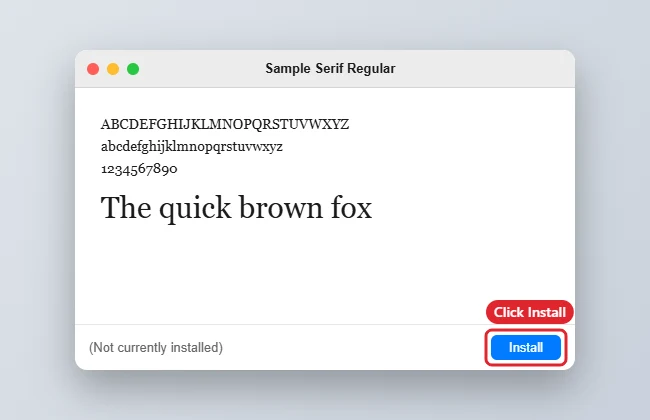
Adding a new font to Microsoft Word is a straightforward process. First, download the font file from a reliable source. Next, open the file and click ‘Install.’ Finally, open Microsoft Word, click on the font drop-down menu, and select your new font.
After installing your new font, it will be available for use in all your Microsoft Word documents. You can apply it to your text just like any other font that comes pre-installed with the software.
Introduction
Fonts have the power to transform the look and feel of your document. Whether you’re creating a professional report, a party invitation, or a resume, the right font can make your work stand out. But sometimes, the standard fonts pre-installed in Microsoft Word just don’t cut it. That’s when installing a new font becomes essential. It’s not just graphic designers who need an array of fonts at their disposal. Teachers, students, business professionals, and hobbyists – basically anyone using Microsoft Word – can benefit from knowing how to add new fonts to their repertoire. It’s an easy way to personalize and enhance your documents, and once you know how, the possibilities are endless. Let’s dive into the process of how you can make your documents pop with the perfect font.
Step by Step Tutorial: How to Install and Add a Font in Microsoft Word
The following steps will guide you through the process of installing and adding a new font to Microsoft Word.
Step 1: Download a Font
Find a font you love and download it from a reputable website.
Downloading a font from a trusted source is crucial to avoid any potential security risks. Websites like Google Fonts, DaFont, or 1001 Free Fonts offer a wide range of free and paid fonts that are safe to download.
Step 2: Install the Font
Open the downloaded font file and click the ‘Install’ button.
Most font files come in a zipped folder. Once you unzip it, you’ll find the font files which can be installed by right-clicking and selecting ‘Install’ on Windows or double-clicking on the file and selecting ‘Install Font’ on a Mac.
Step 3: Open Microsoft Word
Launch Microsoft Word on your computer.
Once the font is installed, it’s automatically added to the font library in Microsoft Word. Open the program to start using your new font.
Step 4: Select the Font
Click on the font drop-down menu and select your newly installed font.
You can find the font drop-down menu on the Home tab in Microsoft Word. Your new font should appear alphabetically in the list of available fonts.
Pros
| Benefit | Explanation |
|---|---|
| Personalization | Installing new fonts allows you to personalize your documents, giving them a unique touch that stands out. |
| Professionalism | Certain fonts can add a level of professionalism to your documents that standard fonts can’t match. |
| Accessibility | With more fonts at your disposal, you can ensure your documents are accessible and readable to a wider audience. |
Adding a new font can take your documents to the next level by allowing for personalization that can’t be achieved with standard fonts. Whether it’s a fancy script for wedding invitations or a sleek sans-serif for a business report, the right font can significantly impact the reader’s perception.
Professionalism is key in many documents, and using the right font can make all the difference. Fonts like Times New Roman or Arial are classics for a reason, but sometimes a document calls for something with a bit more flair or modernity. Adding new fonts gives you that flexibility.
Accessibility is another important factor to consider. Some fonts are easier to read for people with dyslexia or other visual impairments. By having a range of fonts to choose from, you can make your documents more inclusive.
Cons
| Drawback | Explanation |
|---|---|
| Compatibility | Not all fonts are compatible with every system or device, which can lead to display issues. |
| Overuse | With access to an abundance of fonts, there’s a risk of overusing them and making your document look cluttered. |
| Legibility | Some fonts, while visually appealing, can be difficult to read, particularly in smaller sizes. |
Compatibility can be an issue when sharing documents. If the recipient doesn’t have the same font installed, they won’t be able to view the document as intended, which can lead to formatting issues or even replacement with a default font.
The temptation to use multiple fonts can lead to a document that looks cluttered and unprofessional. It’s important to use new fonts judiciously to maintain the document’s readability and aesthetic appeal.
While many fonts are beautiful, they’re not all created for legibility. Especially when it comes to body text, choosing a font that’s easy to read is crucial. Fonts with too much flourish or unusual letter shapes can be hard on the eyes in long paragraphs.
Additional Information
When installing and adding a font in Microsoft Word, there are a few extra tips to keep in mind. First, always restart Microsoft Word after installing a new font to ensure it appears in the font list. Additionally, consider the purpose of your document. Are you looking for something formal or playful? The font you choose can significantly affect the tone of your work. Remember to respect copyright laws; some fonts are free for personal use but require a license for commercial use. Play around with font sizes and styles to make the most of your new font. A well-placed bold or italic can accentuate your work beautifully. Most importantly, have fun experimenting with new fonts to find the perfect one for your needs!
Summary
- Download a font from a reputable website.
- Install the font by opening the file and clicking ‘Install.’
- Open Microsoft Word.
- Select the new font from the font drop-down menu.
Frequently Asked Questions
What is the best website to download fonts?
Reliable websites for downloading fonts include Google Fonts, DaFont, and 1001 Free Fonts.
Can I use any font for commercial purposes?
Not all fonts are licensed for commercial use. Check the terms and conditions before using a font for commercial purposes.
Will the fonts I install on my computer work on all software?
Most fonts, once installed, will be available across all software on your computer that allows font customization.
What if the font doesn’t show up in Microsoft Word?
If your font doesn’t appear, close and restart Microsoft Word. If it still doesn’t show up, re-install the font and try again.
How do I know if a font is easy to read?
Consider the font’s x-height, spacing, and letter shapes. Choose fonts that are clear and legible, especially for body text.
Conclusion
Knowing how to install and add a font in Microsoft Word opens up a world of possibilities for personalizing your documents. Whether for personal projects or professional reports, the right font can set the tone and enhance your work’s overall impact. Remember to choose fonts wisely, considering compatibility, readability, and the document’s purpose. Don’t shy away from experimenting with different fonts and styles to find the perfect match for your needs. With this skill in your toolkit, your Microsoft Word documents will never look better!

Kermit Matthews is a freelance writer based in Philadelphia, Pennsylvania with more than a decade of experience writing technology guides. He has a Bachelor’s and Master’s degree in Computer Science and has spent much of his professional career in IT management.
He specializes in writing content about iPhones, Android devices, Microsoft Office, and many other popular applications and devices.