Kiosk mode (assigned access) locks a Windows 10 PC to a single app, which is common for lobby displays and shared devices. Exiting it is an administrator task: an admin signs out of the kiosk account, signs in with an admin account, and removes the kiosk. If the PC belongs to your school or employer, ask the IT team; we do not cover ways around a kiosk you do not manage. Windows 10 reached end of support on October 14, 2025. Consumer Extended Security Updates (ESU) now run until October 12, 2027.
Quick Answer
Press Ctrl+Alt+Del to sign out of the kiosk session, sign in with an administrator account, then open Settings, Accounts, Family and other users (or Other users), select the kiosk, and choose Remove kiosk.
How to Exit Kiosk Mode in Windows 10 (Administrators)
- On the kiosk screen, press Ctrl+Alt+Del to reach the sign-in options.
- Sign out, then choose your administrator account on the sign-in screen and sign in.
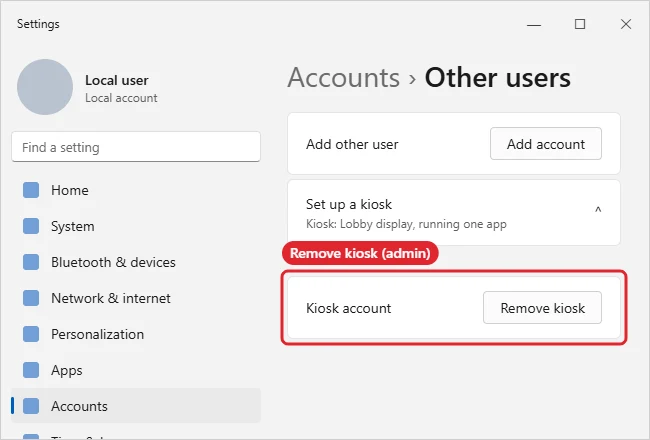
- Open Settings, Accounts, Family and other users, and select Set up a kiosk (Assigned access).
- Choose the kiosk account and click Remove kiosk.
- Optionally delete the kiosk user account if it is no longer needed, then restart.
Who Can Exit Kiosk Mode
| Situation | What to do |
|---|---|
| Your own PC | Sign in as admin and remove the kiosk |
| Work or school PC | Ask your IT department |
| Managed by device management | Changes must be made by the organization |
| Forgot admin password | Use account recovery for that admin account |
Troubleshooting
- Ctrl+Alt+Del does not show a sign-out option: the kiosk may be configured to restrict it; an administrator must change the policy.
- The kiosk comes back after restart: it may be applied by a management policy. Contact the administrator.
- To set one up again later, see how to set up kiosk mode in Windows 10.
- For other ways to restrict users, read how to limit user access in Windows 10.
Frequently Asked Questions
Can a standard user exit kiosk mode?
No. Kiosk mode is designed so only administrators can change it.
Will removing the kiosk delete apps?
No. It only removes the single-app restriction.
Does Windows 11 work the same way?
Yes, with Settings, Accounts, Other users, Kiosk.
Summary
- Press Ctrl+Alt+Del and sign out.
- Sign in as an administrator.
- Open the kiosk settings.
- Click Remove kiosk.

Kermit Matthews is a freelance writer based in Philadelphia, Pennsylvania with more than a decade of experience writing technology guides. He has a Bachelor’s and Master’s degree in Computer Science and has spent much of his professional career in IT management.
He specializes in writing content about iPhones, Android devices, Microsoft Office, and many other popular applications and devices.