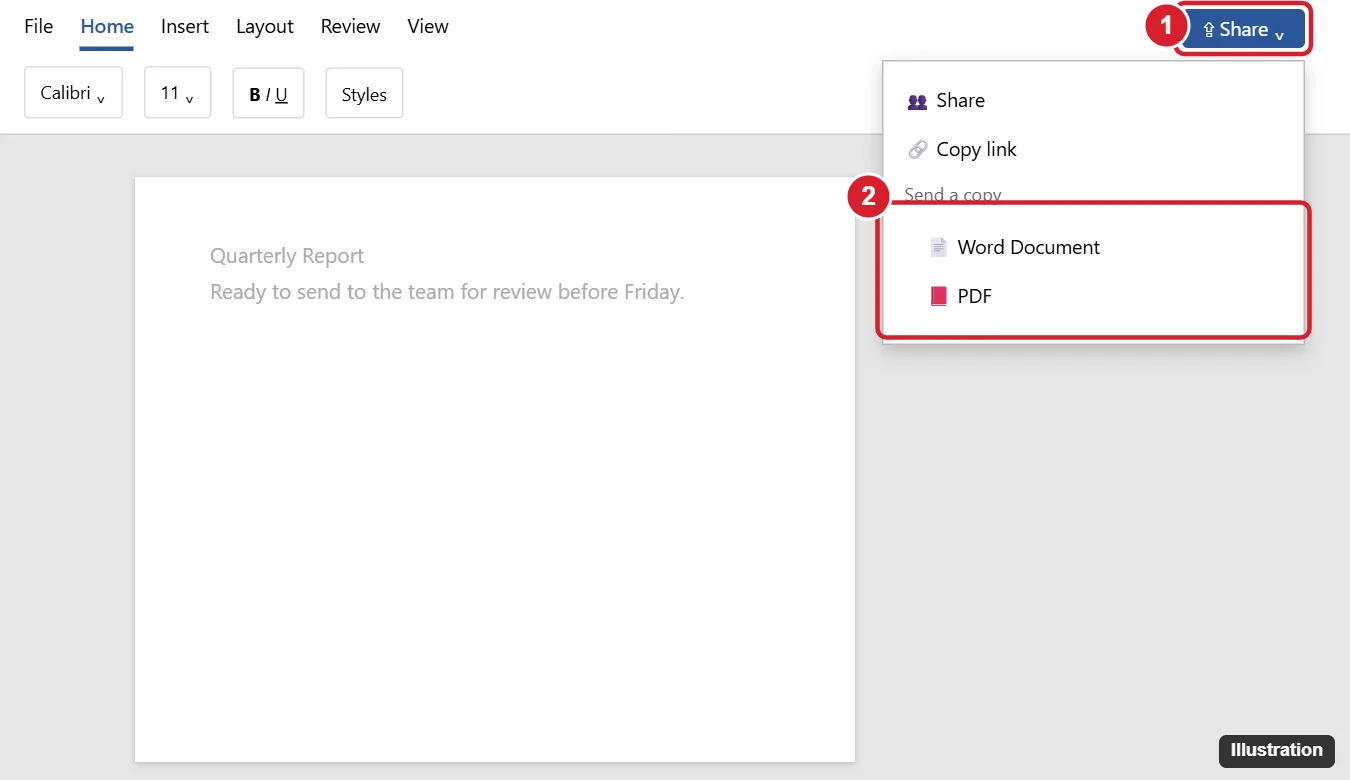
To email a Word document, the simplest way is to attach it: open your email (Outlook, Gmail, or another service), start a new message, click the paperclip (Attach) icon, choose the .docx file, and send. From inside Word, click Share in the top-right corner and choose Send a copy > Word Document or PDF to attach it to a new message in your email app, or use Copy link to email a link instead of a file so everyone works on the same version.
This guide covers each method step by step, when to send a PDF or a link instead, how to reduce file size, and how to fix attachments that won’t send or open.
Method 1: Attach the document in your email app
Outlook
- Click New mail (or New Email).
- Click Attach file (paperclip), choose Browse this computer, and select the Word file. Recent files may appear in the list.
- Add recipients, a subject, and a message, then click Send.
Gmail
- Click Compose.
- Click the paperclip icon and select the file, or drag it into the message.
- Click Send. Files larger than 25 MB are shared as Google Drive links automatically.
Phone
In the Word app, tap the Share icon and choose Send a copy or your email app. From a files app, long-press the document, tap Share, and choose Mail or Gmail.
Method 2: Send from Word with Share
- Open the document and click Share in the top-right corner.
- Under Send a copy, choose Word Document to attach the .docx, or PDF to attach a PDF version.
- Your default email app opens a new message with the attachment. Add recipients and send.
In some Word versions, you’ll find the same options under File > Share > Email (Send as Attachment or Send as PDF). These require a desktop email app like Outlook to be set as your default.
Method 3: Email a link instead
- Save the document to OneDrive or SharePoint.
- Click Share > Copy link, choose whether people can view or edit, and paste the link into an email.
Links avoid attachment size limits and version confusion, since everyone opens the same file.
Attachment, PDF, or link?
| Send as | Best when |
|---|---|
| Word attachment | The recipient needs to edit their own copy |
| You want the layout to look the same everywhere and don’t want edits | |
| Link | You’re collaborating or the file is large |
Reduce file size before sending
- Compress pictures: click an image, choose Picture Format > Compress Pictures, and pick a lower resolution.
- Save as PDF, which is often smaller for image-heavy files.
- Remove embedded fonts in File > Options > Save if you don’t need them.
Troubleshooting
- Send options are missing in Word – set up Outlook or another desktop email app as the default in Windows Settings > Apps > Default apps, or attach the file from your email instead.
- File too large – most services limit attachments to 20 to 25 MB. Compress it or send a link.
- Recipient can’t open it – send a PDF, or suggest they use free Word for the web or Google Docs.
- Recipient sees old content – save the document before attaching it.
Frequently asked questions
Can I paste a Word document into the body of an email?
Yes. Select all (Ctrl + A), copy, and paste into the message. Complex formatting may not paste perfectly.
How do I email a Word document on a Mac?
Click Share > Send a copy in Word, or attach the file in Mail or your web email.
Is it safe to email Word documents?
Yes, but avoid sending sensitive information unencrypted, and remove personal metadata with File > Info > Check for Issues > Inspect Document.

Kermit Matthews is a freelance writer based in Philadelphia, Pennsylvania with more than a decade of experience writing technology guides. He has a Bachelor’s and Master’s degree in Computer Science and has spent much of his professional career in IT management.
He specializes in writing content about iPhones, Android devices, Microsoft Office, and many other popular applications and devices.