A factory reset reinstalls Windows 10 and returns your PC to a clean state. It’s the go-to fix for a slow, unstable, or infected computer, and an essential step before selling or giving away a PC. Windows 10’s built-in Reset this PC tool handles it without a USB drive, and you can choose whether to keep your personal files. This guide covers every option, including resetting a PC that won’t start.
Note: Windows 10 reached end of support in October 2025. If your PC qualifies, consider upgrading to Windows 11 instead of reinstalling Windows 10.
Quick Answer
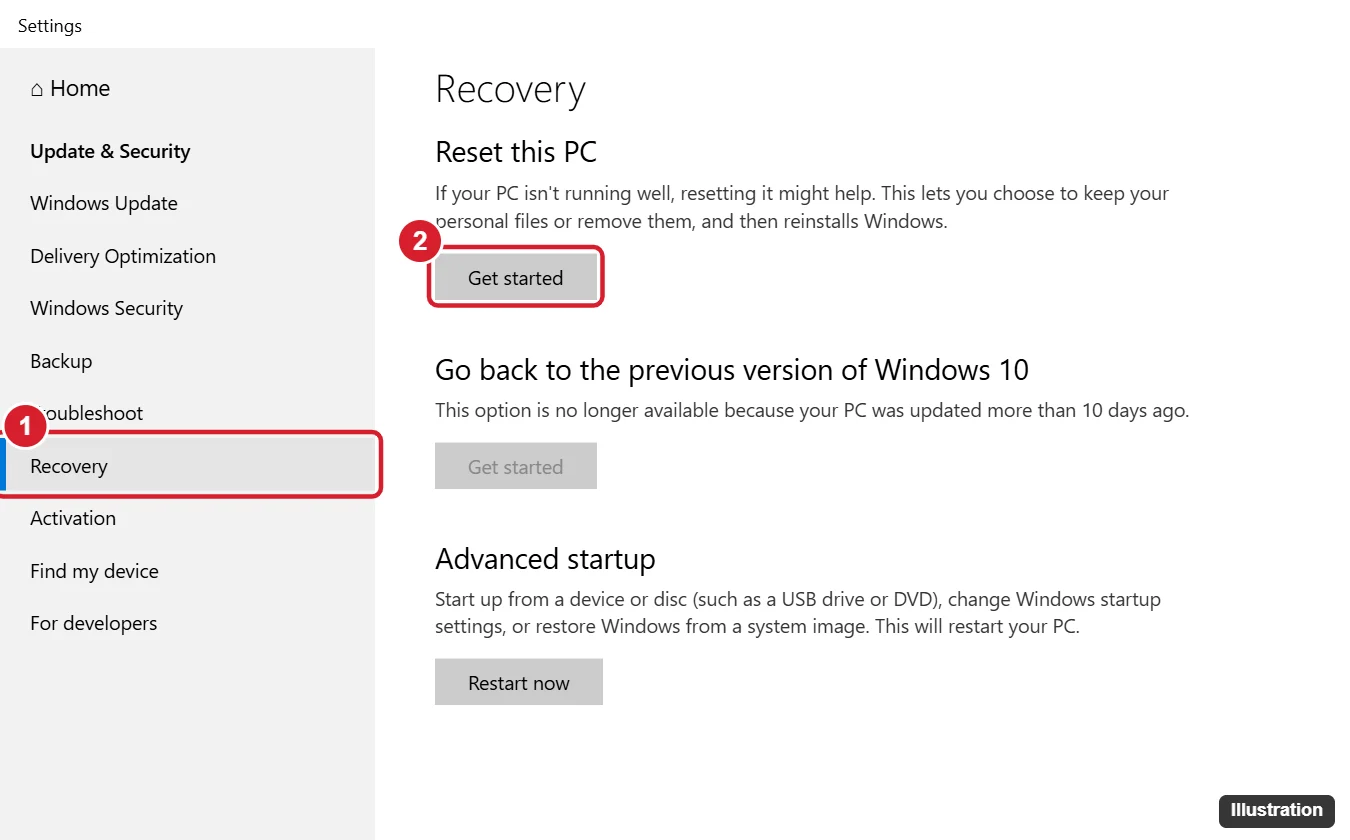
Go to Settings > Update & Security > Recovery and click Get started under Reset this PC. Choose Keep my files or Remove everything, pick Cloud download or Local reinstall, review the settings, and click Reset.
Before You Reset
- Back up your files to an external drive or cloud storage, even if you plan to keep them.
- Note your installed apps. Desktop apps are removed in every reset option; Windows saves a list of removed apps on the desktop when you keep files.
- Save your BitLocker recovery key if the drive is encrypted.
- Plug in the charger on a laptop.
- Sign out of accounts and deauthorize software (for example, licensed apps) if you’re giving the PC away.
Step-by-Step: Reset from Settings
- Press Windows + I and go to Update & Security > Recovery.
- Under Reset this PC, click Get started.
- Choose an option:
- Keep my files: removes apps and settings, keeps personal files.
- Remove everything: removes all files, apps, and settings.
- Choose how to reinstall Windows:
- Cloud download: downloads a fresh copy of Windows (about 4 GB). Best if your system files are damaged.
- Local reinstall: rebuilds Windows from files already on the PC. Faster, no download.
- On Additional settings, click Change settings if you chose Remove everything:
- Clean data On: securely erases the drive so files are harder to recover. Recommended before selling; it can take hours.
- Delete files from all drives: also wipes other internal drives.
- Restore preinstalled apps (Keep my files): restores apps the manufacturer installed, if available.
- Click Next, review the list, and click Reset.
- The PC restarts several times. When finished, set up Windows as new.
Reset a PC That Won’t Start or Sign In
- On the sign-in screen, hold Shift, click the Power icon, and choose Restart. If Windows won’t load at all, turn the PC on and off three times during startup to open Automatic Repair, then choose Advanced options.
- Choose Troubleshoot > Reset this PC.
- Follow the same options as above.
You can also boot from Windows 10 installation media and perform a clean install; see our guide to downloading Windows 10.
Manufacturer Recovery Options
Many PC makers include their own recovery tools that restore the original factory image with drivers and bundled software. Common startup keys include F11 (HP), F8 or F9 on some models, or a dedicated recovery button. Check your PC maker’s support site for exact steps.
After the Reset
- Run Windows Update and install all updates and drivers.
- Reinstall your apps from trusted sources.
- Restore files from your backup if you chose Remove everything.
- Check activation in Settings > Update & Security > Activation; a digital license usually reactivates automatically.
Resetting a laptop on Windows 11? See how to factory reset a Windows laptop.
Lenovo owners can also use the Novo button; see how to format a Lenovo laptop with Windows 10.
Troubleshooting
- “There was a problem resetting your PC”: try Cloud download, run
sfc /scannowand DISM first, or reset from Windows Recovery. - Reset stuck at a percentage: wait several hours, especially with Clean data on. If there’s no disk activity for a long time, restart and try again.
- Missing recovery environment: use installation media to reinstall Windows.
Frequently Asked Questions
How long does a factory reset take?
Typically 30 minutes to 2 hours. Clean data can add several hours.
Will I lose my Windows license?
No. Windows reactivates automatically on the same hardware.
Is Remove everything enough before selling a PC?
With Clean data turned on, it’s a good choice for most people. For highly sensitive data, consider a dedicated drive-wiping tool or keeping the drive.
Summary
- Back up your files.
- Go to Settings > Update & Security > Recovery > Reset this PC.
- Choose Keep my files or Remove everything, then Cloud download or Local reinstall.
- Turn on Clean data before selling, and click Reset.

Kermit Matthews is a freelance writer based in Philadelphia, Pennsylvania with more than a decade of experience writing technology guides. He has a Bachelor’s and Master’s degree in Computer Science and has spent much of his professional career in IT management.
He specializes in writing content about iPhones, Android devices, Microsoft Office, and many other popular applications and devices.