“Formatting” a Windows 10 laptop usually means wiping it and reinstalling Windows, either to fix persistent problems or to prepare it for sale. Windows 10 has a built-in Reset this PC tool that does this without a disc, and you can also do a completely clean install from a USB drive. This guide covers both, how to back up first, and how to securely erase the drive before giving the laptop away.
Quick Answer
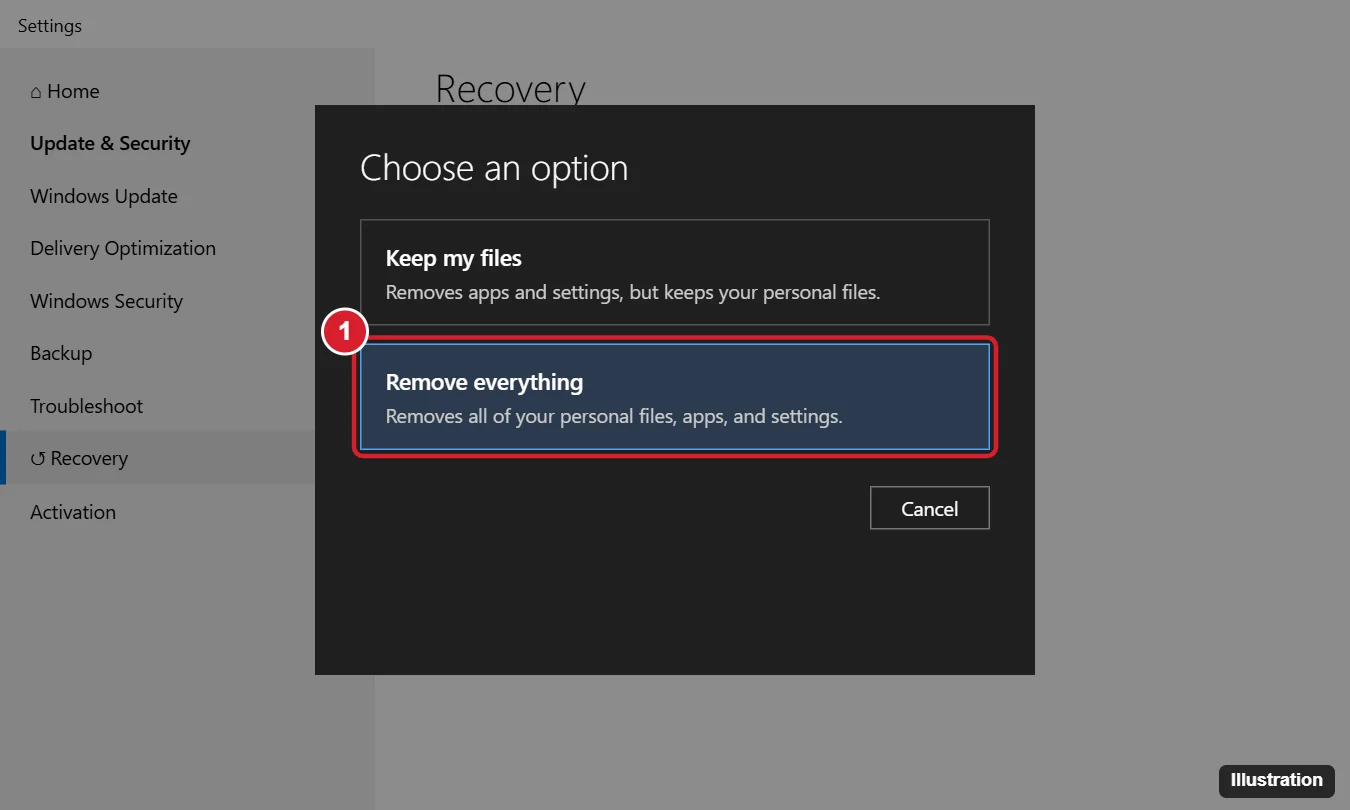
Back up your files, then open Settings > Update & Security > Recovery and click Get started under Reset this PC. Choose Remove everything, pick Cloud download or Local reinstall, and turn on Clean data if you’re giving the laptop away. Click Reset.
Before You Start
- Back up your files to an external drive or cloud storage. Formatting deletes everything.
- Save your BitLocker recovery key if device encryption is on; you may be asked for it. See how to find your BitLocker recovery key.
- Note licenses and passwords for software you’ll need to reinstall. Windows 10 reactivates automatically on the same laptop with a digital license.
- Plug in the charger. A reset can take one to several hours.
- Sign out of accounts tied to the device, and remove it from Find my device if you’re selling it.
Method 1: Reset This PC (Recommended)
- Press Windows + I and go to Update & Security > Recovery.
- Under Reset this PC, click Get started.
- Choose Remove everything. (Keep my files reinstalls Windows but keeps your personal files.)
- Choose Cloud download (downloads a fresh copy of Windows, about 4 GB) or Local reinstall (uses files already on the laptop).
- Click Change settings:
- Clean data: Yes overwrites the drive so files are much harder to recover. Use this when selling or donating. It takes longer.
- Data drives: Yes also erases other internal drives, if present.
- Click Next, review the summary and click Reset.
- After restarting, Windows walks you through setup, or you can turn off the laptop at the setup screen if it’s going to a new owner.
Reset From the Sign-in Screen or When Windows Won’t Start
- On the sign-in screen, hold Shift and click Power > Restart. (If Windows fails to start twice, it opens recovery automatically.)
- Choose Troubleshoot > Reset this PC > Remove everything.
- Follow the same prompts.
Method 2: Clean Install From a USB Drive
This formats the drive completely, including recovery partitions, and removes manufacturer software.
- On another PC, download Microsoft’s Media Creation Tool for Windows 10 from Microsoft’s software download page and create a bootable USB drive (8 GB or larger).
- Plug the USB drive into the laptop and start it from USB (press the boot menu key, often F12, F9, F10 or Esc, at power on).
- Choose your language, click Install now, and click I don’t have a product key if the laptop had Windows 10 before.
- Choose Custom: Install Windows only.
- Select each partition on the main drive and click Delete until only Unallocated Space remains, then select it and click Next.
- Complete setup. Install drivers from the laptop manufacturer’s support site afterward.
Consider Windows 11
Windows 10 reached end of support on October 14, 2025. If the laptop meets Windows 11 requirements, install Windows 11 instead so it keeps getting security updates. Otherwise, the Windows 10 Consumer Extended Security Updates program provides security updates for eligible PCs for a limited time.
Troubleshooting
- “There was a problem resetting your PC”: try Cloud download, run sfc /scannow first, or use the USB method.
- Stuck at a percentage: leave it for a few hours; Clean data can be very slow on large drives.
- Asked for a BitLocker key: sign in to your Microsoft account on another device to find it.
- Windows not activated after install: connect to the internet and run the Activation troubleshooter in Settings.
Frequently Asked Questions
Does resetting remove viruses?
Remove everything removes almost all malware. A clean USB install is the most thorough option.
Is “Clean data” secure enough for selling?
It’s suitable for most people. SSDs are best erased with the manufacturer’s secure erase tool for maximum assurance.
Will I lose the manufacturer’s apps?
Local reinstall may keep preinstalled apps. Cloud download and a USB install give a cleaner system.
Summary
- Back up files and save your BitLocker key.
- Settings > Update & Security > Recovery > Reset this PC.
- Choose Remove everything and Clean data if selling.
- Or clean install from a USB drive.

Kermit Matthews is a freelance writer based in Philadelphia, Pennsylvania with more than a decade of experience writing technology guides. He has a Bachelor’s and Master’s degree in Computer Science and has spent much of his professional career in IT management.
He specializes in writing content about iPhones, Android devices, Microsoft Office, and many other popular applications and devices.