Windows keeps detailed logs of what happens on your PC, including crashes, errors, failed updates, unexpected shutdowns, sign-ins, and service problems. When something goes wrong, the Windows Event Log is usually the first place to look. This guide shows how to open Event Viewer, which logs matter, how to filter out the noise, which event IDs to know, and how to check logs from PowerShell. It also explains why a few red errors are normal.
Quick Answer
Press Windows key + R, type eventvwr.msc, and press Enter. Expand Windows Logs and click System (hardware, drivers, and shutdowns) or Application (app crashes). Click Filter Current Log, check Critical and Error, pick a time range, and click OK. Then click an event to read its details.
Open Event Viewer
- Press Windows + R, type
eventvwr.msc, and press Enter. - Or right-click Start and choose Event Viewer.
- Or search Start for Event Viewer.
Security logs require an administrator account. Other logs are readable by standard users.
Which Log Should You Check?
| Log | What it records | Check it for |
|---|---|---|
| System | Windows components, drivers, hardware, power | Blue screens, unexpected restarts, driver and disk errors |
| Application | Programs and app components | App crashes and freezes |
| Security | Sign-ins, account changes, audit events | Failed sign-ins, who logged in when |
| Setup | Windows installs and updates | Update installation problems |
| Applications and Services Logs | Detailed logs for specific components | Windows Update, Defender, and other deep troubleshooting |
For a quick overview across all logs, open Custom Views > Administrative Events, which shows only warnings, errors, and critical events.
Filter the Log
- Click a log, such as System.
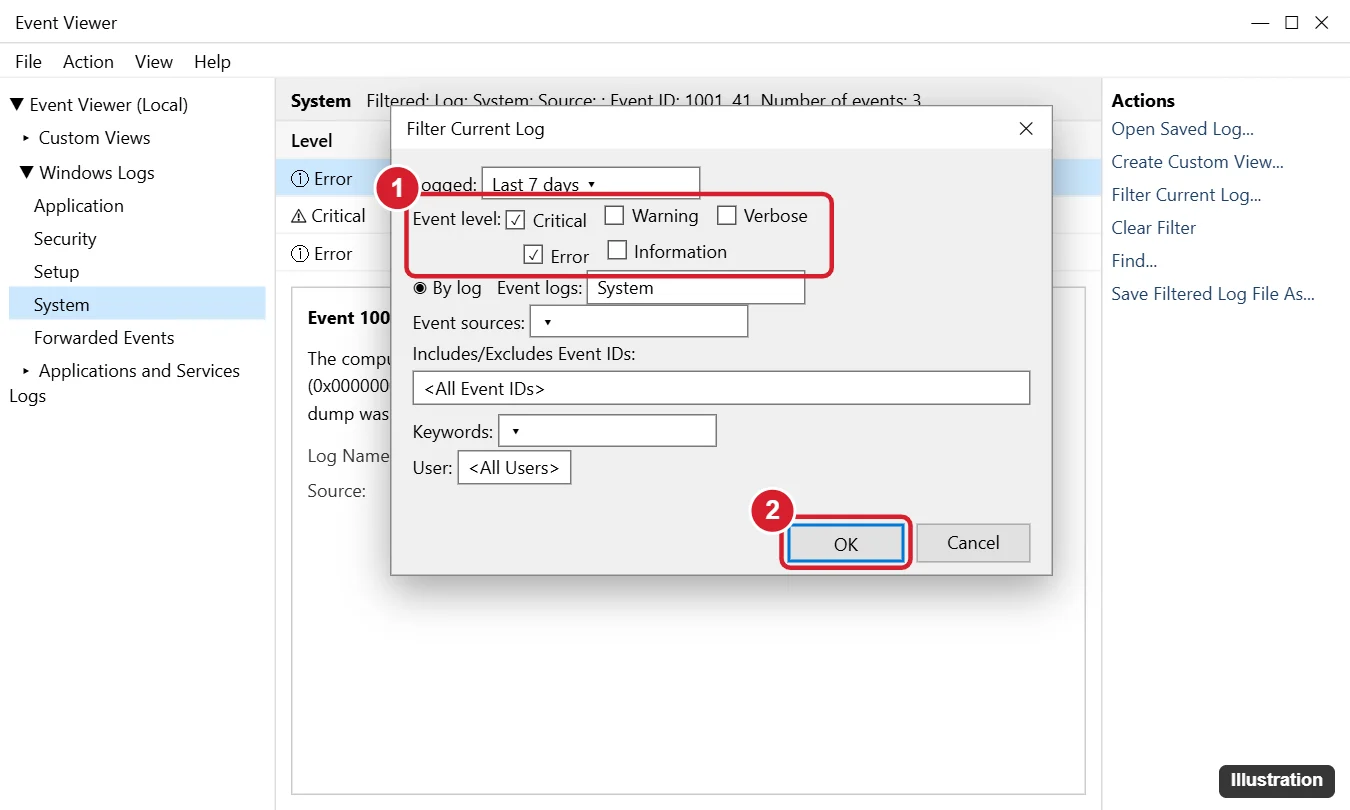
- In the right-hand Actions pane, click Filter Current Log.
- Set Logged (for example, Last 24 hours or Last 7 days).
- Check Critical and Error (and Warning if needed).
- To find specific events, type IDs in the <All Event IDs> box, such as
41, 1001, 6008. - Click OK. Click Clear Filter to see everything again.
To save a filter for reuse, click Create Custom View with the same settings.
Useful Event IDs
| Event ID | Log / Source | Meaning |
|---|---|---|
| 41 | System / Kernel-Power | The PC restarted without shutting down cleanly |
| 1001 | System / BugCheck | A blue screen occurred (includes the stop code) |
| 6008 | System / EventLog | The previous shutdown was unexpected |
| 6005 / 6006 | System / EventLog | Event log service started / stopped (boot and shutdown times) |
| 1074 | System / User32 | A user or program started a shutdown or restart (shows which) |
| 7031 / 7034 | System / Service Control Manager | A service stopped unexpectedly |
| 1000 | Application / Application Error | A program crashed (shows the app and faulting module) |
| 4624 / 4625 | Security | Successful / failed sign-in |
Read an Event
- The General tab describes what happened in plain text.
- The Details tab shows raw data, such as the BugcheckCode in a Kernel-Power 41 event.
- Note the Source and Event ID, then search them together for known fixes.
Check Event Logs with PowerShell
| Task | Command |
|---|---|
| Latest 20 System errors | Get-WinEvent -FilterHashtable @{LogName='System'; Level=1,2} -MaxEvents 20 |
| Unexpected shutdowns | Get-WinEvent -FilterHashtable @{LogName='System'; Id=41,6008} -MaxEvents 10 |
| App crashes in the last day | Get-WinEvent -FilterHashtable @{LogName='Application'; Id=1000; StartTime=(Get-Date).AddDays(-1)} |
| Export a log | wevtutil epl System C:\Temp\System.evtx |
Save, Share, or Clear Logs
- Save: right-click a log and choose Save All Events As (.evtx) to send to a technician.
- Clear: right-click a log and choose Clear Log. Save it first if you might need it, because clearing can’t be undone.
Don’t Panic About Every Error
Every Windows PC logs errors and warnings that are harmless, such as a service timing out at startup or a DCOM warning. Focus on errors that line up with the time your problem happened, or ones that repeat. Beware of phone calls or pop-ups that point to Event Viewer errors as “proof” of a virus. That’s a common tech-support scam.
Reliability Monitor: A Friendlier View
Run perfmon /rel to see a day-by-day timeline of crashes, failures, and updates. Click any red X for details. It’s the easiest way to connect a problem to an update or new driver. For crash details, see our guide to checking blue screen logs.
Investigating a crash? Read why Windows 10 crashes and how to diagnose it.
Frequently Asked Questions
Where are Windows event log files stored?
In C:\Windows\System32\winevt\Logs as .evtx files. Open them through Event Viewer rather than editing them directly.
How far back do event logs go?
Each log has a maximum size and overwrites old events when full. Right-click a log and choose Properties to see or change its size.
Is this the same in Windows 11?
Yes. Event Viewer works the same in Windows 10 and Windows 11.
Summary
- Open Event Viewer with
eventvwr.msc. - Check Windows Logs > System and Application, or Administrative Events.
- Filter to Critical and Error for the time of the problem.
- Look up the Source and Event ID, using the table above as a starting point.
- Use
Get-WinEventor Reliability Monitor for faster checks.

Kermit Matthews is a freelance writer based in Philadelphia, Pennsylvania with more than a decade of experience writing technology guides. He has a Bachelor’s and Master’s degree in Computer Science and has spent much of his professional career in IT management.
He specializes in writing content about iPhones, Android devices, Microsoft Office, and many other popular applications and devices.