To change the default notification time in Google Calendar, open Calendar on a computer, select the gear icon > Settings, choose your calendar under Settings for my calendars, and open Event notifications. Change the default (for example, from 30 minutes to 10 minutes), add or remove alerts, and set a separate default for All-day event notifications. The change applies to new events on that calendar.
Defaults are set per calendar, so repeat the steps for each calendar you use. Existing events keep the reminders they already have.
Quick Answer
Settings > Settings for my calendars > [your calendar] > Event notifications, then change the time.
Change Default Notifications on a Computer
- Open Google Calendar in a browser.
- Select the gear icon at the top right, then Settings.
- On the left, under Settings for my calendars, select your calendar.
- Select Event notifications.
- Change the number and unit (minutes, hours, days, or weeks). Choose Notification for a pop-up or Email for an email.
- Select Add notification for another reminder, or the X to remove one.
- Scroll to All-day event notifications and set those too.
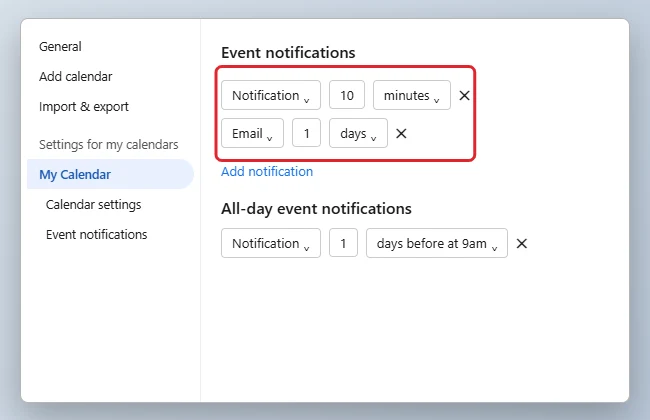
Google’s Calendar notifications help page describes the same settings.
Change Default Notifications on Android and iPhone
- Open the Google Calendar app and tap the menu (three lines).
- Tap Settings, then the calendar under your account.
- Tap Default notifications (or Events) and choose a time. Set All-day events as well.
Change a Reminder for One Event
- Open the event and select Edit (the pencil).
- Change the notification time or add another one.
- Select Save.
Notification Settings at a Glance
| Setting | Where | Applies to |
|---|---|---|
| Event notifications | Settings > [calendar] | New timed events on that calendar |
| All-day event notifications | Settings > [calendar] | New all-day events |
| Notification type (desktop, alerts, off) | Settings > General > Notification settings | How alerts appear on this computer |
| Event reminder | Inside the event | That event only |
Related: How to Put Out of Office in Google Calendar.
Troubleshooting
- No pop-ups appear: In Settings > General > Notification settings, choose Desktop notifications and allow notifications for the Calendar site in your browser.
- An invited event has the wrong reminder: Open the event and change its notification. The organizer’s reminder settings don’t carry over to your calendar.
- Phone reminders don’t sound: Check that notifications for Google Calendar are allowed in your phone’s settings.
Using Calendar on a PC every day? See how to add Google Calendar to your Windows 11 desktop.
Related: use Google Calendar for school.
Related: print Google Calendar with details.
Frequently Asked Questions
Can I set no default notification?
Yes. Remove all notifications in Event notifications. New events will have no reminder unless you add one.
Will this change existing events?
No. Only new events get the new default.
Summary
- Open Settings and choose your calendar.
- Change Event notifications and All-day event notifications.
- Repeat for each calendar.

Kermit Matthews is a freelance writer based in Philadelphia, Pennsylvania with more than a decade of experience writing technology guides. He has a Bachelor’s and Master’s degree in Computer Science and has spent much of his professional career in IT management.
He specializes in writing content about iPhones, Android devices, Microsoft Office, and many other popular applications and devices.