Whether you can change your keyboard’s color in Windows 10 depends on the keyboard itself. Keyboards with RGB backlighting (common on gaming keyboards and laptops) can show any color through the maker’s software. Keyboards with single-color backlights only let you change brightness. And Windows 10 has no built-in lighting control, unlike Windows 11’s Dynamic Lighting. This guide explains how to tell what your keyboard supports and how to change its color or brightness.
Quick Answer
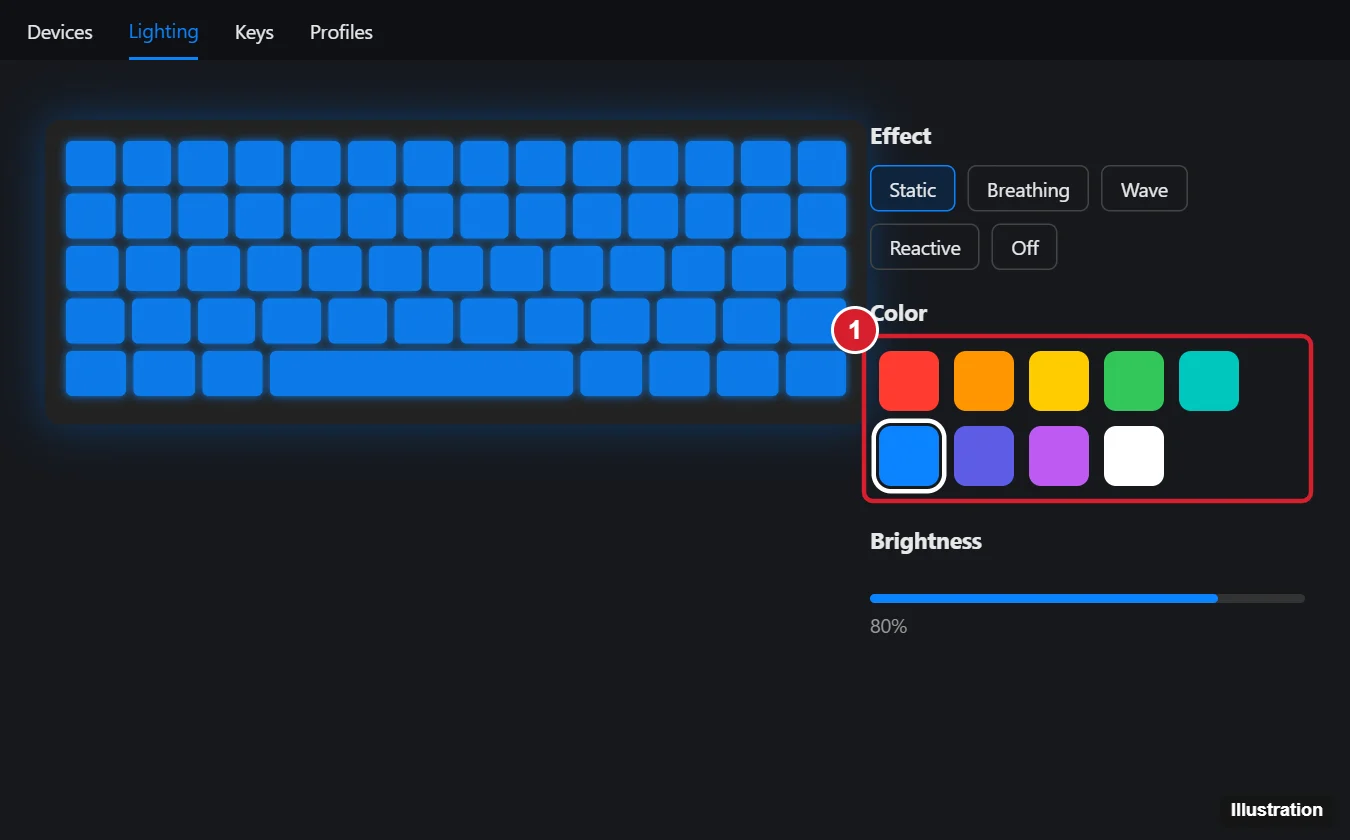
Install your keyboard or laptop maker’s lighting software, open its Lighting section, choose an effect such as Static, and pick a color. Common apps include Logitech G HUB, Razer Synapse, Corsair iCUE, SteelSeries GG, ASUS Armoury Crate, HP OMEN Gaming Hub, Lenovo Vantage/Legion Space, MSI Center and Alienware Command Center. Many keyboards also cycle colors with an Fn key combination.
Step 1: Check What Your Keyboard Supports
- RGB keyboards can display many colors, often per key. Look for “RGB” in the product name or specs.
- Single-color backlit keyboards (white, red or blue) can only change brightness.
- Non-backlit keyboards have no lights to change.
Look up your keyboard or laptop model on the manufacturer’s website to confirm. For laptops, find the model in Settings > System > About or on the sticker underneath.
Step 2: Try the Keyboard Shortcuts
Many keyboards control lighting without software:
- Look for keys with a light or sun icon, often F4, F5, F10, the Spacebar or arrow keys, and press them with Fn.
- Some keyboards cycle through colors or effects with Fn + Home, Fn + Ins or a dedicated lighting button.
Check your manual for the exact combinations.
Step 3: Use the Manufacturer’s Software
- Download the lighting or control app for your keyboard or laptop from the manufacturer’s support site or the Microsoft Store.
- Open it and select your keyboard.
- Go to Lighting (or RGB, Aura, Chroma, depending on the brand).
- Choose an effect: Static for one color, or Breathing, Wave, Reactive and others.
- Pick a color from the palette or enter a hex/RGB value, and adjust brightness.
- Save the profile to the keyboard’s on-board memory if available, so it keeps the color on other PCs.
One App for Several Brands
If you have devices from different brands, free apps like OpenRGB or SignalRGB can control many RGB keyboards, mice and PC components in one place. Close the maker’s software first to avoid conflicts.
Windows 11 Dynamic Lighting
Windows 11 includes Dynamic Lighting in Settings > Personalization > Dynamic Lighting, which can set colors on compatible keyboards without extra software and even match your Windows accent color. Windows 10 doesn’t have this feature, so use the maker’s app instead.
Change the On-Screen Keyboard’s Look
If you mean the touch keyboard on a tablet or touchscreen, Windows 10 follows your light or dark app mode (Settings > Personalization > Colors). Windows 11 adds touch keyboard themes in Settings > Personalization > Text input.
Troubleshooting
- Lights won’t change: update the software and keyboard firmware, and make sure only one lighting app is running.
- Backlight turns off after a few seconds: adjust the backlight timeout in the laptop’s software or BIOS.
- Software doesn’t detect the keyboard: try another USB port (avoid hubs) and reinstall the app.
Frequently Asked Questions
Can I change the color of any keyboard?
Only keyboards with RGB lighting. Single-color and non-backlit keyboards can’t change color.
Does changing the color affect battery life?
Yes, on laptops and wireless keyboards; brighter lighting uses more power.
Can the keyboard change color automatically?
Many apps offer effects that respond to games, music or typing.
Summary
- Confirm your keyboard has RGB lighting.
- Try the Fn lighting shortcuts.
- Use the manufacturer’s software to choose an effect and color.
- Use OpenRGB or Windows 11 Dynamic Lighting as alternatives.

Matthew Burleigh is the head writer at solveyourtech.com, where he covers topics like the iPhone, Microsoft Office, and Google apps. He has a Bachelor’s and Master’s degree in Computer Science and has over 15 years of IT experience.
He has been writing online since 2008 and has published thousands of articles that have been read millions of times.