To adjust brightness in Windows 10, open Settings > System > Display and drag the Change brightness for the built-in display slider. For a faster way, click the Action Center icon in the bottom-right corner of the taskbar and use the brightness slider or tile, or press your laptop’s brightness keys (often Fn plus a sun icon). External monitors are adjusted with the buttons on the monitor itself.
Below are all the ways to change brightness, how to use Night light and automatic brightness, and fixes when the slider is missing.
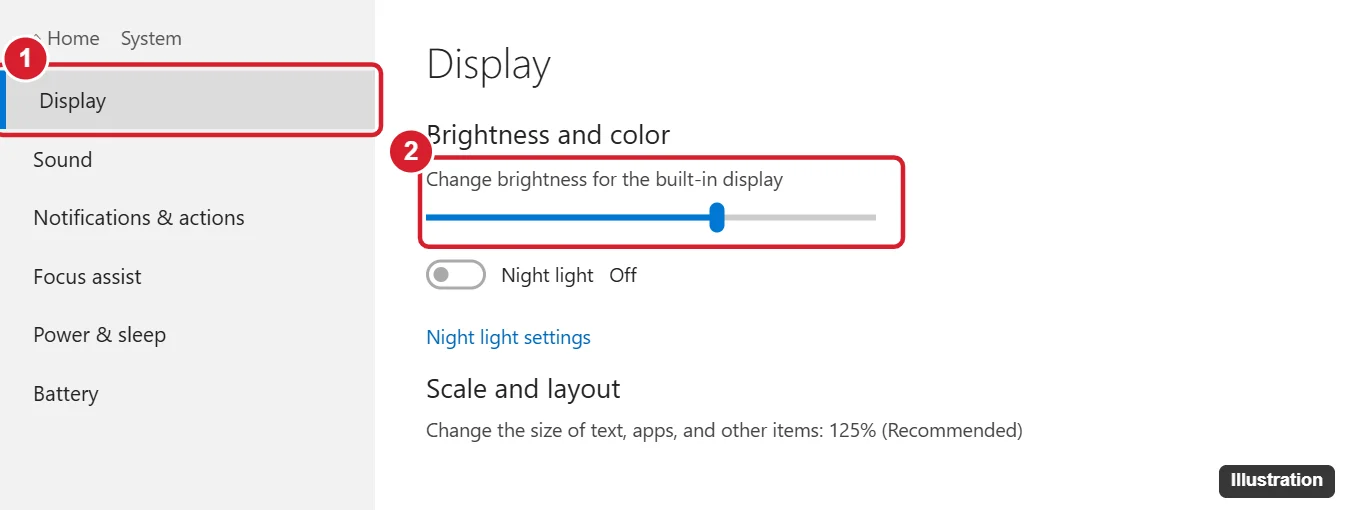
Method 1: Settings
- Press Windows + I and click System.
- Click Display.
- Drag the Change brightness for the built-in display slider.
Method 2: Action Center
Click the speech-bubble Action Center icon at the far right of the taskbar, or press Windows + A. Drag the brightness slider at the bottom. In older versions of Windows 10, click the brightness tile to cycle through levels. Click Expand if you don’t see it.
Method 3: Keyboard keys
Most laptops have brightness keys with a sun icon, usually on the function row. Press them alone or with Fn, depending on your laptop’s Fn lock setting.
Method 4: Windows Mobility Center
Press Windows + X and choose Mobility Center. Use the Display brightness slider. This is available on laptops and tablets.
Brightness for external monitors
Windows can’t usually change a desktop monitor’s brightness. Use the monitor’s on-screen menu buttons. Some monitors support brightness control from Windows through the maker’s software or DDC/CI tools.
Automatic brightness and Night light
- Automatic brightness: On devices with a light sensor, check Change brightness automatically when lighting changes in Settings > System > Display.
- Battery saver: Windows can lower brightness when battery saver is on. Adjust this in Settings > System > Battery.
- Night light: Turn it on in Display settings to use warmer colors in the evening. It doesn’t change brightness but is easier on the eyes.
Why is the brightness slider missing?
- You’re using a desktop monitor. Use the monitor’s buttons instead.
- The display driver is missing or generic. Open Device Manager > Display adapters, right-click your adapter, and choose Update driver, or install the latest driver from your PC maker.
- The monitor driver is disabled. In Device Manager, expand Monitors, right-click Generic PnP Monitor, and choose Enable device if it’s disabled.
Frequently asked questions
What’s the brightness shortcut in Windows 10?
There’s no universal keyboard shortcut. Use your laptop’s brightness keys or Windows + A to open Action Center.
Why does my screen keep dimming?
Adaptive brightness, battery saver, or power plan settings may be lowering it. Turn off automatic brightness and check your power plan.
Does lower brightness save battery?
Yes. The display is one of the biggest power users on a laptop.

Kermit Matthews is a freelance writer based in Philadelphia, Pennsylvania with more than a decade of experience writing technology guides. He has a Bachelor’s and Master’s degree in Computer Science and has spent much of his professional career in IT management.
He specializes in writing content about iPhones, Android devices, Microsoft Office, and many other popular applications and devices.