During driving navigation, Google Maps shows your position as a blue arrow by default, but you can swap it for a car, a pickup truck, an SUV or another vehicle, and choose its color. It’s a small touch that makes your position easier to spot on the map. The option only appears while you’re navigating, which is why many people can’t find it in Settings. This guide shows how to change the car icon on iPhone and Android, how to switch back, and what to try if you don’t see the option.
Quick Answer
Open the Google Maps app, start driving navigation to any destination, and tap the blue arrow (your current location icon). Swipe left or right to pick a vehicle, tap a color, and tap Done.
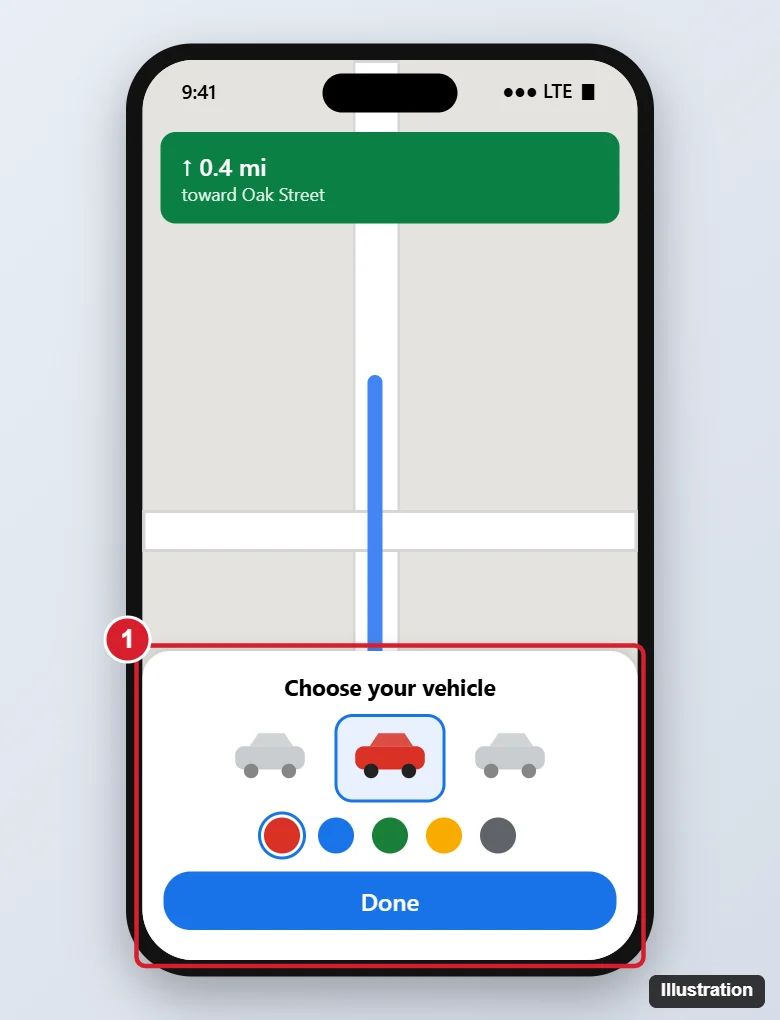
How to Change the Car Icon in Google Maps
- Open the Google Maps app on your iPhone or Android phone.
- Search for any destination and tap Directions.
- Make sure the car (driving) mode is selected, then tap Start.
- Tap the blue navigation arrow that shows your position.
- Swipe through the vehicle options and pick one you like.
- Tap a color (on versions that offer color choices).
- Tap Done, then continue navigating or tap Exit to end the trip.
Your choice is saved and appears every time you use driving navigation on that phone. You don’t need to actually drive to the destination; you can set it up while parked.
Switch Back to the Blue Arrow
Start navigation, tap your vehicle icon, swipe to the arrow option, and tap Done.
Can’t Change the Icon? Try These Fixes
- Make sure you’re in driving navigation. The option doesn’t appear in walking, cycling or transit directions, or when you’re just viewing the map.
- Tap the icon itself. Tap directly on the arrow, not the map around it. If the map is zoomed out, tap Re-center first.
- Update Google Maps from the App Store or Google Play. Newer vehicle styles and colors roll out gradually.
- Car screens: in Android Auto and CarPlay, the icon may follow what you set on the phone or may not be customizable at all, depending on the version.
- Google Maps Go and the web version don’t support custom vehicle icons.
Other Navigation Settings Worth Changing
- Voice volume and guidance: during navigation, tap the speaker icon, or go to Settings > Navigation settings.
- Avoid tolls or highways: tap the three dots on the directions screen > Options. See how to avoid highways on Google Maps.
- Map color scheme: Settings > Navigation settings > Color scheme for day, night or automatic.
- Speedometer and speed limits: turn them on in Navigation settings, where available.
Need to see boundaries? Here’s how to show county lines on Google Maps.
Directions too quiet? See how to change the navigation volume.
Walking instead? Here is how to switch Google Maps to walking.
Want a cleaner map too? Here’s how to delete a dropped pin on Google Maps, including saved and labeled pins.
Frequently Asked Questions
Does changing the icon affect navigation accuracy?
No. It only changes how your location looks on the map.
Can I use my own car picture?
No. You can only pick from Google’s built-in vehicles and colors.
Will my car icon sync to my other devices?
The icon is saved in the app on each phone, so you may need to set it again on a new device.
Can I change the icon in Waze or Apple Maps?
Waze lets you pick a car icon and mood in its settings. Apple Maps doesn’t offer custom vehicle icons.
Summary
- Start driving navigation in Google Maps.
- Tap the blue arrow.
- Swipe to a vehicle and pick a color.
- Tap Done.

Kermit Matthews is a freelance writer based in Philadelphia, Pennsylvania with more than a decade of experience writing technology guides. He has a Bachelor’s and Master’s degree in Computer Science and has spent much of his professional career in IT management.
He specializes in writing content about iPhones, Android devices, Microsoft Office, and many other popular applications and devices.