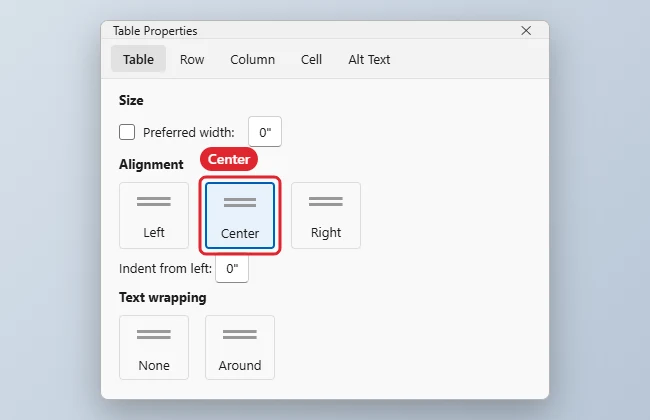
To align a table in Word, click anywhere inside it, go to the Layout tab under Table Tools (or right-click the table), open Properties, and on the Table tab choose Left, Center, or Right under Alignment. To align the text inside the cells, select the cells and use the Alignment buttons on the table’s Layout tab.
Table alignment moves the whole table on the page. Cell alignment moves the text within each cell. Most layouts need both.
Quick Answer
Click in the table > right-click > Table Properties > Table tab > Alignment Center > OK.
Center or Align the Whole Table
- Click anywhere in the table.
- Right-click and choose Table Properties, or go to the table Layout tab and click Properties.
- On the Table tab, choose Left, Center, or Right.
- For Left alignment, set Indent from left if you want the table inset.
- Click OK.
Shortcut: Click the table’s move handle (the four-way arrow at its top-left corner) to select the whole table, then press Ctrl + E to center it, Ctrl + L for left, or Ctrl + R for right.
Align Text Inside the Cells
- Select the cells, or the whole table.
- Go to the table Layout tab.
- In the Alignment group, click one of the nine buttons, such as Align Center (centered horizontally and vertically) or Align Top Left.
Alignment Options at a Glance
| Goal | Where |
|---|---|
| Center the table on the page | Table Properties > Table > Center |
| Center text in cells | Layout > Alignment > Align Center |
| Wrap text around the table | Table Properties > Text wrapping > Around |
| Make columns even | Layout > Distribute Columns |
| Fit the table to the page width | Layout > AutoFit > AutoFit Window |
Line Up Several Tables
Give each table the same alignment and the same Preferred width in Table Properties, and they’ll line up down the page. You can also check positions against the ruler.
In PowerPoint, see how to center a text box on a slide.
For boxed text without a table, use paragraph borders in Word.
If the table is too wide, learn how to shrink a table in Word.
To tidy a table, also adjust row heights.
Troubleshooting
- Center does nothing: The table is already as wide as the margins. Reduce its Preferred width, or use AutoFit Contents.
- The table jumps around: Text wrapping is set to Around. Change it to None in Table Properties.
- Extra space above or below the table: See how to remove extra space in Word.
- Numbers don’t line up: Right-align numeric columns, or use a decimal tab inside the cells.
Related: Edit a table in Word.
Related: Align paragraphs in Word.
Frequently Asked Questions
How do I center a table vertically on the page?
Go to Layout > Page Setup dialog > Layout tab and set Vertical alignment to Center. This centers everything on the page, not just the table.
Does this work in Word for Mac and the web?
Yes. On a Mac, use Table Properties from the right-click menu. In Word for the web, select the table and use the Table Layout tab’s alignment options.
Can I align a table in a text box?
Yes. The table aligns within the text box’s width.
Summary
- Click in the table.
- Open Table Properties.
- Choose Left, Center, or Right on the Table tab.
- Use Layout > Alignment for text inside cells.

Kermit Matthews is a freelance writer based in Philadelphia, Pennsylvania with more than a decade of experience writing technology guides. He has a Bachelor’s and Master’s degree in Computer Science and has spent much of his professional career in IT management.
He specializes in writing content about iPhones, Android devices, Microsoft Office, and many other popular applications and devices.