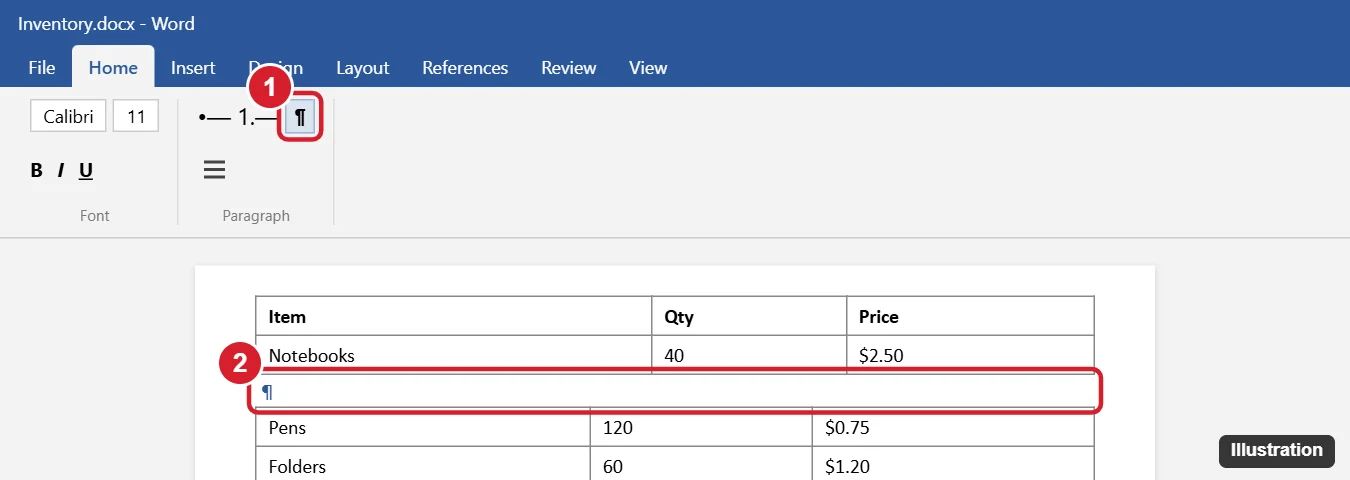
To combine two tables in Word, delete everything between them. Click Show/Hide ¶ on the Home tab (or press Ctrl + Shift + 8) to see the paragraph marks, click just below the first table on the ¶ symbol between the tables, and press Delete until the second table joins the first. If the tables have the same number of columns, they merge into one table.
Below you’ll learn how to handle tables with different column widths, move a table with drag and drop, and fix tables that won’t merge.
How to merge two tables
- On the Home tab, click Show/Hide ¶ so you can see paragraph marks.
- Click on the empty paragraph (¶) between the two tables.
- Press Delete. Repeat if there’s more than one empty paragraph or any text between the tables.
- Click Show/Hide ¶ again to hide the marks.
If the tables had different column widths, the merged table may look uneven. Select the whole table and use Layout > Distribute Columns, or drag the column borders to line them up.
If the tables have different numbers of columns
Word will still join them, but rows in the second half keep their own number of columns. To make it one clean table:
- Add or delete columns so both tables match, using Layout > Insert Right or Delete > Delete Columns.
- Then delete the paragraph between them.
How to move one table next to another
- Hover over the second table until the move handle (a four-way arrow in a box) appears at its top-left corner.
- Drag the handle so the table sits directly below the first table. Word joins them when there’s no paragraph in between.
You can also cut the rows (Ctrl + X), click in the first cell below the first table’s last row, and paste with Ctrl + V. Choose Merge Table from the paste options if it appears.
Why won’t my tables merge?
- There’s still something between them, such as a section break, a page break, or hidden text. Turn on Show/Hide ¶ and delete it.
- One table has text wrapping. Right-click it, choose Table Properties, and set Text wrapping to None.
- One table is inside a text box or another table. Move it out first.
How to split a table
Click in the row that should start the new table, then choose Layout > Split Table, or press Ctrl + Shift + Enter.
Related: Edit a table in Word.
Frequently asked questions
Does merging tables keep the formatting?
Each row keeps its formatting. Apply a table style from Table Design to make the whole table consistent.
Can I merge tables in Word for the web?
Yes. Delete the paragraph between the tables the same way. Word for the web may not show paragraph marks, so click just below the first table and press Delete.
Can I combine tables on different pages?
Yes, as long as only paragraph marks or a page break separate them. Delete those, and the table continues across pages.

Kermit Matthews is a freelance writer based in Philadelphia, Pennsylvania with more than a decade of experience writing technology guides. He has a Bachelor’s and Master’s degree in Computer Science and has spent much of his professional career in IT management.
He specializes in writing content about iPhones, Android devices, Microsoft Office, and many other popular applications and devices.