Windows 11 does not offer the old built-in Guest account; it has been disabled since Windows 10 version 1607. The supported alternative is a local Standard account for visitors, which keeps them out of your files and settings.
Quick Answer
Open Settings, Accounts, Other users, Add account, choose I don’t have this person’s sign-in information, then Add a user without a Microsoft account. Name it Visitor, add a password and security questions, and leave it as a Standard user.
How to Add a Guest Account on Windows 11
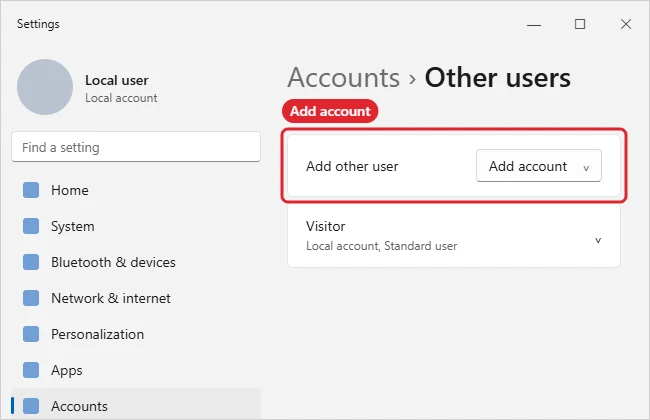
- Open Settings and select Accounts, then Other users.
- Next to Add other user, click Add account.
- Choose I don’t have this person’s sign-in information.
- Choose Add a user without a Microsoft account.
- Enter a name such as Visitor (not Guest, which is reserved), a password and security questions, then click Next.
- Leave the account type as Standard user so the visitor cannot change settings or install apps.
Guest Access Options
| Option | Notes |
|---|---|
| Local Standard account | Supported replacement for Guest |
| Built-in Guest account | Disabled since Windows 10 1607 |
| Family account | For children, with Family Safety limits |
| Kiosk (assigned access) | One app only, for public PCs |
| Remove when done | Settings, Accounts, Other users, Remove |
Troubleshooting
- Name Guest rejected: Windows reserves it. Use Visitor or similar.
- Visitor sees your files: make sure your own folders are in your user profile, not in Public.
- Too many accounts at sign-in: remove the visitor account afterward.
- More: how to create a local account and how to limit user access.
Frequently Asked Questions
Can a guest install apps?
Not without an administrator password.
Can a guest see my files?
Not in your personal folders. Shared Public folders are visible.
Does the visitor need a password?
It is optional but recommended so others cannot use the account.
Is this the same on Windows 10?
Yes, the steps are similar.
Summary
- Settings, Accounts, Other users.
- Add account.
- No sign-in info, then without a Microsoft account.
- Name it Visitor.
- Keep it a Standard user.

Kermit Matthews is a freelance writer based in Philadelphia, Pennsylvania with more than a decade of experience writing technology guides. He has a Bachelor’s and Master’s degree in Computer Science and has spent much of his professional career in IT management.
He specializes in writing content about iPhones, Android devices, Microsoft Office, and many other popular applications and devices.