To change your password on Windows 11, press Ctrl + Alt + Delete and choose Change a password, or go to Settings > Accounts > Sign-in options > Password > Change. Both work for local accounts. If you sign in with a Microsoft account, change the password online at your Microsoft account’s security page; the new password then works on the PC after it’s online.
Quick Answer
Local account: Ctrl + Alt + Delete > Change a password. Microsoft account: change it at account.microsoft.com > Security.
Check Which Account Type You Have
Open Settings > Accounts > Your info. If it shows an email address and “Microsoft account”, follow the Microsoft account steps. If it says “Local account”, use the local steps.
Change a Local Account Password
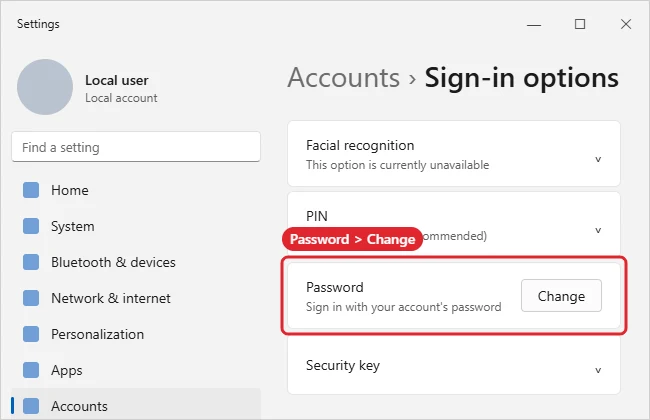
- Open Settings > Accounts > Sign-in options.
- Expand Password and click Change.
- Enter your current password, then the new password twice and a hint.
- Click Next, then Finish.
Change a Microsoft Account Password
- Go to account.microsoft.com and sign in.
- Open Security and choose Change password (or Password security).
- Verify your identity if asked, then enter the new password.
- Sign in to the PC with the new password once it’s connected to the internet.
Password vs. PIN
| Sign-in method | Where to change it |
|---|---|
| Local password | Settings > Accounts > Sign-in options > Password |
| Microsoft account password | Online, at your Microsoft account security page |
| Windows Hello PIN | Settings > Accounts > Sign-in options > PIN > Change PIN |
| Another user’s local password (admin) | Computer Management > Local Users and Groups, or Settings > Accounts > Other users |
If you need the built-in Administrator account, enable it only while you need it.
Lock your PC quickly with Windows + L.
Forgot your password instead? Read how to reset a Windows 11 password without logging in.
Troubleshooting
- Forgot the current password: See getting back in when you forget your password for legitimate recovery options.
- No Password option: Your account may be passwordless. Check “For improved security, only allow Windows Hello sign-in” under Sign-in options.
- New password not accepted after changing online: Connect to the internet and sign in once with the old method (PIN) so Windows syncs.
- Need admin rights for another account? See administrator privileges on Windows 11.
Related: Sign in with a password instead of a PIN.
Frequently Asked Questions
Does changing my password change my PIN?
No. The PIN is separate and stays the same.
How strong should my password be?
Use a long passphrase, and don’t reuse it on other sites.
Summary
- Check whether you use a local or Microsoft account.
- Local: Ctrl + Alt + Delete > Change a password, or Sign-in options.
- Microsoft account: change it online.
- Change your PIN separately if you want.

Kermit Matthews is a freelance writer based in Philadelphia, Pennsylvania with more than a decade of experience writing technology guides. He has a Bachelor’s and Master’s degree in Computer Science and has spent much of his professional career in IT management.
He specializes in writing content about iPhones, Android devices, Microsoft Office, and many other popular applications and devices.