To update your business hours on Google, sign in to the Google Account that manages your Business Profile, search Google for your business name (or “my business”), and click Edit profile. Open the Hours tab, set the days and times you’re open, and click Save. In the Google Maps app, tap your profile picture, choose Your Business Profile, then tap Edit profile > Hours. Changes usually appear within a few minutes, but some are reviewed first.
Below you’ll find steps for desktop and mobile, how to add holiday hours, and what to do if your changes don’t show up.
Before you start
- You need to be an owner or manager of the Business Profile. If you haven’t claimed your business, search for it on Google Maps and click Own this business? or Claim this business.
- Use the same Google Account you used to verify the business.
How to update business hours on a computer
- Go to Google Search and sign in.
- Search for your exact business name, or search my business. Your Business Profile management panel appears at the top.
- Click Edit profile.
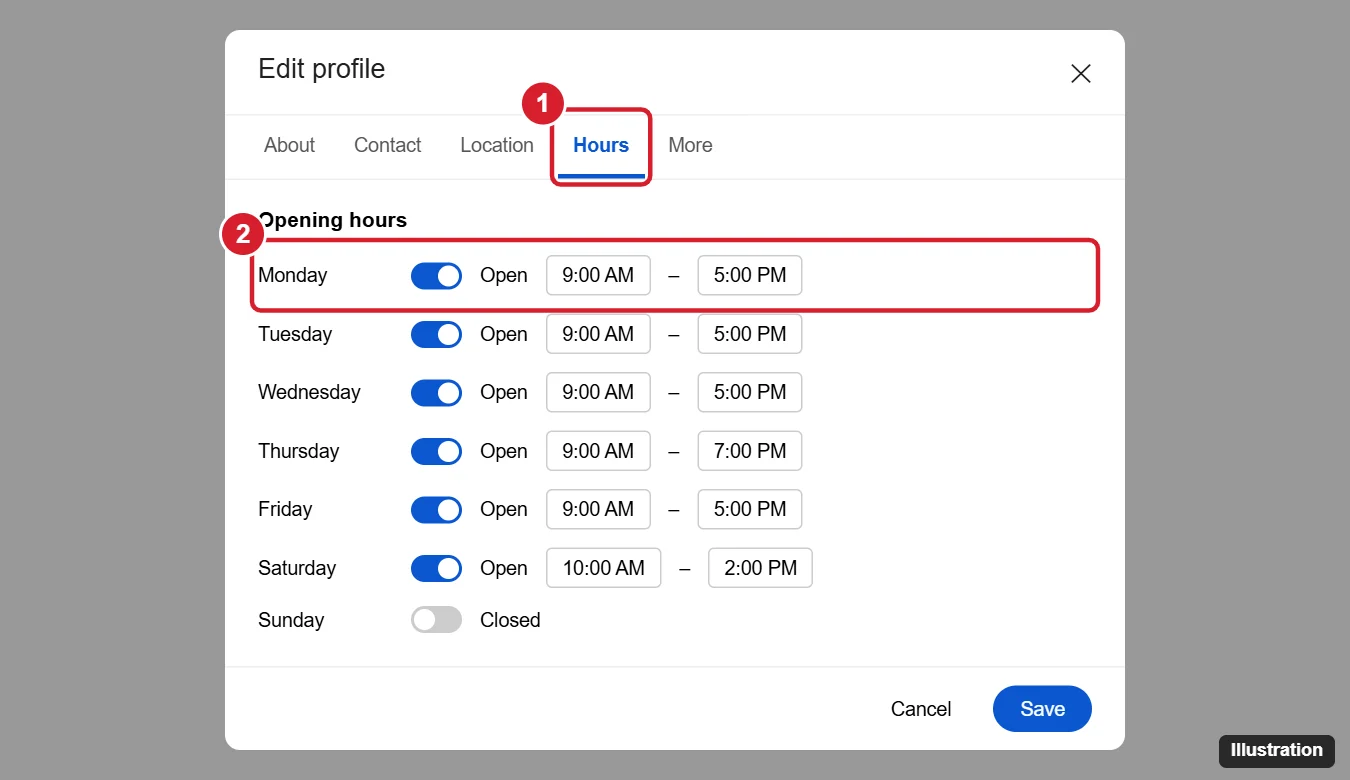
- Click the Hours tab.
- Turn each day on or off, and set the opening and closing times. Click Add hours if you close for part of the day, like a lunch break. Choose Open 24 hours if that applies.
- Click Save.
How to update business hours on a phone
- Open the Google Maps app and make sure you’re signed in to the right account.
- Tap your profile picture, then tap Your Business Profile. (In some versions, tap the Business tab at the bottom.)
- Tap Edit profile, then Hours.
- Update the days and times, and tap Save.
You can also search for your business name in the Google app and tap Edit profile.
How to add holiday or special hours
Special hours override your regular hours for specific dates, so customers don’t show up to a locked door on a holiday.
- Open Edit profile and go to the Hours tab.
- Under Special hours, click Add or Add a date. Google may also suggest upcoming holidays for you to confirm.
- Choose the date, then set the hours or mark it Closed.
- Click Save.
Other hour settings
- More hours: Add separate hours for things like delivery, drive-through, takeout, happy hour, or senior hours. This option depends on your business category.
- Temporarily closed: In Edit profile > Hours, change the business status (it may be labeled Open with main hours) to Temporarily closed. This keeps your profile but tells customers you’re not open.
- Permanently closed: Only use this if the business has shut down. It can hurt your visibility if marked by mistake.
Why aren’t my new hours showing?
- They’re under review. Google checks some edits before publishing them. This can take from a few minutes to several days.
- Your profile isn’t verified. Unverified profiles can’t reliably publish changes. Complete verification first.
- A user suggested different hours. Google may show suggested edits. Review them in your profile and reject incorrect ones.
- Hours conflict with your website. Google compares your profile to other sources. Update your website and other listings to match.
- Too many edits at once. Many quick changes can trigger extra review. Make the change once and wait.
Frequently asked questions
Is it free to update business hours on Google?
Yes. Google Business Profile is free.
Can a customer change my business hours?
Anyone can suggest an edit, but as the verified owner, you’ll be notified and can review suggestions. Keeping your hours accurate reduces unwanted changes.
Do my hours update on Google Maps too?
Yes. Your Business Profile appears in both Google Search and Google Maps, so one update covers both.

Kermit Matthews is a freelance writer based in Philadelphia, Pennsylvania with more than a decade of experience writing technology guides. He has a Bachelor’s and Master’s degree in Computer Science and has spent much of his professional career in IT management.
He specializes in writing content about iPhones, Android devices, Microsoft Office, and many other popular applications and devices.