The quickest way to type the section symbol (§) in Word on Windows is to type 00A7 and then press Alt + X. Word turns the code into §. If your keyboard has a number pad, you can also hold Alt and type 0167 on the number pad. On a Mac, press Option + 6. Or use Insert > Symbol > More Symbols > Special Characters > Section in any version.
Here are all the methods, how to create your own shortcut, and how to type § outside Word.
Quick reference
| Method | How | Works in |
|---|---|---|
| Unicode + Alt X | Type 00A7, press Alt + X | Word, Outlook, WordPad (Windows) |
| Alt code | Hold Alt, type 0167 on the number pad | Most Windows apps |
| Mac shortcut | Option + 6 | All Mac apps |
| Symbol dialog | Insert > Symbol > More Symbols | Word (Windows and Mac) |
| Emoji and symbol panel | Windows + . > Symbols | Any Windows 10/11 app |
| AutoCorrect | Type your own code, like (s) | Word |
Method 1: Unicode and Alt + X
- Click where you want the symbol.
- Type 00A7.
- Press Alt + X.
If the character before the code is a number or letter A–F, Word may combine them. Add a space first, then delete it afterward.
Method 2: Alt code on the number pad
- Make sure Num Lock is on.
- Hold Alt and type 0167 on the number pad (not the number row).
- Release Alt.
On laptops without a number pad, use Method 1 or Method 3.
Method 3: Insert Symbol
- Click Insert > Symbol > More Symbols.
- Click the Special Characters tab.
- Select Section and click Insert, then Close.
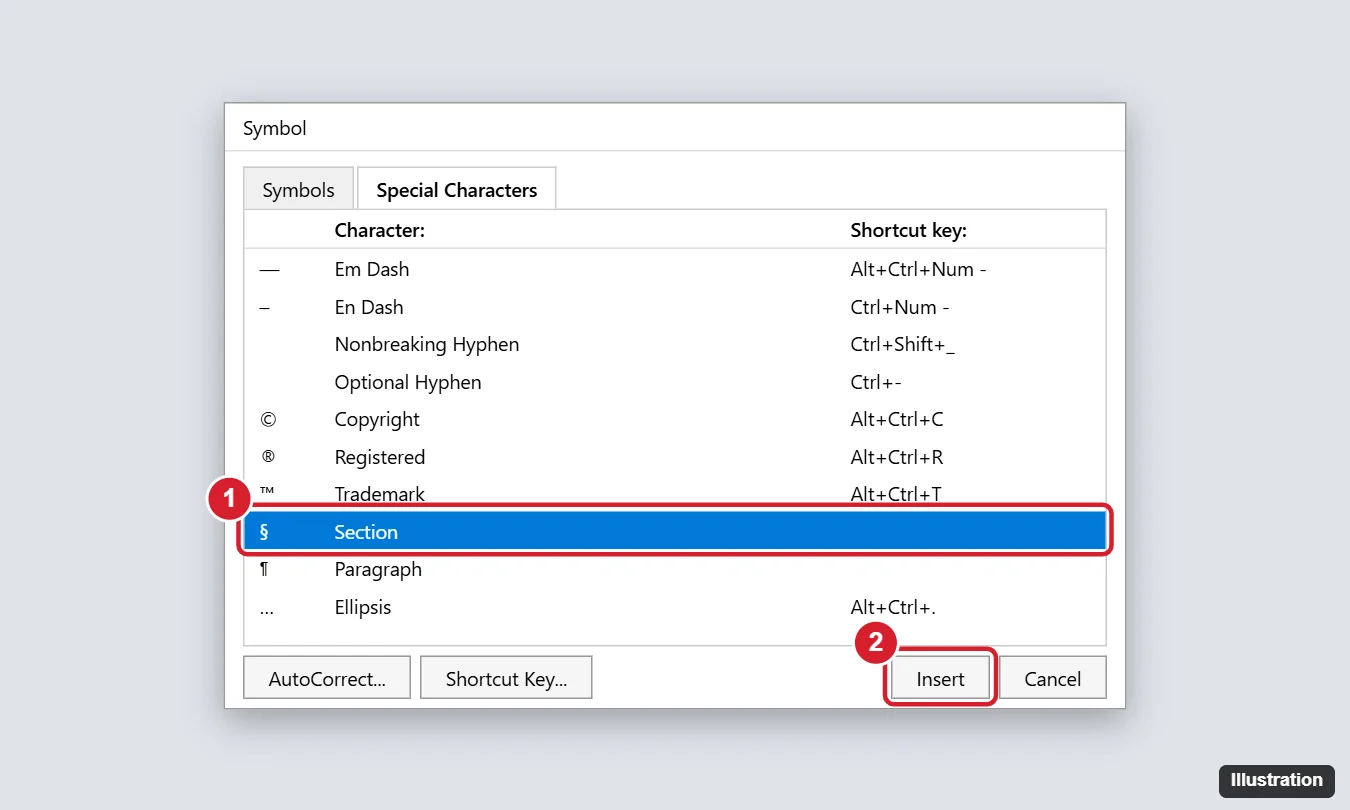
After you’ve used it once, § appears in the Insert > Symbol drop-down for quick access.
Method 4: Create your own keyboard shortcut
- Open Insert > Symbol > More Symbols > Special Characters, and select Section.
- Click Shortcut Key.
- Click in Press new shortcut key and press a combination, like Ctrl + Alt + S. Word shows if it’s already used.
- Click Assign, then Close.
Method 5: AutoCorrect
- In the same Special Characters tab, select Section and click AutoCorrect.
- In Replace, type a code you won’t use otherwise, like (s) or sect//.
- Click Add, then OK.
Now typing your code and a space inserts §.
How to type the section symbol on Mac
Press Option + 6 in Word or any other app. On some non-US keyboard layouts, the key may differ. Use Edit > Emoji & Symbols and search for “section.”
Using § correctly
- Put a nonbreaking space between § and the number so they stay on the same line: type § then press Ctrl + Shift + Space, then the number (Option + Space on a Mac).
- Use §§ for multiple sections, like “§§ 12–15.”
- Style guides differ. Legal writing commonly uses “§ 101,” while some guides spell out “Section” at the start of a sentence.
For typing § anywhere in Windows, see how to type the section symbol on Windows.
Frequently asked questions
What’s the difference between § and ¶?
§ is the section sign, used for sections of laws and documents. ¶ is the paragraph sign (pilcrow), Alt + 0182 on Windows or Option + 7 on a Mac.
How do I type § in Google Docs?
Click Insert > Special characters and search for “section,” or use the Alt code on Windows.
Why does Alt + 0167 do nothing?
Num Lock may be off, or you used the number row. Use the number pad, or try Alt + X in Word.

Kermit Matthews is a freelance writer based in Philadelphia, Pennsylvania with more than a decade of experience writing technology guides. He has a Bachelor’s and Master’s degree in Computer Science and has spent much of his professional career in IT management.
He specializes in writing content about iPhones, Android devices, Microsoft Office, and many other popular applications and devices.