On most HP laptops running Windows 11, you turn off Fn lock in one of two ways. If your keyboard has a key with a small padlock and “fn” symbol (often Esc, Shift, or the Fn key itself has a light), press Fn together with that key to switch it off. If there’s no such key, change the Action Keys Mode setting in the BIOS: restart, press F10 to open Computer Setup, go to System Configuration, change Action Keys Mode, and save with F10.
Which setting you want depends on what you mean by “Fn lock,” so start with the quick check below.
First: what do you want the F keys to do?
| If pressing F5 now… | And you want it to… | Change this |
|---|---|---|
| Refreshes a web page (acts as F5) | Change brightness, volume, or other printed actions | Turn Fn lock off, or set Action Keys Mode to Enabled |
| Changes a hardware setting like brightness | Act as a normal F5 key | Turn Fn lock on, or set Action Keys Mode to Disabled |
Either way, you can always get the other function by holding Fn while you press the key.
Method 1: Use the Fn lock key combination
- Look at your keyboard for a key with a padlock icon, often labeled fn lock. On many recent HP models it’s on the Esc or Shift key.
- Hold Fn and press that key once.
- Test by pressing a top-row key. If your Fn key has a small light, it usually turns on or off to show the lock state.
On many HP laptops without a padlock icon, Fn + Esc opens the HP System Information window instead of toggling Fn lock. If that happens, close the window and use Method 2.
Method 2: Change Action Keys Mode in the BIOS
- Save your work and restart the laptop, or turn it off and on again.
- As soon as the screen turns on, press Esc repeatedly until the Startup Menu appears, then press F10 for BIOS Setup. On many models, you can also press F10 repeatedly right away.
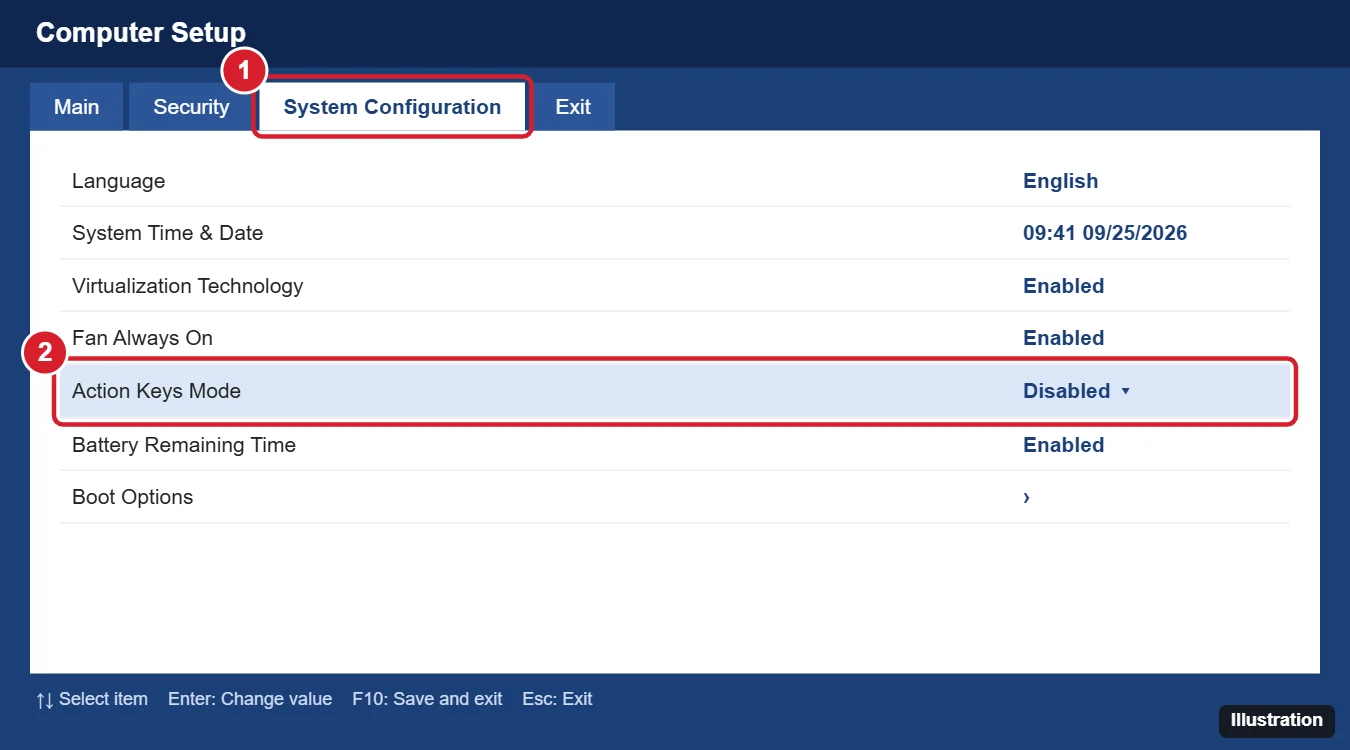
- Use the arrow keys to open the System Configuration tab. On some models it’s under Advanced > Built-in Device Options.
- Select Action Keys Mode and press Enter.
- Choose Enabled if you want the top row to control brightness, volume, and other actions without pressing Fn. Choose Disabled if you want standard F1–F12 keys.
- Press F10 and confirm with Yes to save and restart.
Don’t change other BIOS settings unless you know what they do. If something goes wrong, most BIOS screens have an option to restore defaults, often F9.
For more on getting into the BIOS, see how to enter the BIOS. Windows 11 uses the same startup keys.
Method 3: Open the BIOS from Windows 11
If the laptop starts too fast to catch the F10 key:
- Go to Settings > System > Recovery.
- Next to Advanced startup, click Restart now.
- Choose Troubleshoot > Advanced options > UEFI Firmware Settings > Restart.
- Follow steps 3 through 6 of Method 2.
If the F keys still don’t work right
- Update HP’s keyboard software. Install the latest drivers and BIOS from the HP Support Assistant app or HP’s support website. Missing hotkey software can stop brightness and volume keys from working.
- Check an external keyboard. These settings only affect the laptop’s built-in keyboard. External keyboards have their own Fn lock, often Fn + Esc or a dedicated key.
- Look for other lock keys. A stuck Num Lock can make letter keys type numbers on some small keyboards. Press Num Lock or Fn + Num Lk to turn it off.
- Work laptops. Some company PCs lock the BIOS with a password. Ask your IT department to change the setting.
Frequently asked questions
What is Fn lock?
Fn lock decides whether the top row of keys acts as standard F1–F12 keys or as action keys, like brightness and volume, without holding Fn.
Is there a Windows 11 setting to turn off Fn lock?
No. Fn lock is controlled by the keyboard and the laptop’s BIOS, not by Windows.
Why does my HP laptop default to action keys?
HP ships most consumer laptops with Action Keys Mode enabled so the media and brightness controls work with one press. You can switch it in the BIOS.
Are the steps the same on Windows 10?
Yes. Fn lock and Action Keys Mode work the same way no matter which version of Windows you use.

Kermit Matthews is a freelance writer based in Philadelphia, Pennsylvania with more than a decade of experience writing technology guides. He has a Bachelor’s and Master’s degree in Computer Science and has spent much of his professional career in IT management.
He specializes in writing content about iPhones, Android devices, Microsoft Office, and many other popular applications and devices.