Fn Lock controls what the top row of keys on your laptop does. With it on, pressing F1 to F12 triggers the standard function keys (like F5 to refresh). With it off, those same keys control things like volume, brightness, and media playback, or the other way around, depending on your laptop. If your function keys suddenly do the opposite of what you expect in Windows 11, Fn Lock is almost always the reason. This guide shows how to turn it off on any laptop, including brand-specific shortcuts and BIOS settings.
Quick Answer
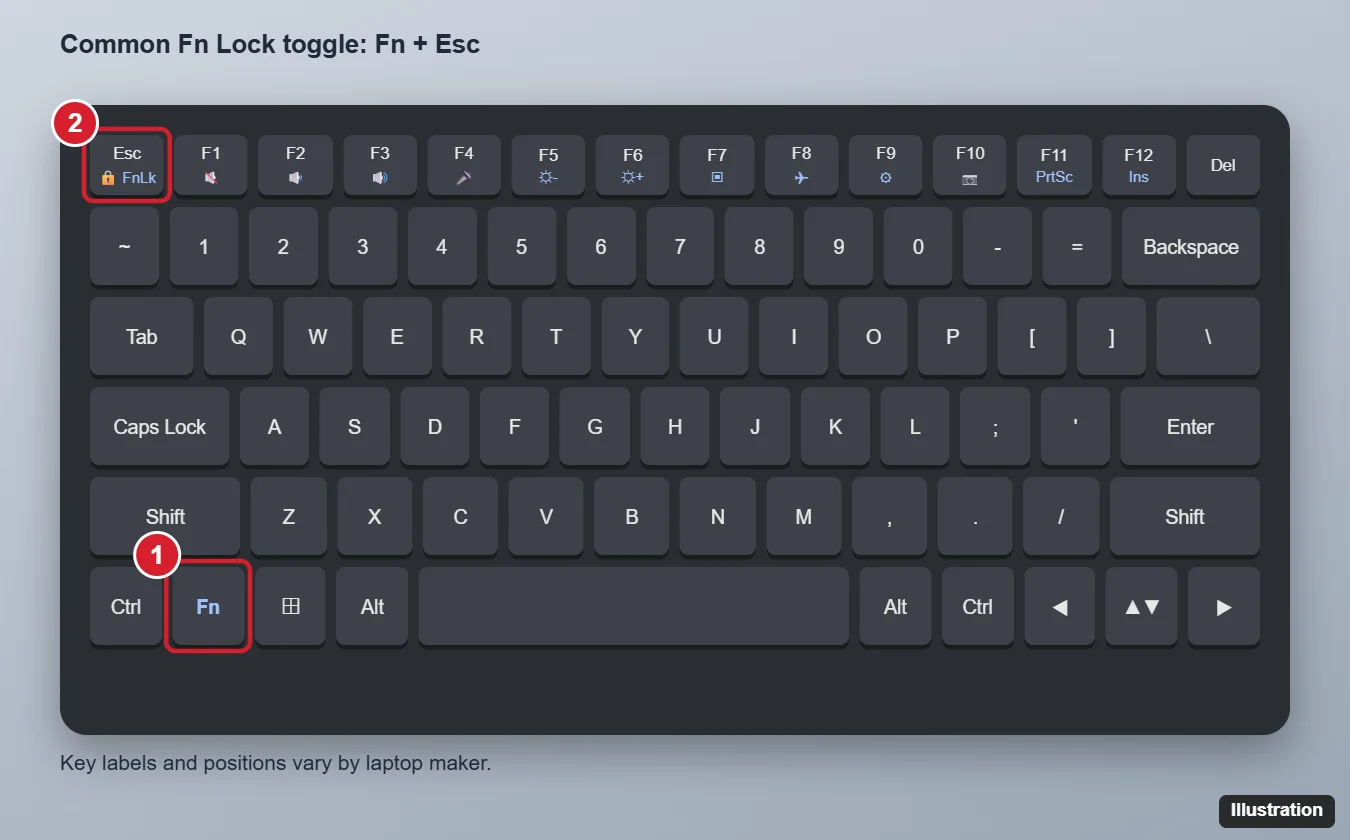
On most laptops, press Fn + Esc to toggle Fn Lock. Look for a small padlock icon or the letters FnLk on the Esc key (or another key), and a light on the key that shows whether it is on. If there is no shortcut, change the Function key behavior or Action keys mode setting in your laptop's BIOS/UEFI or the manufacturer's settings app.
What Fn Lock Does
| Fn Lock state | Press F5 alone | Press Fn + F5 |
|---|---|---|
| Standard function keys active | F5 (refresh) | Printed media or hardware action |
| Media/hotkeys active | Printed media or hardware action | F5 (refresh) |
Which state counts as "locked" varies by manufacturer. The simple rule: if you have to hold Fn to get the behavior you want most often, toggle Fn Lock.
Method 1: Use the Fn Lock Shortcut
- Look at your keyboard for a key with a padlock and "Fn" icon, or the text FnLk or Fn Lock. It is most often on Esc, but can be on Shift, Caps Lock, F1, F12, or Num Lock.
- Hold Fn and press that key once.
- Test by pressing F5 in a browser (it should refresh the page) or a volume key.
Some laptops have a dedicated Fn Lock key that you press on its own, and some external keyboards use an F Lock key instead.
Common Shortcuts by Brand
These are typical defaults; models vary, so check your key icons or the manual if one does not work.
| Brand | Common Fn Lock toggle | Other option |
|---|---|---|
| Lenovo (ThinkPad, IdeaPad) | Fn + Esc | BIOS: Hotkey Mode or F1-F12 as primary function; Lenovo Vantage |
| Dell | Fn + Esc | BIOS: Function Key Behavior; Windows Mobility Center on some models |
| HP | Fn + Esc or Fn + Shift on some models | BIOS: Action Keys Mode |
| ASUS | Fn + Esc | MyASUS app: Function Key Lock |
| Acer | Fn + Esc on some models | BIOS: Function key behavior |
| Microsoft Surface keyboards | Fn key (tap to toggle; light shows status) | Fn + Caps Lock on some keyboards |
| MSI and gaming laptops | Varies | Manufacturer control center app |
Method 2: Change Function Key Behavior in BIOS/UEFI
If there is no keyboard shortcut, or it keeps resetting after a restart, change the default in firmware.
- Save your work. In Windows 11, go to Settings > System > Recovery.
- Next to Advanced startup, click Restart now.
- Choose Troubleshoot > Advanced options > UEFI Firmware Settings > Restart.
- Look for an option such as Function Key Behavior, Action Keys Mode, Hotkey Mode, or Fn Lock, usually under Configuration, Advanced, or System Configuration.
- Choose the behavior you want (for example, Function Key first, or disable Action Keys Mode).
- Save and exit, usually with F10.
You can also enter firmware settings by pressing the setup key while the laptop starts, commonly F2, F10, Del, or Esc. Change only the setting you came for.
Method 3: Use the Manufacturer's Settings App
Many laptops include a utility that controls hotkey behavior from inside Windows, such as Lenovo Vantage, MyASUS, HP's system settings app, or Dell's control utilities. Open the app, look for a keyboard or input section, and change the function key or hotkey mode.
On some Dell laptops, you can also open Windows Mobility Center (search for it in Start) and change the Fn Key Behavior tile, if your model includes it.
Troubleshooting
Fn + Esc does nothing
Your laptop may use a different key or no Fn Lock shortcut at all. Check the key icons, the manual, or the BIOS setting. Also make sure the manufacturer's hotkey driver or utility is installed, since some shortcuts depend on it.
Fn Lock turns back on after every restart
Set the default in BIOS/UEFI or the manufacturer app. The keyboard shortcut may only change it until the next reboot on some models.
The Fn key seems stuck
Press Fn a few times and clean around it with compressed air. If it still seems held down, test with an external keyboard and check Sticky keys in Settings > Accessibility > Keyboard.
Media keys stopped working after an update
Reinstall your laptop maker's hotkey or keyboard driver from its support site, then restart.
Using an external keyboard?
Look for an F Lock or Fn Lock key, or check the keyboard maker's software. Windows 11 itself does not have a system-wide Fn Lock setting.
Frequently Asked Questions
How do I know if Fn Lock is on?
Many laptops have a small light on the Fn Lock key. Otherwise, press F5 in a browser: if it refreshes, standard function keys are active.
Is there a Windows 11 setting for Fn Lock?
No. Fn Lock is handled by your laptop's keyboard firmware, BIOS, or manufacturer software, not by Windows.
Is Fn Lock the same as Num Lock?
No. Num Lock switches keys to a number pad, while Fn Lock changes the top row between function keys and hotkeys.
Can I turn off the Fn key entirely?
Usually not, but setting the function key behavior you prefer in BIOS means you will rarely need it.
Summary
- Press Fn + Esc (or Fn plus the key with a padlock icon).
- If that does not work, check your brand's shortcut or dedicated Fn Lock key.
- Change Function Key Behavior or Action Keys Mode in BIOS/UEFI to make it permanent.
- Use your laptop maker's app for an in-Windows toggle.

Kermit Matthews is a freelance writer based in Philadelphia, Pennsylvania with more than a decade of experience writing technology guides. He has a Bachelor’s and Master’s degree in Computer Science and has spent much of his professional career in IT management.
He specializes in writing content about iPhones, Android devices, Microsoft Office, and many other popular applications and devices.