Ad blockers are great for cleaner, faster browsing, but they can break some websites: videos will not play, login buttons do nothing, checkout pages fail, or a site asks you to disable your blocker before showing content. On Windows 10, an ad blocker is usually a browser extension, but it can also be a built-in browser feature, your antivirus, or a network-level blocker. This guide shows how to turn off each type, either for one site or completely.
Quick Answer
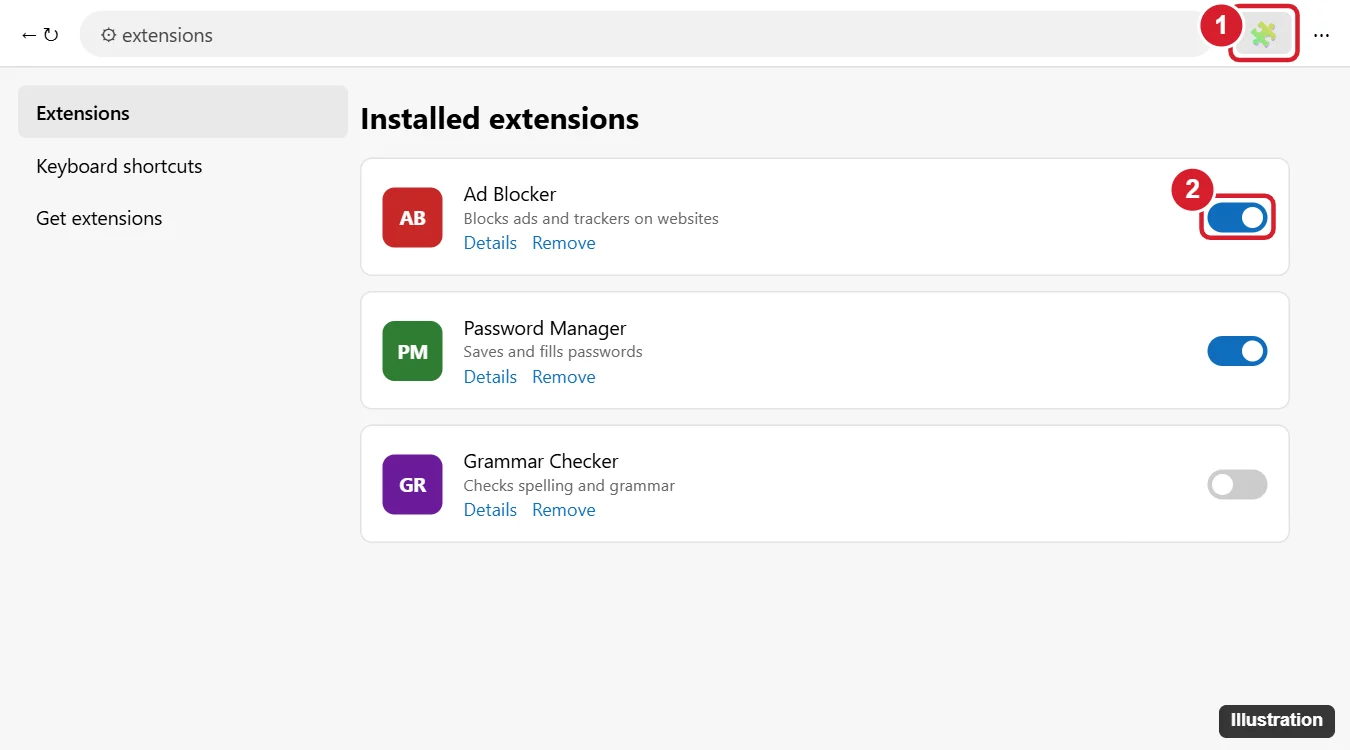
Most ad blockers are browser extensions. Click the ad blocker's icon in the toolbar (or the puzzle-piece Extensions icon) and choose to pause it or allow the current site. To turn it off completely, open your browser's extensions page (edge://extensions, chrome://extensions, or Firefox Add-ons and themes) and switch the ad blocker off.
Where Your Ad Blocker Might Be
| Type | Examples | How to turn off |
|---|---|---|
| Browser extension | Popular ad-blocking extensions | Extensions page or the extension's icon |
| Built-in browser feature | Edge tracking prevention, Brave Shields, Opera ad blocker, Firefox Enhanced Tracking Protection | Browser settings or the shield icon in the address bar |
| Security software | Antivirus web protection or "ad block" modules | The security app's settings |
| Network or DNS blocker | Router features, DNS filtering, VPN ad blocking | Router, DNS, or VPN settings |
Turn Off an Ad Blocker Extension
Microsoft Edge
- Click the three-dot menu > Extensions > Manage extensions, or go to edge://extensions.
- Switch off the ad blocker, or click Remove to uninstall it.
Google Chrome
- Click the Extensions (puzzle piece) icon > Manage extensions, or go to chrome://extensions.
- Switch off the ad blocker.
Mozilla Firefox
- Click the menu > Add-ons and themes > Extensions, or press Ctrl + Shift + A.
- Switch off the ad blocker.
Allow Ads on One Site Only
Instead of turning the blocker off everywhere, whitelist the sites you trust or need:
- Visit the site.
- Click the ad blocker's icon in the toolbar (pin it from the Extensions menu if hidden).
- Choose an option such as Pause on this site, Don't run on this site, or the large power button.
- Reload the page.
Turn Off Built-In Browser Blocking
- Edge tracking prevention: go to Settings > Privacy, search, and services and set Tracking prevention to Basic, or click the lock icon in the address bar and turn it off for the current site.
- Firefox Enhanced Tracking Protection: click the shield icon in the address bar and switch it off for the site.
- Brave: click the Brave Shields icon and turn Shields down for the site.
- Opera: go to Settings > Privacy protection > Block ads, or click the shield in the address bar.
Turn Off Ad Blocking in Security Software or Networks
- Antivirus: open your security app and look for web protection, browsing protection, or ad blocking settings. Add an exception for the site rather than disabling protection entirely.
- DNS or router: if you use an ad-blocking DNS service or router feature, pause it or add the site to its allow list.
- VPN: some VPN apps include ad blocking; check their settings.
Troubleshooting
The site still says an ad blocker is on
Check for multiple blockers, built-in tracking protection, or a DNS blocker. Clear the site's cookies and reload.
Where is the ad blocker icon?
Click the puzzle-piece Extensions icon and pin the ad blocker to the toolbar.
Frequently Asked Questions
Does Windows 10 have a built-in ad blocker?
No. Ad blocking comes from browsers, extensions, security apps, or network tools.
Is it safe to turn off my ad blocker?
Yes on sites you trust. Keep your browser and antivirus updated, and consider allowing ads only on specific sites.
Will turning it off slow down browsing?
Pages with many ads may load a little slower.
Summary
- Find your ad blocker: extension, browser feature, security app, or network.
- Pause it for a single site from its toolbar icon.
- Turn it off completely on the browser's extensions page.
- Adjust built-in tracking protection if sites still break.

Kermit Matthews is a freelance writer based in Philadelphia, Pennsylvania with more than a decade of experience writing technology guides. He has a Bachelor’s and Master’s degree in Computer Science and has spent much of his professional career in IT management.
He specializes in writing content about iPhones, Android devices, Microsoft Office, and many other popular applications and devices.