Saving a Word document to Google Drive keeps it backed up, lets you open it on any device, and makes it easy to share. You can upload the file in your browser, save it straight from Word into the Google Drive folder on your computer, or open and edit it in Google Docs. This guide covers every method, how to keep it as a .docx, and how to convert it to a Google Doc if you prefer.
Quick Answer
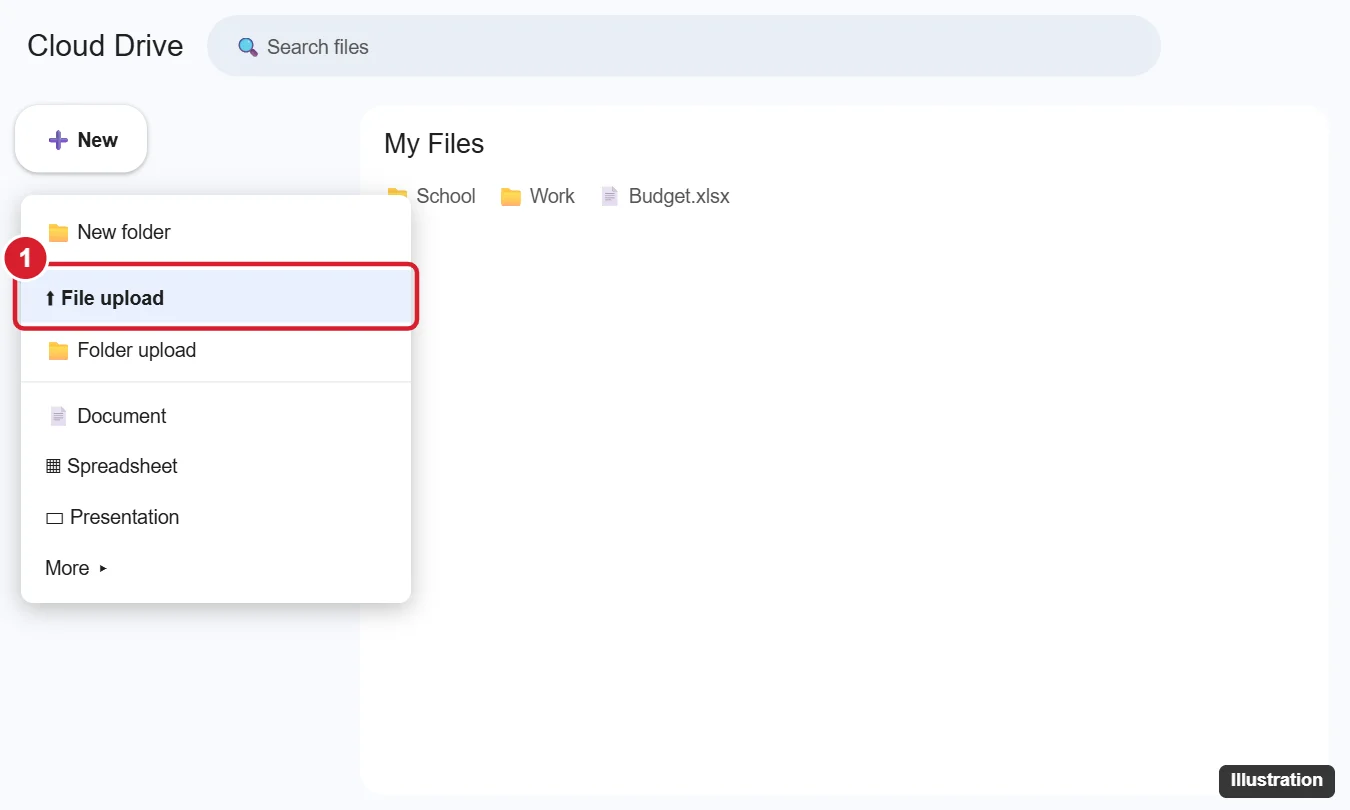
Go to drive.google.com, click New > File upload, and select your Word document (or drag the file into the Drive window). It uploads as a .docx that you can open, share or edit.
Method 1: Upload in Your Browser
- Open drive.google.com and sign in.
- Open the folder where you want the file.
- Click New > File upload and choose the .docx file, or drag it from File Explorer or Finder into the browser window.
- Watch the upload progress in the lower-right corner.
Method 2: Save Directly From Word With Google Drive for Desktop
- Install Google Drive for desktop from Google’s website and sign in.
- Drive appears as a drive (often G:) in File Explorer on Windows, or under Locations in Finder on a Mac.
- In Word, click File > Save As > Browse (or Save As on Mac).
- Choose Google Drive > My Drive, pick a folder, and click Save.
Every time you save, Drive syncs the changes to the cloud automatically.
Method 3: From the Mobile Apps
- Word app (iPhone/Android): tap the share or ⋯ menu > Send a copy or Share, then choose Drive.
- Drive app: tap + > Upload and pick the file from your phone.
Keep It as Word or Convert to Google Docs?
- Keep as .docx: double-click the file in Drive and it opens in Google Docs’ Office editing mode (you’ll see a .DOCX label). Edits save back to the Word file.
- Convert: open it and click File > Save as Google Docs to create a Google Docs copy with full collaboration features.
- Convert automatically: in Drive, click the gear > Settings and turn on Convert uploads to Google Docs editor format.
Complex formatting (some fonts, text boxes, SmartArt) may shift when converted, so keep the original .docx if layout matters.
Share the Document
Right-click the file in Drive, click Share, add people’s names or emails, choose Viewer, Commenter or Editor, and click Send. Or click Copy link.
Troubleshooting
- Upload stuck: check your connection, and try a different browser or smaller file.
- Storage full: Google gives 15 GB free across Gmail, Drive and Photos; free up space or upgrade.
- File opens read-only: you may have view-only access, or Office editing isn’t supported for that file; download it and edit in Word.
Frequently Asked Questions
Can Word save to Google Drive without the desktop app?
Not directly. Use browser upload, or install Google Drive for desktop.
Does uploading change my original file?
No. The copy in Drive is separate from the file on your computer (unless you saved it in the Drive folder).
Can I download it back as Word?
Yes. In Google Docs, click File > Download > Microsoft Word (.docx).
Summary
- Drive > New > File upload, or drag and drop.
- Or save from Word into the Google Drive for desktop folder.
- Keep as .docx or save as Google Docs.
- Share with the Share button.

Kermit Matthews is a freelance writer based in Philadelphia, Pennsylvania with more than a decade of experience writing technology guides. He has a Bachelor’s and Master’s degree in Computer Science and has spent much of his professional career in IT management.
He specializes in writing content about iPhones, Android devices, Microsoft Office, and many other popular applications and devices.