Windows 11 does not include a built-in way to mirror an iPhone screen. Phone Link connects an iPhone for calls, messages and notifications, but not screen mirroring. To see your iPhone on a PC, you need an AirPlay receiver app on the PC or a wired capture setup.
Quick Answer
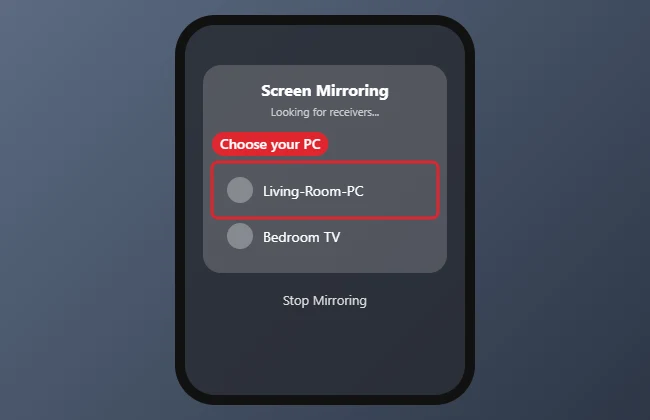
Install a trusted AirPlay receiver app on the PC, connect both devices to the same Wi-Fi, then on iPhone open Control Center, tap Screen Mirroring and choose your PC.
How to Mirror an iPhone to a Windows 11 PC
- Choose and install an AirPlay receiver app on the PC from a trusted source. Many offer free trials.
- Connect the PC and iPhone to the same Wi-Fi network.
- Open the receiver app and allow it through Windows Firewall when asked (private networks only).
- On iPhone, open Control Center and tap Screen Mirroring.
- Pick your PC from the list.
- To stop, tap Stop Mirroring.
Ways to Show an iPhone on a PC
| Method | Notes |
|---|---|
| AirPlay receiver app | Wireless; quality depends on Wi-Fi |
| Phone Link | Messages, calls and notifications; no mirroring |
| Capture card with adapter | Wired, low delay; extra hardware |
| Video call screen share | Quick option for sharing with others |
Use a Wired Connection for Lag-Free Video
Wi-Fi mirroring can stutter, which matters for games or live demos. A wired setup is more reliable:
- Connect the iPhone to an HDMI adapter: Apple’s Lightning Digital AV Adapter for Lightning iPhones, or a USB-C to HDMI adapter for iPhone 15 and later.
- Plug an HDMI cable from the adapter into a USB video capture device connected to the PC.
- Open the Camera app or recording software such as OBS Studio on the PC and select the capture device as the video source.
Some streaming apps block video output over HDMI for copyright reasons, so you may see a black screen in those apps even when mirroring works elsewhere.
Share Photos and Videos Without Mirroring
If you only want to show or copy photos, mirroring isn’t necessary. Install iCloud for Windows and turn on Photos to sync your library to the PC, or connect the iPhone with a cable and import pictures with the Photos app. Phone Link also shows recent photos from some phones, but for iPhone it focuses on calls, messages and notifications.
Choosing an AirPlay Receiver App Safely
- Download it from the Microsoft Store or the developer’s official website, not from a third-party download site.
- Check the price before you commit; many apps add watermarks or time limits until you pay.
- When Windows Firewall asks, allow the app on private networks only.
- Uninstall it when you no longer need it so it isn’t listening on your network.
Troubleshooting
- PC not listed: both devices must be on the same network, and the app must be open.
- Laggy video: move closer to the router or use 5 GHz Wi-Fi.
- Black screen in some apps: streaming apps may block mirroring.
- Related: using iPhone messages on Windows and extending your Windows 11 display.
Frequently Asked Questions
Can Windows 11 mirror an iPhone without apps?
No. Windows has no built-in AirPlay receiver.
Is it safe?
Install receiver apps only from trusted developers and allow them on private networks only.
Does it mirror audio?
Most receiver apps play audio too.
Can I control the iPhone from the PC?
Not with AirPlay. It only displays the screen.
Summary
- Install a receiver app.
- Join the same Wi-Fi.
- Open Control Center.
- Tap Screen Mirroring.
- Choose your PC.

Kermit Matthews is a freelance writer based in Philadelphia, Pennsylvania with more than a decade of experience writing technology guides. He has a Bachelor’s and Master’s degree in Computer Science and has spent much of his professional career in IT management.
He specializes in writing content about iPhones, Android devices, Microsoft Office, and many other popular applications and devices.