Windows 11 and Windows 10 don’t have a built-in setting to mirror or flip your webcam, and the Camera app doesn’t have one either. Instead, mirror your video in the app you’re using: in Microsoft Teams, go to Settings > Devices and turn on Mirror my video, and in Zoom, go to Settings > Video and check Mirror my video. To flip your webcam for every app, use your webcam maker’s software or the free OBS Studio virtual camera. Keep in mind that most apps only mirror your own preview. Other people see you the right way around.
Mirrored vs. flipped: what’s the difference?
- Mirrored means flipped left to right, like looking in a mirror. Text behind you looks backward to you, but not to others.
- Upside down means flipped top to bottom, usually a driver or camera setup problem.
Mirror your video in Microsoft Teams
- In Teams, click the three dots next to your profile picture and choose Settings.
- Click Devices.
- Under Camera, turn Mirror my video on or off.
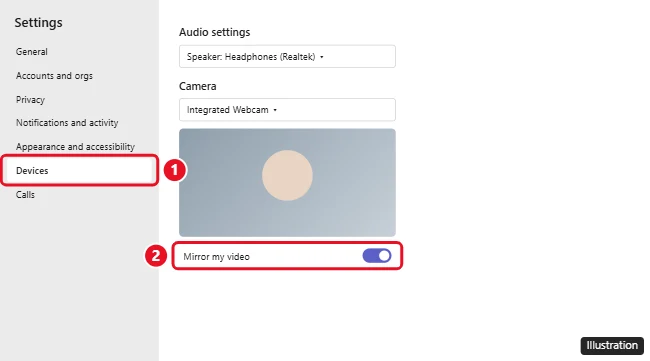
This only changes your own view. Other people in the meeting always see the unmirrored image.
Mirror your video in Zoom
- Open Zoom, click your profile picture, and choose Settings.
- Click Video.
- Check or uncheck Mirror my video.
In the Zoom video settings, you can also click Rotate 90° if your camera image is sideways or upside down.
Google Meet and other browser apps
Google Meet mirrors your self-view automatically, and others see you normally. There’s no setting to change your self-view in Meet. For other browser-based apps, check their video settings for a mirror option.
Flip your webcam for every app with OBS Studio
OBS Studio is free and can create a virtual webcam with any changes you make, which works in Teams, Zoom, Meet, Discord, and more.
- Download and install OBS Studio from obsproject.com.
- In Sources, click + > Video Capture Device, name it, and choose your webcam.
- Right-click the video in the preview and choose Transform > Flip Horizontal (or Flip Vertical for upside-down video).
- Click Start Virtual Camera in the Controls panel.
- In your video app, choose OBS Virtual Camera as your camera.
This flips what other people see, too, so only use it if you really want a mirrored image in the call, or to fix an upside-down camera.
Use your webcam maker’s software
Many external webcams come with an app that adjusts the image, like Logitech’s Logi Tune or G HUB, Razer Synapse, or your laptop maker’s camera utility. Look for an image or video setting called mirror, flip, or rotate. Changes made there usually apply to every app.
Fix an upside-down webcam
- Check Windows camera settings. Go to Settings > Bluetooth & devices > Cameras and select your camera. Some cameras show a rotation option there.
- Update the camera driver. Right-click Start > Device Manager > Cameras, right-click your webcam, and choose Update driver. Or get the latest driver from your laptop maker’s support site.
- Roll back a recent driver if the problem started after an update: in Device Manager, open the camera’s Properties > Driver > Roll Back Driver.
If your camera won’t turn on in a meeting, see how to turn on your camera in Google Meet.
Frequently asked questions
Why does my webcam look backward?
Most video apps show your preview mirrored because it feels natural, like looking in a mirror. The other person sees the correct view.
Can I mirror the Windows Camera app?
No. The Camera app doesn’t offer a mirror setting. Photos you take with it are saved unmirrored.
Does mirroring affect recordings?
In Teams and Zoom, recordings use the unmirrored video. With OBS, recordings use whatever you set in OBS.
Is this the same on Windows 10?
Yes. The app settings and OBS steps are the same on Windows 10 and Windows 11.

Kermit Matthews is a freelance writer based in Philadelphia, Pennsylvania with more than a decade of experience writing technology guides. He has a Bachelor’s and Master’s degree in Computer Science and has spent much of his professional career in IT management.
He specializes in writing content about iPhones, Android devices, Microsoft Office, and many other popular applications and devices.