Slow uploads to Google Drive are usually caused by your internet upload speed, the number and size of files, or settings that limit bandwidth, not by Google itself. The good news is that a few changes can make a big difference, especially when backing up photos, videos, or large project folders. This guide covers practical ways to speed up Google Drive uploads in the browser and with Drive for desktop, and how to tell what is slowing you down.
Quick Answer
Check your upload speed with a speed test, then use a wired or strong Wi-Fi connection, pause other uploads and streaming, and use Google Drive for desktop for large or many files. In Drive for desktop settings, make sure Upload rate limit is turned off. Zip folders with many small files before uploading.
Step 1: Check Your Upload Speed
Run an internet speed test and look at the upload number, which is often much lower than download on home connections. As a rough guide, a 10 Mbps upload moves about 4.5 GB per hour at best. If uploads are close to your plan's maximum, Drive is working as fast as your connection allows.
Step 2: Improve Your Connection
- Use Ethernet or move closer to the router.
- Use 5 GHz Wi-Fi instead of 2.4 GHz when nearby.
- Pause other activity: video calls, streaming, game downloads, and other cloud backups compete for upload bandwidth.
- Turn off VPNs temporarily, since they can slow transfers.
- Restart your router if speeds are lower than usual.
Step 3: Use Google Drive for Desktop
For big uploads, the desktop app is more reliable than the browser. It resumes automatically after interruptions and works in the background.
- Install Google Drive for desktop and sign in.
- Copy files into the Google Drive folder in File Explorer or Finder.
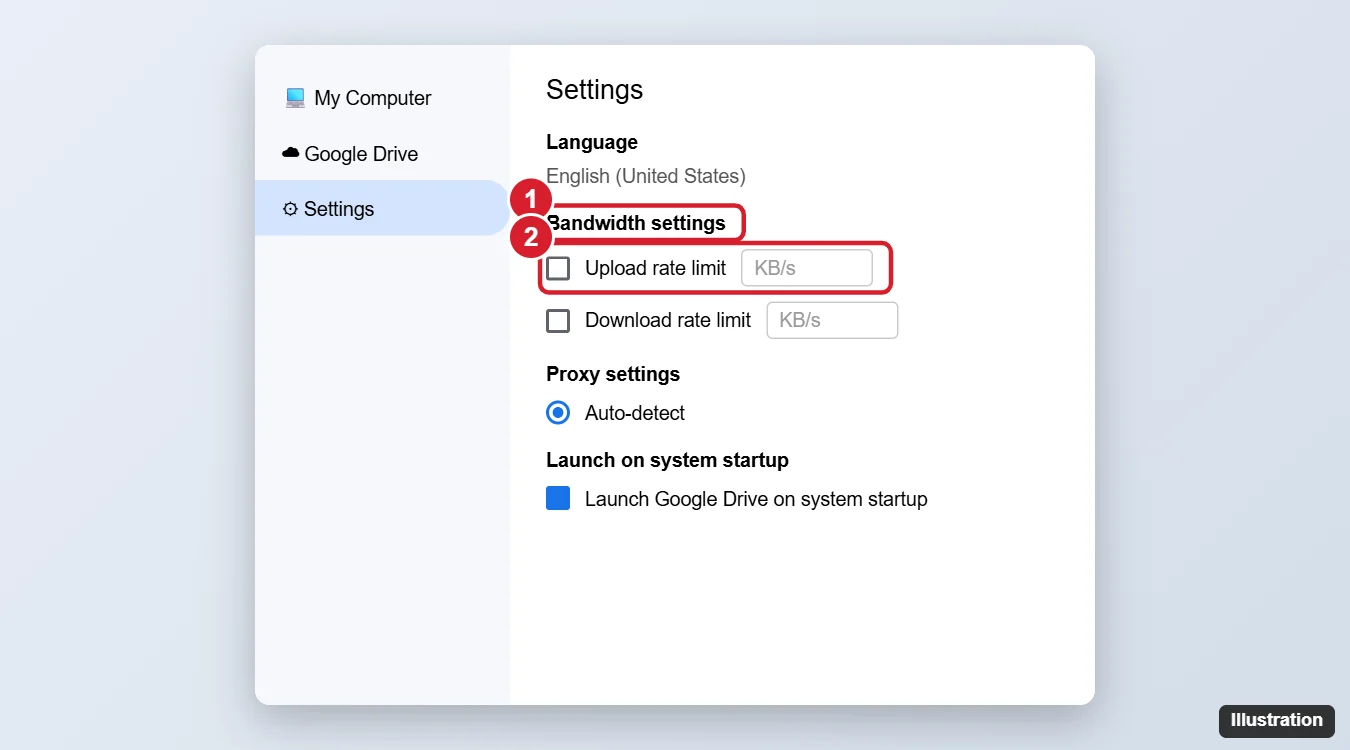
- Open the app's Settings (gear) > Preferences and check Bandwidth settings. Uncheck Upload rate limit so uploads can use full speed.
Step 4: Prepare Files Smartly
| Situation | Tip |
|---|---|
| Thousands of small files | Zip them into one archive; one large file uploads faster than many tiny ones |
| Huge videos | Upload overnight or compress if full quality is not needed |
| Photos from your phone | Use Google Photos backup on Wi-Fi and while charging |
| Duplicate files | Remove duplicates before uploading |
Step 5: Browser Tips
- Use an up-to-date browser such as Chrome, Edge, or Firefox.
- Keep the upload tab open and prevent the computer from sleeping.
- Disable extensions that might interfere, like download managers.
- Upload in batches rather than one enormous selection.
Check Storage and Limits
- Make sure you have enough Google storage left; uploads stop when you are full.
- Google Drive has a daily upload limit (750 GB per user per day on many accounts). Very large transfers may need to be spread over multiple days.
Frequently Asked Questions
Why is Google Drive uploading so slowly?
Usually because of limited upload bandwidth, many small files, other devices using the connection, or a rate limit in Drive for desktop.
Is Drive for desktop faster than the website?
It is often more reliable and efficient for large or many files, and it resumes automatically.
Can I pause and resume uploads?
Drive for desktop can pause syncing from its menu. Browser uploads stop if you close the tab.
Summary
- Test your upload speed and improve your connection.
- Use Drive for desktop and turn off the upload rate limit.
- Zip many small files and upload in batches.
- Check storage space and daily limits for big transfers.

Kermit Matthews is a freelance writer based in Philadelphia, Pennsylvania with more than a decade of experience writing technology guides. He has a Bachelor’s and Master’s degree in Computer Science and has spent much of his professional career in IT management.
He specializes in writing content about iPhones, Android devices, Microsoft Office, and many other popular applications and devices.