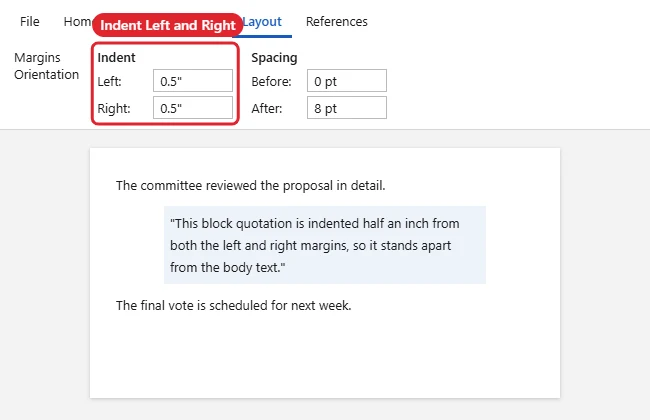
To indent a paragraph on both sides in Word, click in the paragraph, go to the Layout tab, and set both Indent Left and Indent Right to the same value, such as 0.5″. The paragraph moves in from both margins, which is the standard look for block quotations. You can also drag the indent markers on the ruler or use the Paragraph dialog box for exact settings.
Quick Answer
Click in the paragraph > Layout > Indent Left 0.5″ and Indent Right 0.5″.
Method 1: Layout Tab
- Click in the paragraph, or select several paragraphs.
- Open the Layout tab.
- In the Paragraph group, set Left under Indent to 0.5″.
- Set Right to 0.5″. Use the arrows or type a value.
Method 2: Paragraph Dialog
- Right-click the paragraph and choose Paragraph.
- Under Indentation, enter values for Left and Right.
- Check Mirror indents if you print double-sided and want Inside/Outside indents instead.
- Click OK.
Method 3: Ruler
- Turn on the ruler: View > Ruler.
- Drag the small square under the left triangles to move the left indent.
- Drag the triangle on the right end of the ruler to move the right indent.
Indent Types at a Glance
| Indent | Effect |
|---|---|
| Left and Right | Moves the whole paragraph in from both margins |
| First line | Indents only the first line |
| Hanging | Indents every line except the first (used in citations) |
| Negative indent | Extends text into the margin |
Make It Reusable
Apply Word’s built-in Quote or Intense Quote style, or right-click your indented paragraph’s style and choose Update to Match Selection so all block quotes stay consistent.
For tables, see shrinking a table instead of indenting.
Troubleshooting
- Only the first line moved: You changed the first-line indent. Use the Left indent box instead.
- Indent keeps coming back: The paragraph style includes it. Clear it with Ctrl + Q, or see removing all formatting.
- Want a box around the quote too? See adding a paragraph border.
Related: Make a quotation in Word.
Frequently Asked Questions
How much should a block quote be indented?
Many style guides use 0.5″ on the left; some also indent the right side. Follow your required style.
Does this work in Word for Mac?
Yes. Use Layout > Indent or Format > Paragraph.
Summary
- Click in the paragraph.
- Set Indent Left and Right on the Layout tab.
- Use the Paragraph dialog or ruler for fine control.
- Save it as a style for consistent block quotes.

Kermit Matthews is a freelance writer based in Philadelphia, Pennsylvania with more than a decade of experience writing technology guides. He has a Bachelor’s and Master’s degree in Computer Science and has spent much of his professional career in IT management.
He specializes in writing content about iPhones, Android devices, Microsoft Office, and many other popular applications and devices.