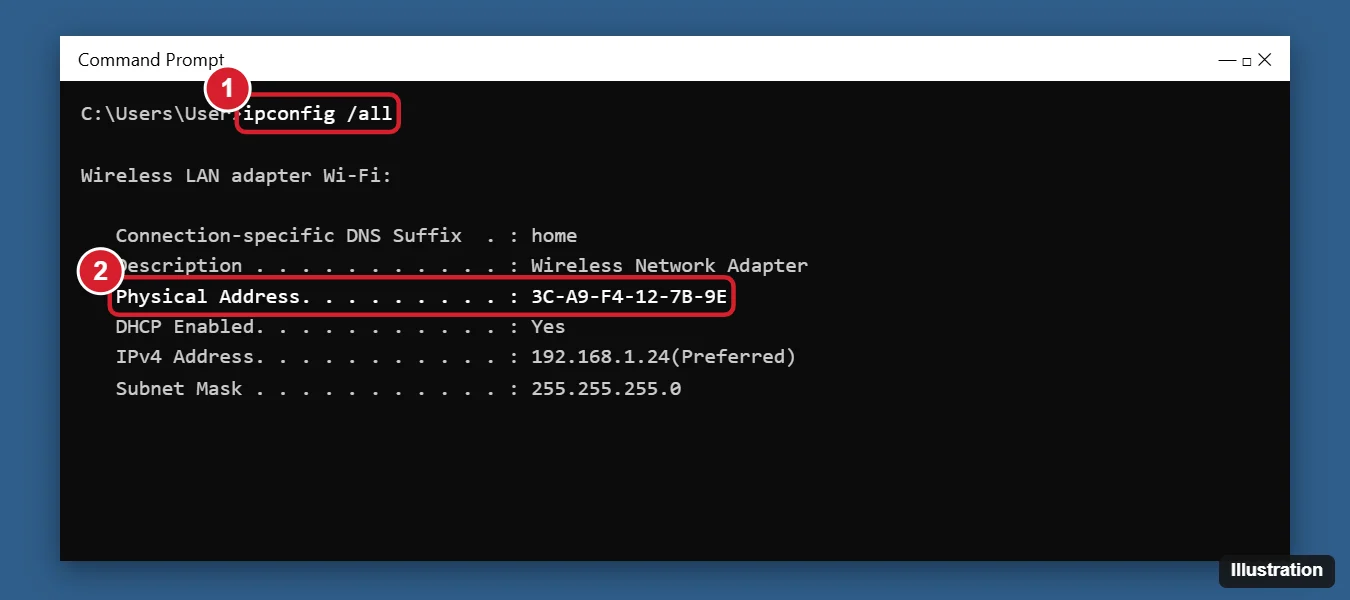
To find your MAC address on Windows 10, open Settings > Network & Internet, click Wi-Fi (or Ethernet), click your network, and look for Physical address (MAC) at the bottom. Or open Command Prompt, type ipconfig /all, and press Enter. The Physical Address listed under your adapter is its MAC address, shown as six pairs of letters and numbers like 3C-A9-F4-12-7B-9E.
Each network adapter has its own MAC address, so your Wi-Fi and Ethernet addresses are different. Below are four ways to find it, and a note about random hardware addresses that can make it look like your MAC keeps changing.
Method 1: Use Settings
- Press Windows + I and click Network & Internet.
- Click Wi-Fi or Ethernet on the left, depending on how you connect.
- Click your connected network (for Wi-Fi, you may need to click Hardware properties).
- Scroll down to Physical address (MAC). Click Copy to copy the details.
Method 2: Use ipconfig /all
- Click Start, type cmd, and open Command Prompt.
- Type ipconfig /all and press Enter.
- Find your adapter, such as Wireless LAN adapter Wi-Fi or Ethernet adapter Ethernet, and read the Physical Address line.
Method 3: Use getmac
In Command Prompt, type getmac /v and press Enter. You’ll see a short table of every adapter with its Physical Address and connection name. In PowerShell, Get-NetAdapter shows the same information in the MacAddress column.
Method 4: Use Control Panel
- Press Windows + R, type ncpa.cpl, and press Enter.
- Double-click your network adapter and click Details.
- Look for Physical Address.
Why does my MAC address keep changing?
Windows 10 can use random hardware addresses for Wi-Fi to make it harder to track your device. If it’s on, networks see a different MAC than your adapter’s built-in one. To check or turn it off, go to Settings > Network & Internet > Wi-Fi, and look for Use random hardware addresses, either for all networks or in a specific network’s properties.
If you’re giving your MAC address to a router for filtering or a reserved IP address, turn random addresses off for that network, or give it the random address shown for that network.
Common reasons you need your MAC address
- Setting up MAC filtering or a DHCP reservation on your router.
- Registering a device on a school, dorm, or hotel network.
- Troubleshooting network problems with IT support.
Frequently asked questions
Is a MAC address the same as an IP address?
No. The MAC address identifies your network adapter on the local network. The IP address identifies your device on a network and can change.
Is it safe to share my MAC address?
Generally, yes, with your IT department or router settings. It’s only visible on your local network, not across the internet.
Can I change my MAC address?
Many adapters let you set a custom value in Device Manager > the adapter’s Properties > Advanced > Network Address. Only do this on networks where you’re allowed to.

Kermit Matthews is a freelance writer based in Philadelphia, Pennsylvania with more than a decade of experience writing technology guides. He has a Bachelor’s and Master’s degree in Computer Science and has spent much of his professional career in IT management.
He specializes in writing content about iPhones, Android devices, Microsoft Office, and many other popular applications and devices.