Windows 10 switches to Ethernet by itself in most cases. Plug an Ethernet cable into your PC and router, and Windows uses the wired connection because it’s usually faster. If traffic still goes over Wi-Fi, turn Wi-Fi off, or set the Ethernet adapter’s interface metric to a lower number so Windows prefers it.
You’ll need an Ethernet port on your PC (or a USB-to-Ethernet adapter) and a cable to your router or a wall jack.
Note: Windows 10 reached end of support on October 14, 2025. Consumer Extended Security Updates (ESU) now run until October 12, 2027.
Quick Answer
Connect the cable, then open Settings > Network & Internet > Status. If it shows Ethernet, you’re on the wired connection. To force it, turn off Wi-Fi from the network icon in the taskbar.
Step 1: Connect the Cable and Check the Status
- Plug one end of the Ethernet cable into your PC and the other into your router, modem, or a network wall jack.
- Wait a few seconds. The network icon in the taskbar changes to a small monitor shape.
- Press Windows + I and open Network & Internet.
- On the Status page, check that Ethernet is listed with “You’re connected to the Internet.”
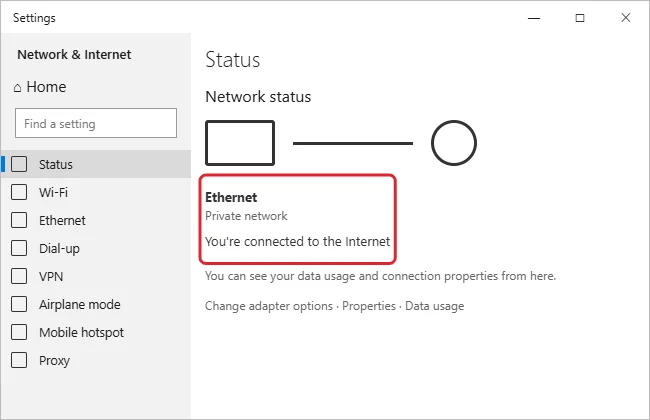
Step 2: Turn Off Wi-Fi (Simplest Way to Force Ethernet)
- Select the network icon at the right end of the taskbar.
- Select the Wi-Fi tile to turn it off.
Now only the cable can carry traffic. Turn Wi-Fi back on the same way when you unplug.
Step 3: Make Windows Prefer Ethernet (Keep Both On)
If you want Wi-Fi as an automatic backup, lower the Ethernet adapter’s interface metric. Windows uses the connection with the lowest number.
- Press Windows + R, type
ncpa.cpl, and press Enter to open Network Connections. - Right-click Ethernet and choose Properties.
- Select Internet Protocol Version 4 (TCP/IPv4), then Properties.
- Select Advanced, clear Automatic metric, and type 10 in Interface metric.
- Select OK three times.
- Repeat steps 2 to 5 for the Wi-Fi adapter, but enter 50.
- If your network uses IPv6, repeat for Internet Protocol Version 6 (TCP/IPv6) on both adapters.
Wired vs. Wireless at a Glance
| Ethernet | Wi-Fi | |
|---|---|---|
| Speed | Usually faster and steady | Varies with distance and walls |
| Latency (ping) | Lower | Higher, with spikes |
| Best for | Gaming, video calls, big downloads | Moving around the house |
| Needs | A cable and a free port | Being in range of the router |
A cable is also the fastest way to move big folders between two computers. See how to transfer files between PCs with an Ethernet cable.
On an ASUS laptop, here’s how to turn Wi-Fi back on.
Troubleshooting
- “Network cable unplugged”: Reseat both ends, try another port on the router, or try another cable.
- Ethernet shows “No internet”: Restart the router and PC. If that doesn’t help, reset the network adapter.
- No Ethernet adapter in Network Connections: Open Device Manager, expand Network adapters, and check that the wired adapter isn’t disabled. Install the latest driver from your PC maker if it’s missing.
- Not sure which connection is in use? Check your IP address: the adapter that has one is the active connection.
Switching back later? Here’s how to turn Wi-Fi back on in Windows 10 if the wireless option disappears.
Frequently Asked Questions
Do I need to disconnect from Wi-Fi to use Ethernet?
No. Windows normally prefers Ethernet on its own. Turning off Wi-Fi just guarantees it.
Can I use Ethernet and Wi-Fi at the same time?
Both can stay connected, but Windows sends most traffic over one of them, based on the interface metric.
Summary
- Plug in the Ethernet cable; Windows usually switches automatically.
- Confirm on Settings > Network & Internet > Status.
- Turn off Wi-Fi to force the wired connection.
- Or set Ethernet’s interface metric lower than Wi-Fi’s to keep both.

Kermit Matthews is a freelance writer based in Philadelphia, Pennsylvania with more than a decade of experience writing technology guides. He has a Bachelor’s and Master’s degree in Computer Science and has spent much of his professional career in IT management.
He specializes in writing content about iPhones, Android devices, Microsoft Office, and many other popular applications and devices.