When Wi-Fi or Ethernet stops working in Windows 10, resetting the network adapter often fixes it. You can start small by disabling and re-enabling a single adapter, reset the TCP/IP and Winsock settings with a few commands, or use Network reset to reinstall every network adapter and restore default settings. This guide goes from the quickest fix to the most thorough.
Quick Answer
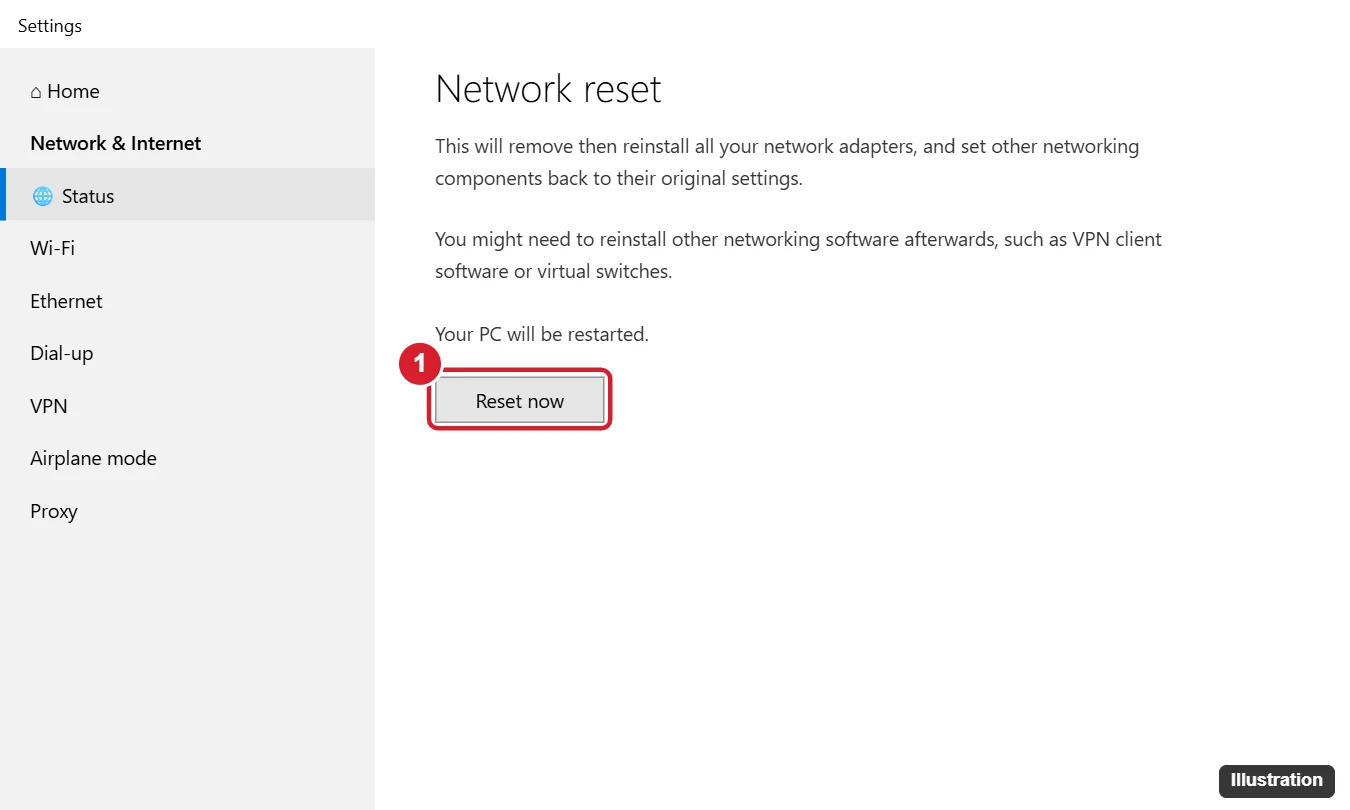
For a full reset, go to Settings > Network & Internet > Status, scroll down and click Network reset, then Reset now. Your PC restarts with network adapters reinstalled and settings returned to defaults. You’ll need to reconnect to Wi-Fi.
Method 1: Disable and Re-enable the Adapter
- Press Windows + R, type ncpa.cpl and press Enter.
- Right-click your Wi-Fi or Ethernet adapter and choose Disable.
- Wait a few seconds, right-click it again and choose Enable.
Method 2: Reset TCP/IP, Winsock and DNS
- Right-click Start and open Command Prompt (Admin) or Windows PowerShell (Admin).
- Run these commands one at a time:
netsh winsock reset netsh int ip reset ipconfig /release ipconfig /renew ipconfig /flushdns - Restart the PC.
This clears corrupted network settings without reinstalling adapters.
Method 3: Network Reset (Full Reset)
- Press Windows + I and click Network & Internet.
- On the Status page, scroll down and click Network reset.
- Click Reset now, then Yes.
- Windows restarts after about five minutes (save your work first).
- Reconnect to Wi-Fi and enter the password.
After a Network reset, you may need to reinstall VPN software and virtual network adapters (for example, those used by virtual machine apps).
Method 4: Reinstall the Adapter Driver
- Right-click Start and choose Device Manager.
- Expand Network adapters, right-click your adapter and choose Uninstall device. Don’t check “Delete the driver software” unless you have a replacement driver ready.
- Restart the PC; Windows reinstalls the adapter automatically.
If Wi-Fi still fails, download the latest driver from your PC or adapter manufacturer on another device and install it.
Run the Network Troubleshooter
Go to Settings > Update & Security > Troubleshoot > Additional troubleshooters > Internet Connections (or Network Adapter) and click Run the troubleshooter.
Still No Connection?
- Restart your router and modem, and test with another device.
- Make sure Airplane mode is off and Wi-Fi is turned on (some laptops have a function key for Wi-Fi).
- Check that the adapter isn’t disabled in the BIOS.
- Try a USB Wi-Fi adapter or Ethernet cable to rule out hardware failure.
If a static IP is causing the problem, turn DHCP back on in Windows 10.
Apps not syncing on your network? Check whether it’s set as metered.
If Wi-Fi is simply switched off, see how to turn on Wi-Fi on an ASUS laptop before resetting anything.
Related: change network adapter settings in Windows 11.
Related: Disable Ethernet in Windows 10.
Frequently Asked Questions
Will Network reset delete my files?
No. It only affects network adapters and settings, including saved Wi-Fi networks.
Do I need the Wi-Fi password again?
Yes, saved Wi-Fi networks are removed. Have the password ready.
Is it the same on Windows 11?
Similar: go to Settings > Network & internet > Advanced network settings > Network reset. Windows 10 reached end of support on October 14, 2025.
Summary
- Disable and re-enable the adapter in ncpa.cpl.
- Reset Winsock and TCP/IP with netsh commands.
- Use Settings > Network & Internet > Status > Network reset.
- Reinstall the driver if problems continue.

Kermit Matthews is a freelance writer based in Philadelphia, Pennsylvania with more than a decade of experience writing technology guides. He has a Bachelor’s and Master’s degree in Computer Science and has spent much of his professional career in IT management.
He specializes in writing content about iPhones, Android devices, Microsoft Office, and many other popular applications and devices.