The easiest way into Safe Mode on Windows 11 or 10 is to hold Shift while you click Restart, then go to Troubleshoot > Advanced options > Startup Settings > Restart and press 4 (or F4). Windows starts with only essential drivers, which helps you remove a bad driver, app or update. Windows 10 reached end of support on October 14, 2025. Consumer Extended Security Updates (ESU) now run until October 12, 2027.
Quick Answer
Shift + Restart > Troubleshoot > Advanced options > Startup Settings > Restart > press 4 for Safe Mode, 5 for Safe Mode with Networking, or 6 for Safe Mode with Command Prompt.
Method 1: From Settings or the Start Menu
- Open Start, click the power button, then hold Shift and click Restart. You can also use Settings: on Windows 11, System > Recovery > Advanced startup > Restart now; on Windows 10, Update & Security > Recovery > Advanced startup > Restart now.
- On the blue Choose an option screen, pick Troubleshoot.
- Choose Advanced options > Startup Settings > Restart.
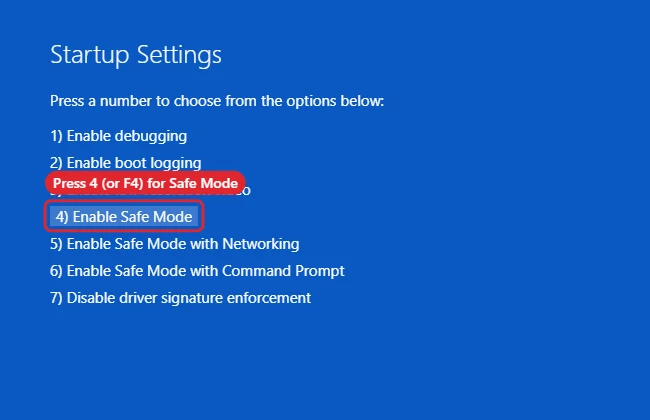
- When the list appears, press 4 or F4 for Safe Mode.
Method 2: From the Sign-In Screen
If you can’t sign in, click the power icon on the sign-in screen, hold Shift and click Restart. Then follow steps 2 to 4 above.
Method 3: When Windows Won’t Start
If Windows fails to start twice in a row, it usually opens the recovery environment on its own. You can force this by turning the PC off during startup two or three times. On the Automatic Repair screen, click Advanced options, then choose Troubleshoot > Advanced options > Startup Settings. See getting to recovery mode for more detail.
Method 4: System Configuration
- Press Windows + R, type msconfig and press Enter.
- On the Boot tab, tick Safe boot and choose Minimal (or Network), then restart.
- Important: Windows will keep starting in Safe Mode until you go back to msconfig and untick Safe boot.
Safe Mode Options Compared
| Key | Option | Use it to |
|---|---|---|
| 4 / F4 | Safe Mode | Remove drivers and apps |
| 5 / F5 | Safe Mode with Networking | Download a driver or run an online scan |
| 6 / F6 | Safe Mode with Command Prompt | Run sfc, DISM or other commands |
If a disk check runs at every start, see stopping repeated disk checks.
Related: how to turn off Safe Mode.
Troubleshooting
- Asked for a BitLocker recovery key: Have it ready before you start. See finding your BitLocker recovery key.
- A recent update caused the problem: Uninstall it from Safe Mode. See undoing a Windows update.
- Blue screen on normal startup: See fixing blue screen errors.
- F8 doesn’t work: Fast startup skips the old F8 menu on most modern PCs. Use Shift + Restart instead.
Frequently Asked Questions
How do I get out of Safe Mode?
Restart the PC. If you used msconfig, untick Safe boot first or Windows will return to Safe Mode.
Why is the screen low resolution in Safe Mode?
Safe Mode uses a basic display driver. Normal resolution returns after a regular restart.
Can I use the internet in Safe Mode?
Only in Safe Mode with Networking (option 5).
Summary
- Hold Shift and click Restart.
- Go to Troubleshoot > Advanced options > Startup Settings.
- Click Restart and press 4, 5 or 6.
- Fix the problem, then restart to leave Safe Mode.

Kermit Matthews is a freelance writer based in Philadelphia, Pennsylvania with more than a decade of experience writing technology guides. He has a Bachelor’s and Master’s degree in Computer Science and has spent much of his professional career in IT management.
He specializes in writing content about iPhones, Android devices, Microsoft Office, and many other popular applications and devices.