A table that runs off the right edge of a Word page usually has fixed column widths, or was pasted from a wider document or web page. AutoFit Window resizes it to fit the margins in one click, and a few other settings handle stubborn cases.
Quick Answer
Click inside the table, open the Table Layout tab, click AutoFit, and choose AutoFit Window. The table shrinks to fit between the page margins.
How to Fix a Table That Is Off the Page in Word
- Click anywhere inside the table.
- Open the Table Layout tab (called Layout under Table Tools in older versions).
- Click AutoFit and choose AutoFit Window.
- If it still overflows, right-click the table, choose Table Properties, and on the Table tab set Preferred width to 100 percent and Indent from left to 0.
- For very wide tables, change the section to landscape with Layout, Orientation, Landscape, or reduce the font size in the table.
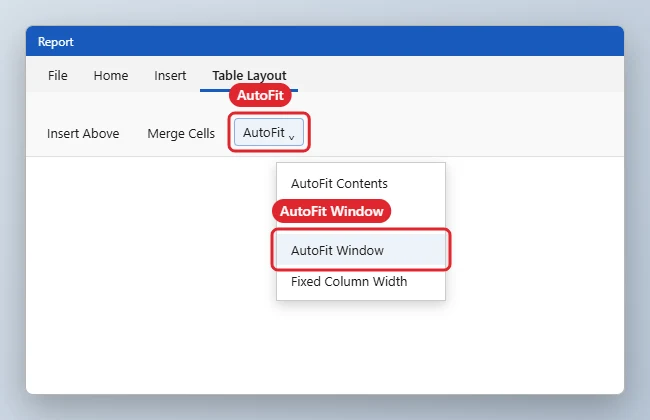
Fixes for Wide Tables
| Fix | When to use it |
|---|---|
| AutoFit Window | Most tables that overflow |
| Preferred width 100 percent | Tables with fixed widths |
| Indent from left 0 | Tables shifted to the right |
| Landscape section | Tables with many columns |
| Smaller font or less padding | Tight fits |
If you’re using a table to divide a page, see how to split a page in half in Word for column and booklet options too.
Troubleshooting
- AutoFit Window does nothing: a column contains a long URL or unbroken text. Allow text wrapping in Table Properties, Cell, Options.
- The table is off the left side: set Indent from left to 0 in Table Properties.
- To see cell boundaries while adjusting, see how to show gridlines in Word.
- To shrink it further, read how to make a table smaller in Word.
Related: Fix common table problems in Word.
Related: Wrap text in a Word table.
Frequently Asked Questions
Why do pasted tables go off the page?
They keep the widths from the source, which may be wider than your page.
Can I rotate just one page for a wide table?
Yes. Insert section breaks before and after, then set only that section to landscape.
Does this work in Word for Mac?
Yes. Use Table Layout, AutoFit, AutoFit Window.
Summary
- Click inside the table.
- Open Table Layout, AutoFit.
- Choose AutoFit Window.
- Adjust width, indent, or orientation if needed.

Kermit Matthews is a freelance writer based in Philadelphia, Pennsylvania with more than a decade of experience writing technology guides. He has a Bachelor’s and Master’s degree in Computer Science and has spent much of his professional career in IT management.
He specializes in writing content about iPhones, Android devices, Microsoft Office, and many other popular applications and devices.