Your Windows username is shown in Settings, Accounts, Your info, but the quickest exact answer is the whoami command in Command Prompt. It shows the name Windows uses for your account, which can differ from the display name on the sign-in screen.
Find Your Username With a Command
- Press the Windows key, type cmd and press Enter.
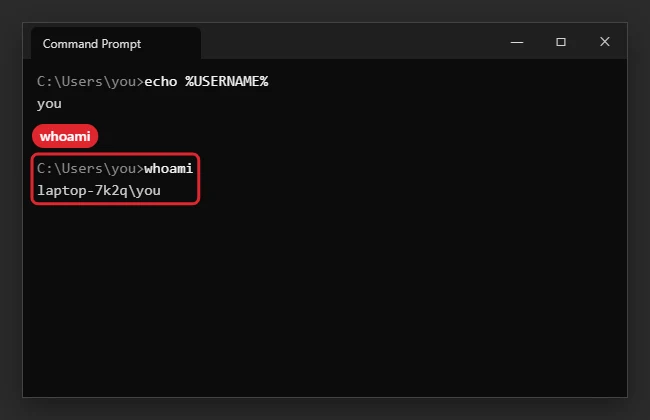
- Type whoami and press Enter.
- Read the result, shown as computername\username. The part after the backslash is your username.
- Or type echo %USERNAME% to see only the username.
Other Places to Find It
| Where | What you see |
|---|---|
| Settings, Accounts, Your info | Display name and the Microsoft account email |
| C:\Users folder | Your profile folder name (often the first 5 letters of a Microsoft account) |
| Start menu account icon | Display name |
| Ctrl+Shift+Esc, Users tab | Signed-in users |
| netplwiz | All user accounts on the PC |
Username vs Display Name vs Sign-in Email
If you sign in with a Microsoft account, you sign in with the email address, not the local username. The local username matters for file paths, network shares and some apps.
More commands that show account names
| Command | Where to run it | Shows |
|---|---|---|
whoami |
Command Prompt or PowerShell | Computer name and your username |
echo %USERNAME% |
Command Prompt | Just your username |
$env:USERNAME |
PowerShell | Just your username |
net user |
Command Prompt | Every local account on the PC |
hostname |
Command Prompt | The computer name, for use with your username |
When you’ll need your username
- Signing in from “Other user”: Type
.\usernamefor a local account. See signing into a local account on Windows 11. - Remote Desktop and network shares: Local accounts use
COMPUTERNAME\username. For a Microsoft account, use the account’s email address and password instead. - File paths and scripts: Your files live in
C:\Users\username. Typing%USERPROFILE%in File Explorer’s address bar opens that folder without knowing the name. - Saved network passwords: See finding network credentials in Windows 11.
Want a different name?
You can change the display name shown on the sign-in screen, but the profile folder name stays the same. See changing your user name in Windows 11.
Troubleshooting
- Forgot the password: reset it at the Microsoft account sign-in page, or use your security questions for a local account.
- Want to change the name: see how to change your account name.
- Need group membership: see checking user groups from the command line.
Microsoft’s command reference: whoami.
Frequently asked questions
Why is my user folder name only five letters?
When you set up Windows with a Microsoft account, Windows creates the folder name from the first five characters of the email address. It’s normal and doesn’t affect anything.
Is my username the same as my Microsoft account?
No. You sign in with the Microsoft account email, but Windows also keeps a short local username for the profile folder and commands. whoami shows that short name.
How do I find the username on a work PC?
Run whoami. On a domain or work account it shows DOMAIN\username; the part before the backslash is your organization’s domain, not the computer name.
Can I see other people’s usernames on the PC?
Yes. net user lists every local account, and Settings > Accounts > Other users shows everyone who can sign in.

Kermit Matthews is a freelance writer based in Philadelphia, Pennsylvania with more than a decade of experience writing technology guides. He has a Bachelor’s and Master’s degree in Computer Science and has spent much of his professional career in IT management.
He specializes in writing content about iPhones, Android devices, Microsoft Office, and many other popular applications and devices.