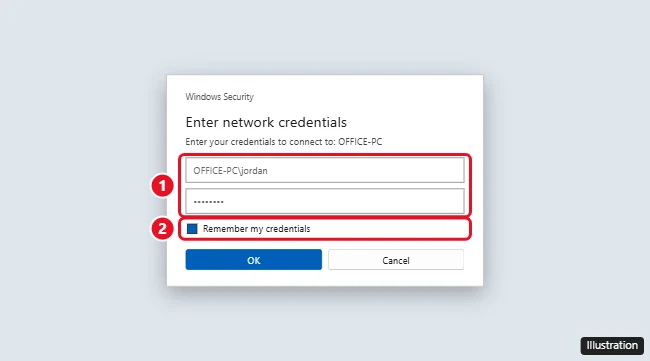
When Windows 11 asks you to “Enter network credentials,” it wants the username and password of an account on the other computer you’re trying to reach, not your own PC’s login. Use the name of the computer sharing the files plus an account on it, like OFFICE-PC\jordan, and that account’s password. If the other PC signs in with a Microsoft account, use that email address and its password. To see credentials Windows has already saved, open Control Panel > Credential Manager > Windows Credentials.
What to enter in the network credentials box
- User name: ComputerName\UserName for a local account on the other PC, or the full email address for a Microsoft account (for example, [email protected]).
- Password: The password for that account on the other PC. A Windows Hello PIN won’t work here.
- Remember my credentials: Check this so Windows saves them in Credential Manager for next time.
How to find the right username
- On the computer that’s sharing files, open Settings > System > About to see its Device name.
- On the same PC, open Settings > Accounts > Your info to see whether the account is a Microsoft account (email) or a local account (name only).
- For a local account, run
whoamiin Command Prompt to see the exact computer\user name.
How to see or change saved network credentials
- Click Start, type Credential Manager, and open it.
- Click Windows Credentials.
- Expand the entry for the other computer or server.
- Click Edit to update the username or password, or Remove to delete it.
Windows won’t show saved passwords here. If you’ve forgotten one, reset it on the other computer.
How to find a saved Wi-Fi password
If you’re looking for your Wi-Fi password instead:
- Open Settings > Network & internet > Wi-Fi.
- Click the network you’re connected to, or Manage known networks > the network name.
- Next to View Wi-Fi security key, click View.
Or run netsh wlan show profile name="Network Name" key=clear in Terminal (Admin) and look for Key Content.
Stop the network credentials prompt
- Save the credentials with Remember my credentials or in Credential Manager.
- Use matching accounts: If both PCs have an account with the same name and password, Windows often connects without asking.
- Share with specific users: On the sharing PC, right-click the folder > Properties > Sharing > Share, and add the account you’ll sign in with.
- Turn off password-protected sharing only on a trusted home network: Control Panel > Network and Sharing Center > Change advanced sharing settings > All networks. This lets anyone on the network access shared folders.
For mail passwords, see changing your email password in Outlook.
Troubleshooting “The username or password is incorrect”
- Make sure you’re using the other PC’s account, not your own.
- Type the computer name before the username, like OFFICE-PC\jordan.
- If the account uses a PIN to sign in, make sure you know its actual password. For Microsoft accounts, that’s the account password.
- Accounts without a password can’t be used for network sign-in by default. Add a password to that account.
Related: Find your Windows username.
Frequently asked questions
What are network credentials in Windows 11?
They’re the username and password used to sign in to another computer, server, or network device when you access shared files or printers.
Where does Windows store network credentials?
In Credential Manager, under Windows Credentials.
Can I find the password for someone else’s shared computer?
No. You need to get it from the owner or have them share the folder with your account.

Kermit Matthews is a freelance writer based in Philadelphia, Pennsylvania with more than a decade of experience writing technology guides. He has a Bachelor’s and Master’s degree in Computer Science and has spent much of his professional career in IT management.
He specializes in writing content about iPhones, Android devices, Microsoft Office, and many other popular applications and devices.