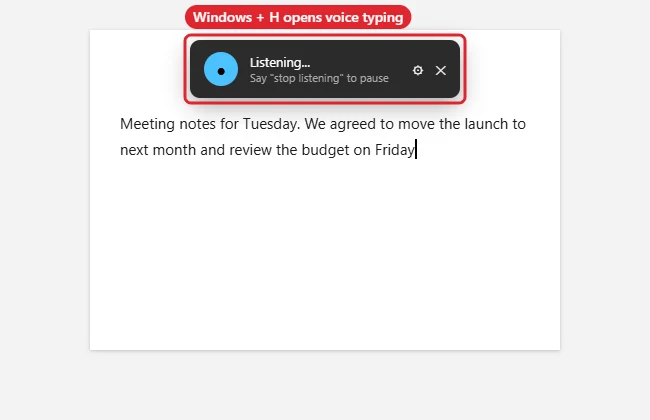
Word 2016 doesn’t have a Dictate button. The Dictate feature on Word’s Home tab comes with Microsoft 365 subscriptions, not one-time-purchase versions like Word 2016. You can still dictate into Word 2016 on Windows by pressing Windows + H, which opens Windows’ built-in voice typing. It types wherever your cursor is, including in Word.
Office 2016 reached end of support on October 14, 2025, so it no longer receives security updates.
Quick Answer
Click in your document and press Windows + H. Start speaking. Press Windows + H again to stop.
Dictate in Word 2016 With Windows Voice Typing
- Open your document and click where you want the text.
- Press Windows + H. The voice typing panel appears.
- If asked, allow microphone access in Settings > Privacy > Microphone (Windows 10) or Privacy & security > Microphone (Windows 11).
- Speak clearly. Say punctuation such as “comma”, “period” or “new line”.
- Press Windows + H again, or click the microphone, to stop.
Your Options by Version
| Setup | How to dictate |
|---|---|
| Word 2016 / 2019 / 2021 on Windows | Windows + H voice typing |
| Word with Microsoft 365 | Home > Dictate |
| Word for the web | Home > Dictate, with a Microsoft account |
| Word on a Mac | macOS Dictation (press the Globe or Fn key twice, depending on your settings) |
Tips for Better Accuracy
- Use a headset microphone and a quiet room.
- Pause between sentences; don’t rush.
- Check the speech language matches yours (Settings > Time & Language > Speech).
- Proofread afterwards; names and technical terms are often wrong.
To get the Dictate button, see downloading a current version of Word.
To test your mic before dictating, hear your own microphone.
On a Mac, see dictating in Word on a Mac.
Troubleshooting
- Windows + H does nothing: Update Windows and check that your display language supports voice typing.
- Nothing gets typed: Check the microphone under Sound > Input in Settings.
- Word crashes when dictating: Try opening Word in Safe Mode to rule out add-ins.
Frequently Asked Questions
Can I add the Dictate button to Word 2016?
No. An old experimental add-in once offered it, but it’s no longer available. Use Windows voice typing or a Microsoft 365 version of Word.
Is Windows voice typing free?
Yes, it’s built into Windows 10 and 11.
Do I need the internet?
Plan on it. Voice typing generally relies on online speech recognition.
Summary
- Word 2016 has no Dictate button.
- Press Windows + H to use Windows voice typing instead.
- Allow microphone access if asked.
- Microsoft 365 versions add Dictate on the Home tab.

Kermit Matthews is a freelance writer based in Philadelphia, Pennsylvania with more than a decade of experience writing technology guides. He has a Bachelor’s and Master’s degree in Computer Science and has spent much of his professional career in IT management.
He specializes in writing content about iPhones, Android devices, Microsoft Office, and many other popular applications and devices.