To disable password expiration on Windows 11 for a local account, press Windows + R, type lusrmgr.msc, open Users, double-click the account, check Password never expires, and click OK. On Windows 11 Home, which doesn’t include that tool, open Command Prompt as administrator and run net accounts /maxpwage:unlimited to stop passwords expiring for all local accounts, or use PowerShell: Set-LocalUser -Name "Alex" -PasswordNeverExpires $true.
This guide covers every method, how to check whether a password is set to expire, why Microsoft accounts and work accounts are different, and the security trade-offs.
Does your password actually expire?
Open Command Prompt and run net user YourUserName. Look at Password expires. If it shows a date, expiration is on. If it says Never, you’re already set. Windows has a default maximum password age of 42 days for local accounts, but accounts created in Settings often have Password never expires turned on already, so results vary by PC.
Method 1: Local Users and Groups (Pro, Enterprise, Education)
- Press Windows + R, type lusrmgr.msc, and press Enter.
- Click Users in the left pane.
- Double-click the account.
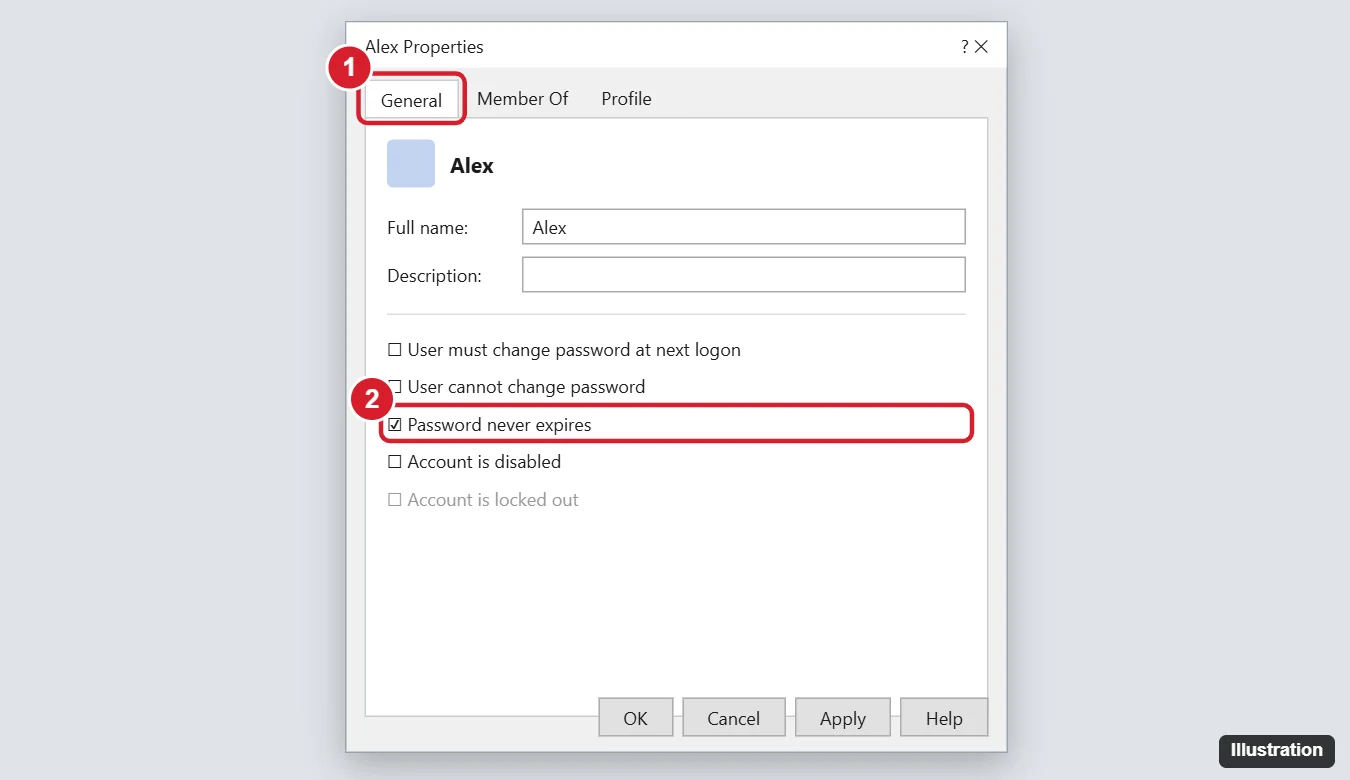
- On the General tab, check Password never expires.
- Click OK.
Method 2: Command Prompt (all editions)
- Right-click Start and choose Terminal (Admin), or run Command Prompt as administrator.
- To stop passwords expiring for every local account, run
net accounts /maxpwage:unlimited. - Check the result with
net accounts. Maximum password age (days) should say Unlimited.
Method 3: PowerShell for a single account
- Open Terminal (Admin) with a PowerShell tab.
- List local accounts:
Get-LocalUser - Run
Set-LocalUser -Name "Alex" -PasswordNeverExpires $true, replacing Alex with the account name. - Verify with
Get-LocalUser -Name "Alex" | Select-Object Name,PasswordExpires. PasswordExpires should be empty.
You may see older guides using wmic useraccount. WMIC is deprecated and being removed from Windows 11, so use PowerShell instead.
Method 4: Local Security Policy (Pro and higher)
- Press Windows + R, type secpol.msc, and press Enter.
- Go to Account Policies > Password Policy.
- Double-click Maximum password age, set it to 0 (password will not expire), and click OK.
Microsoft accounts are different
If you sign in to Windows with a Microsoft account (an email address), the password is controlled by Microsoft, not Windows. Microsoft doesn’t normally force regular password changes for personal accounts. If you once turned on the option to change your password every 72 days, sign in at account.microsoft.com > Security > Change password and leave Make me change my password every 72 days unchecked. Using a PIN or Windows Hello for everyday sign-in also avoids typing the password.
Work or school accounts
If your PC is joined to a domain or managed by Microsoft Entra ID or Intune, password expiration is set by your organization. Local changes won’t stick, and changing them may break policy. Ask your IT department.
Is it safe to disable password expiration?
Current guidance from security organizations, including NIST and Microsoft, is that forcing regular password changes doesn’t improve security much and can lead to weaker passwords. It’s generally better to use a long, unique password or passphrase, turn on Windows Hello or a PIN, and change the password only if you suspect it’s been exposed.
Troubleshooting
- lusrmgr.msc won’t open – you’re on Windows 11 Home. Use Method 2 or 3.
- “Access is denied” – run Command Prompt or PowerShell as administrator.
- Password still expires – check whether a domain or device management policy applies with
gpresult /r. - “User name could not be found” – use the account’s short name from
Get-LocalUser, not its display name or email address.
Frequently asked questions
How do I turn password expiration back on?
Uncheck Password never expires, run net accounts /maxpwage:42 (or another number of days), or use Set-LocalUser -Name "Alex" -PasswordNeverExpires $false.
Does this remove my password?
No. It only stops Windows from asking you to change it.
Does this work on Windows 10?
Yes. All of these methods work the same way on Windows 10.

Kermit Matthews is a freelance writer based in Philadelphia, Pennsylvania with more than a decade of experience writing technology guides. He has a Bachelor’s and Master’s degree in Computer Science and has spent much of his professional career in IT management.
He specializes in writing content about iPhones, Android devices, Microsoft Office, and many other popular applications and devices.