To create a new user on Windows 10, go to Settings > Accounts > Family & other users and click Add someone else to this PC. Enter the person’s Microsoft account email, or click I don’t have this person’s sign-in information > Add a user without a Microsoft account to create a local account with just a user name and password. You need to be signed in as an administrator.
Below you’ll find step-by-step instructions for both account types, how to make a user an administrator, faster methods using Netplwiz or Command Prompt, and fixes for common problems.
Microsoft account vs. local account
| Microsoft account | Local account | |
|---|---|---|
| Signs in with | An email address and password or PIN | A user name and password (optional) |
| Syncs settings between PCs | Yes | No |
| OneDrive and Microsoft Store | Signed in automatically | Sign in separately in each app |
| Works offline to set up | No, needs internet | Yes |
| Best for | Family members who use other Microsoft services | Guests, shared PCs, or anyone who wants privacy |
Method 1: Add a user with a Microsoft account
- Press Windows + I to open Settings, then click Accounts.
- Click Family & other users (called Other users on some editions).
- Under Other users, click Add someone else to this PC.
- Enter the person’s email address or phone number and click Next, then Finish.
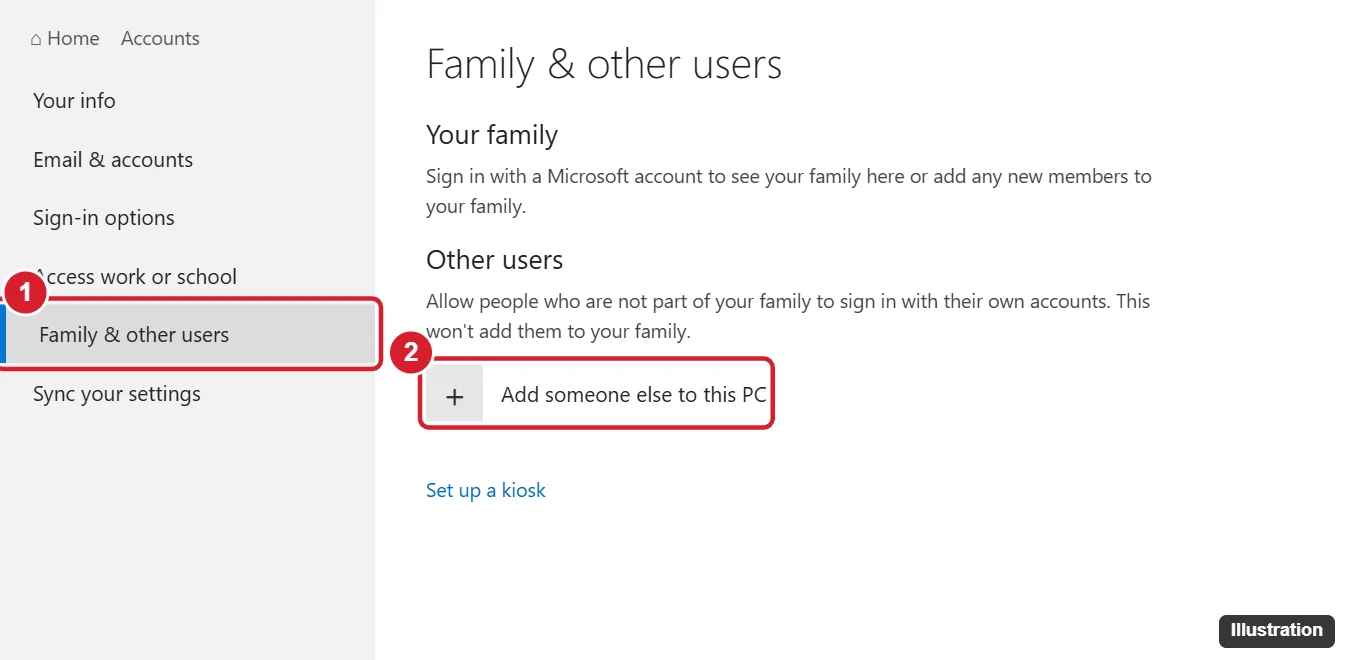
The new user needs an internet connection the first time they sign in. To add a child with parental controls, use Add a family member under Your family instead.
Method 2: Create a local user account
- Go to Settings > Accounts > Family & other users and click Add someone else to this PC.
- Click I don’t have this person’s sign-in information.
- Click Add a user without a Microsoft account.
- Type a user name. Enter a password twice, then choose three security questions and answers.
- Click Next.
You can leave the password blank for a guest-style account, but anyone could then sign in to it. A password is safer.
How to make a new user an administrator
New accounts are Standard users by default. They can use apps but can’t install most software or change system settings.
- In Family & other users, click the account.
- Click Change account type.
- Choose Administrator and click OK.
Only give administrator rights to people you trust.
Method 3: Use Netplwiz
- Press Windows + R, type netplwiz, and press Enter.
- Click Add.
- To make a local account, click Sign in without a Microsoft account (not recommended), then Local account.
- Enter a user name, password, and hint, then click Next and Finish.
Method 4: Use Command Prompt
- Click Start, type cmd, right-click Command Prompt, and choose Run as administrator.
- Type net user NewName Password123 /add, replacing NewName and Password123 with your own, and press Enter.
- To make it an administrator, type net localgroup administrators NewName /add and press Enter.
On Windows 10 Pro, you can also use Local Users and Groups. Press Windows + R, type lusrmgr.msc, right-click Users, and choose New User.
How to switch to the new user
Click Start, click your profile picture, and choose the new account. Or press Ctrl + Alt + Delete and click Switch user. The first sign-in takes a few minutes while Windows sets up the account.
Troubleshooting
- “Add someone else” is grayed out or does nothing: Make sure you’re using an administrator account. If the window won’t open, try Netplwiz or Command Prompt instead.
- No “Family & other users” option: On work or school PCs, your organization may manage accounts. Contact your IT department.
- The new user can’t install apps: Change the account type to Administrator, or approve installs with an admin password.
- The new user doesn’t appear on the sign-in screen: Restart the PC, or click Other user in the bottom-left corner of the sign-in screen and type the user name.
Frequently asked questions
How many user accounts can Windows 10 have?
There’s no practical limit for home use. Each account needs some disk space for its own files.
Can other users see my files?
Standard users can’t open other people’s user folders. Administrators can, so choose admin accounts carefully.
How do I delete a user?
In Family & other users, click the account and choose Remove > Delete account and data. This deletes their files, so back them up first.

Kermit Matthews is a freelance writer based in Philadelphia, Pennsylvania with more than a decade of experience writing technology guides. He has a Bachelor’s and Master’s degree in Computer Science and has spent much of his professional career in IT management.
He specializes in writing content about iPhones, Android devices, Microsoft Office, and many other popular applications and devices.