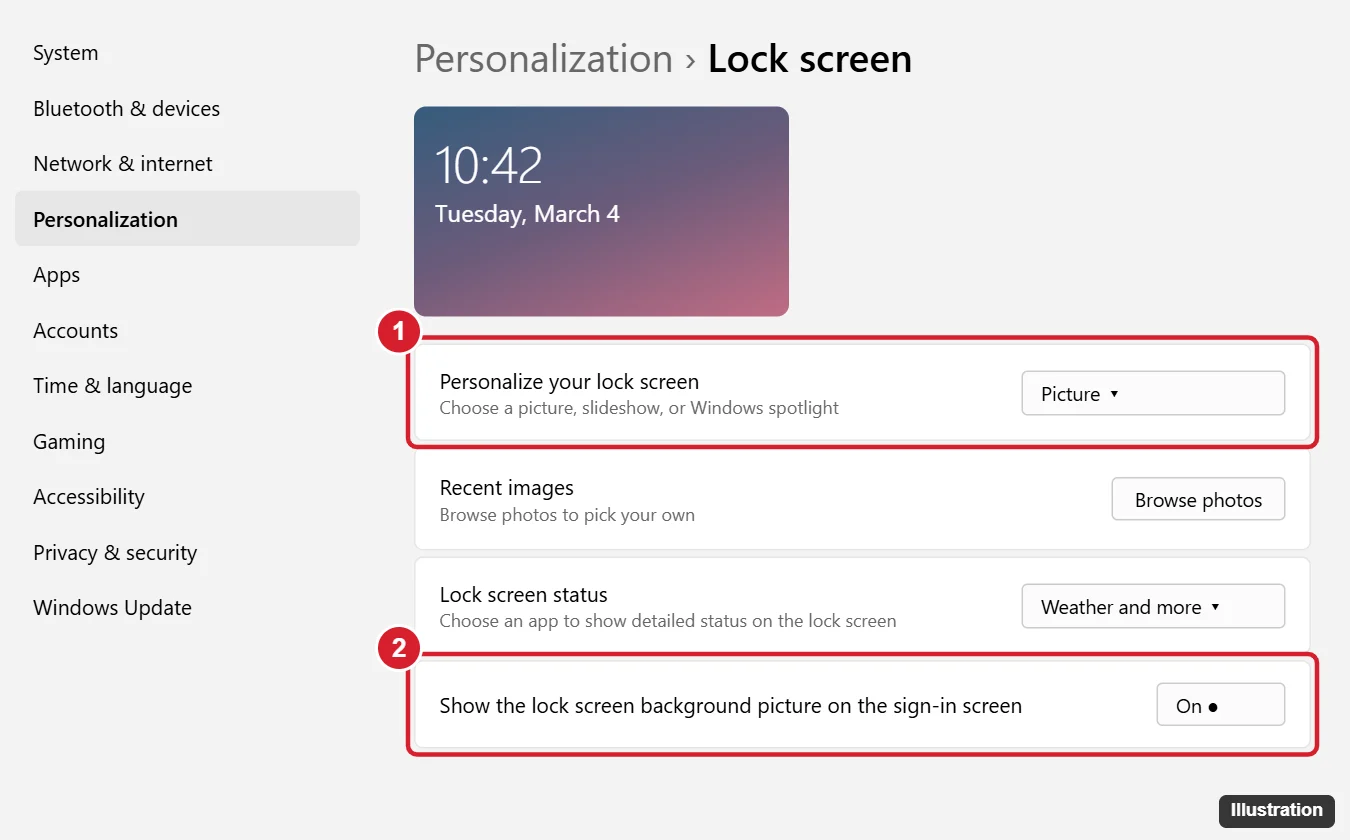
To change the lock screen on Windows 11, open Settings (press Windows + I), go to Personalization > Lock screen, and use the Personalize your lock screen drop-down to choose Windows spotlight, Picture, or Slideshow. Pick Picture and click Browse photos to use your own image. On the same page, you can choose what status info appears and whether the background also shows on the sign-in screen.
This guide covers every lock screen setting in Windows 11, how to change the timeout, how to fix a lock screen that won’t change, and how the lock screen differs from your desktop wallpaper.
How to change the lock screen picture
- Right-click the desktop and choose Personalize, or open Settings > Personalization.
- Click Lock screen.
- Open the Personalize your lock screen drop-down and choose one of the options below.
| Option | What it does | How to set it up |
|---|---|---|
| Windows spotlight | Shows a new photo from Microsoft each day, with optional “Like what you see?” facts | Select it. Nothing else to do. |
| Picture | Shows one image you choose | Click a recent image, or click Browse photos and pick a file. |
| Slideshow | Rotates through photos in a folder | Click Browse to add a folder, then open Advanced slideshow settings. |
For the best result, use an image that matches your screen resolution, such as 1920 x 1080 or 2560 x 1440. You can check yours in Settings > System > Display > Display resolution.
Slideshow settings
After you choose Slideshow and add a folder, expand Advanced slideshow settings to:
- Include your camera roll folders from this PC and OneDrive.
- Only use pictures that fit your screen.
- Show the lock screen instead of turning off the screen when your PC is inactive.
- Turn off the screen after the slideshow has played for 30 minutes, 1 hour, or 3 hours.
Change what shows on the lock screen
- Lock screen status: Pick one app to show detailed info, such as Weather and more, Calendar, or Mail, or choose None. Weather and more also shows widgets like sports, finance, and traffic on recent versions of Windows 11.
- Get fun facts, tips, tricks, and more: This checkbox appears when you use Picture or Slideshow. Uncheck it to hide Microsoft’s tips.
- Show the lock screen background picture on the sign-in screen: Turn this off to show a plain color on the password screen instead.
How to change when the lock screen appears
- Screen timeout: Go to Settings > System > Power & battery (or Power) > Screen, sleep, & hibernate timeouts.
- Require sign-in after sleep: Go to Settings > Accounts > Sign-in options > If you’ve been away, when should Windows require you to sign in again?
- Dynamic lock: On the same Sign-in options page, turn on Dynamic lock to lock your PC automatically when your paired Bluetooth phone moves out of range.
- Lock it now: Press Windows + L.
Want a moving screen saver too? See how to turn on a screen saver in Windows 11.
Lock screen vs. desktop background
They’re set separately. The lock screen is what you see before you sign in. The desktop background is behind your apps. To change the desktop wallpaper, go to Settings > Personalization > Background. You can use the same picture for both if you like.
Lock screen won’t change? Try these fixes
- Options are grayed out with “Some of these settings are managed by your organization.” On a work or school PC, your IT admin controls the lock screen. On a personal PC, this can be left behind by old tweaks or apps. Check with your admin before changing policies.
- Windows spotlight is stuck on one image. Switch to Picture, restart, then switch back to Windows spotlight. Make sure you’re connected to the internet and that your connection isn’t set as metered.
- Your PC isn’t activated. Personalization settings are locked until Windows is activated. See how to activate Windows.
- Picture looks blurry or cropped. Use a higher resolution image with the same shape as your screen.
- Background shows as black on the sign-in screen. Turn on Show the lock screen background picture on the sign-in screen. Also check Settings > Accessibility > Visual effects > Transparency effects.
Frequently asked questions
Where are Windows spotlight images saved?
They’re stored in a hidden system folder with no file extensions. The simplest way to keep one is to click Like what you see? on the lock screen, or use the spotlight desktop background option in Settings > Personalization > Background, which offers a link to learn more about the image.
Can I turn off the lock screen completely?
Windows 11 Home has no setting for this. Pro, Enterprise, and Education editions can turn it off with Group Policy, but you’ll still see the sign-in screen.
Can I use a GIF or video as my lock screen?
No. Windows 11 only supports still images for the lock screen. Slideshow is the closest built-in option.
How do I change the lock screen in Windows 10?
The steps are similar. See how to change the lock screen on Windows 10.

Kermit Matthews is a freelance writer based in Philadelphia, Pennsylvania with more than a decade of experience writing technology guides. He has a Bachelor’s and Master’s degree in Computer Science and has spent much of his professional career in IT management.
He specializes in writing content about iPhones, Android devices, Microsoft Office, and many other popular applications and devices.