Every folder in Windows 11 looks the same yellow folder by default, which makes it hard to spot the one you need. Changing a folder’s icon to a star, a camera, a lock or your own custom image makes important folders stand out on the desktop and in File Explorer. It takes about 30 seconds per folder, and you can undo it any time. This guide covers built-in icons, custom .ico files, folder pictures, and changing the icons for This PC, Recycle Bin and other desktop items.
Quick Answer
Right-click the folder, choose Properties, open the Customize tab, click Change Icon, pick an icon, and click OK, then Apply and OK.
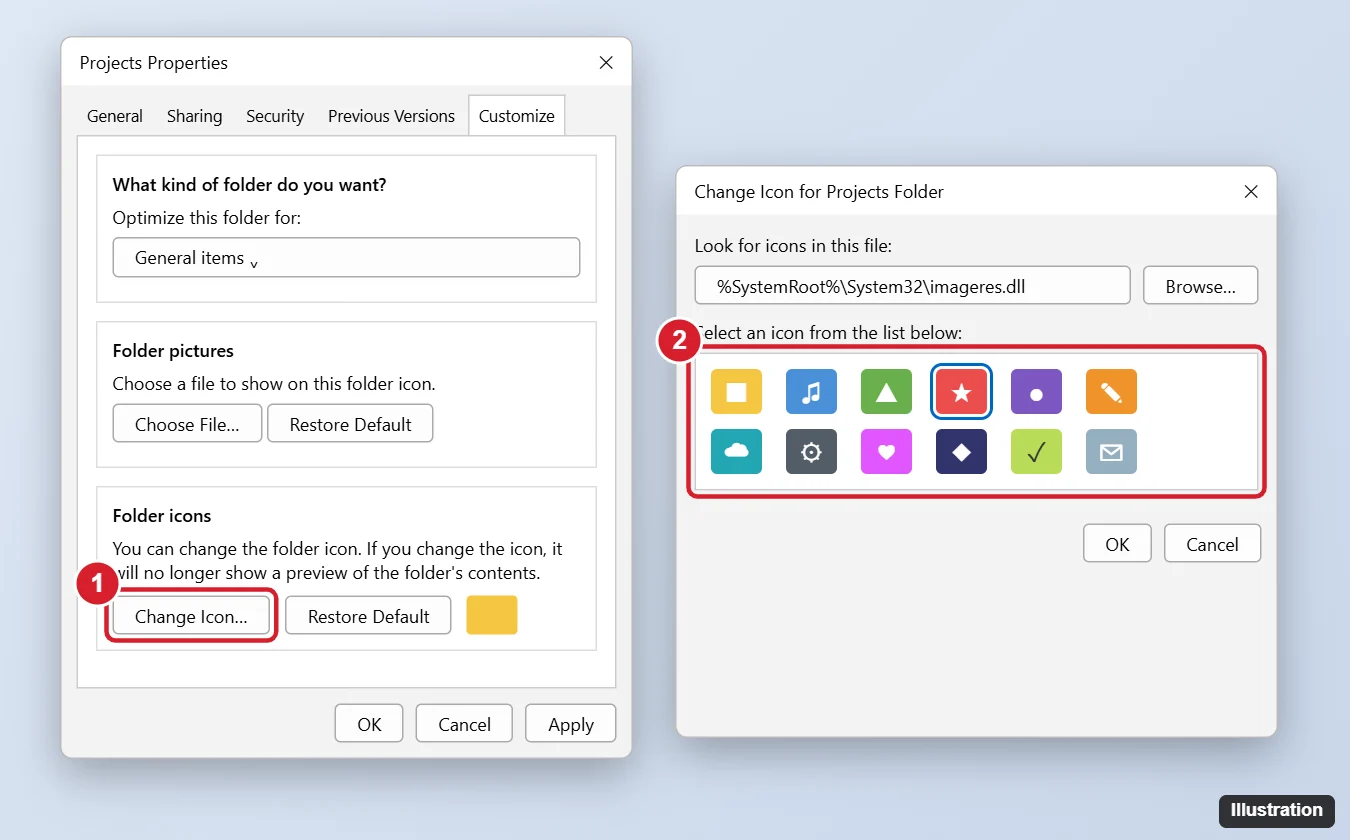
How to Change a Folder Icon in Windows 11
- Right-click the folder on the desktop or in File Explorer and choose Properties. (You don’t need to click Show more options.)
- Click the Customize tab.
- Under Folder icons, click Change Icon.
- Pick an icon from the list. The default list comes from SHELL32.dll.
- Click OK, then Apply, then OK.
The new icon appears right away. If it doesn’t, press F5 to refresh the window.
Find More Built-In Icons
Windows includes hundreds of icons in a few system files. In the Change Icon box, paste one of these paths into Look for icons in this file and press Enter:
%SystemRoot%\System32\imageres.dll: the largest set, with modern folder, drive and device icons.%SystemRoot%\System32\shell32.dll: the default set.%SystemRoot%\System32\ddores.dll: hardware and device icons.%SystemRoot%\System32\moricons.dll: older-style program icons.
Use Your Own Custom Icon
- Get an icon in .ico format. You can download free icon packs from reputable sites or convert a PNG to ICO with an online converter or an image editor. Use a square image at least 256 × 256 pixels for sharp results.
- Save the .ico file somewhere permanent, such as a new folder named Icons in your Documents folder. If you move or delete the file later, the folder goes back to a blank icon.
- In the Change Icon box, click Browse, select your .ico file, and click Open.
- Click OK, Apply and OK.
You can also browse to an .exe or .dll file to use icons stored inside a program.
Change a Folder Picture Instead
Under Folder pictures on the Customize tab, click Choose File and pick any image. The picture appears on the folder only when you view files as Medium, Large or Extra large icons, and only if the folder still uses the standard folder icon. This is a good option for photo or music folders.
Restore the Default Folder Icon
- Right-click the folder and choose Properties > Customize.
- Click Change Icon, then Restore Defaults.
- Click OK, Apply and OK.
Change Desktop Icons (This PC, Recycle Bin, Network)
- Open Settings > Personalization > Themes.
- Click Desktop icon settings.
- Select an icon, such as This PC or Recycle Bin, then click Change Icon.
- Choose a new icon and click OK twice.
Troubleshooting
- No Customize tab: Some locations, such as drives, libraries and certain system folders, don’t have it. For a drive, you’d need a registry or autorun change, which isn’t covered here.
- The icon didn’t change: Press F5, or restart File Explorer from Task Manager. If it still shows the old icon, clear the icon cache by restarting the PC.
- The icon disappears on another PC: Custom icons are stored in a hidden desktop.ini file inside the folder that points to the icon’s location. If the icon file isn’t on the other PC at the same path, the icon won’t show.
- Icon looks blurry: Use a higher-resolution .ico file that includes a 256 × 256 size.
Frequently Asked Questions
Can I change the icon for all folders at once?
Not through settings. It requires editing the registry or a third-party customization tool. Changing icons one folder at a time is safer.
Can I change a folder’s color?
Windows 11 doesn’t have a folder color option. Use a colored folder icon from imageres.dll or a custom .ico file instead.
Do these steps work on Windows 10?
Yes. The Properties > Customize > Change Icon steps are the same.
Will changing the icon affect the files inside?
No. Only the folder’s appearance changes.
Summary
- Right-click the folder and choose Properties.
- Open the Customize tab and click Change Icon.
- Pick a built-in icon or Browse to an .ico file.
- Click OK, Apply and OK.

Kermit Matthews is a freelance writer based in Philadelphia, Pennsylvania with more than a decade of experience writing technology guides. He has a Bachelor’s and Master’s degree in Computer Science and has spent much of his professional career in IT management.
He specializes in writing content about iPhones, Android devices, Microsoft Office, and many other popular applications and devices.