New Google Sheets files start with small text (Arial, size 10 by default). If you always bump it up, you’ve probably looked for a “default font size” setting. Google Sheets doesn’t currently offer a global default font size, but you can set the font size for a whole sheet in seconds, change the default font family with a theme, and reuse a template or copy so new files start the way you like. This guide covers all of it.
Quick Answer
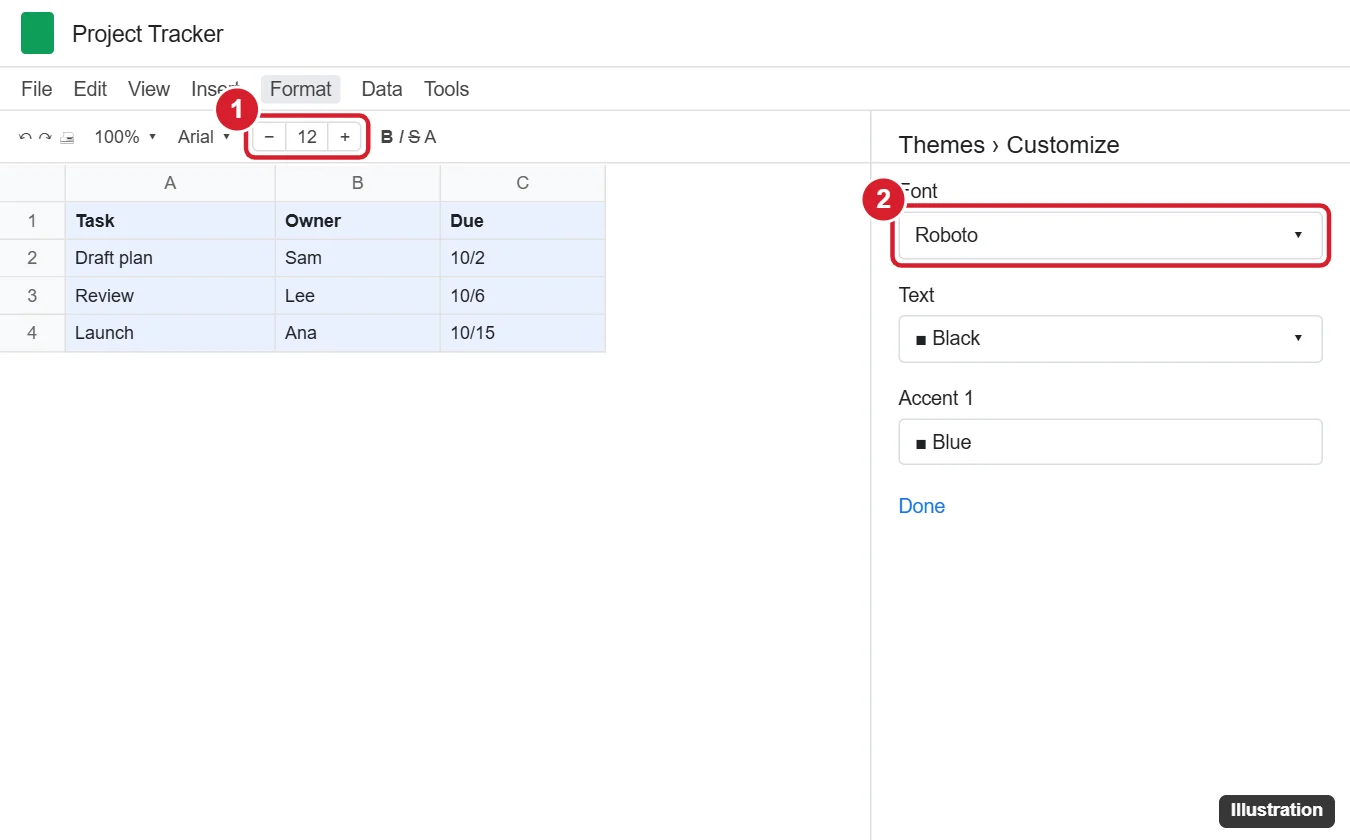
To change the font size for an entire sheet, press Ctrl + A (Cmd + A on Mac) to select all cells, then set the size in the toolbar’s font size box. To change the default font family for a file, go to Format > Theme > Customize and pick a font. To reuse your settings, make a copy of a formatted file or save it as a template.
Change the Font Size for the Whole Sheet
- Click any cell, then press Ctrl + A (press twice if the first press selects only a data region), or click the gray box at the top-left corner of the grid.
- In the toolbar, click the font size box and type or pick a size, such as 12. You can also use the − and + buttons.
- Repeat for other tabs if needed; each sheet tab is formatted separately. Select multiple tabs by Ctrl-clicking them to apply formatting to several at once.
Change the Default Font Family with a Theme
- Click Format > Theme.
- Choose a preset or click Customize.
- Under Font, pick a font. Cells without manual formatting, and new cells you type in, use this font.
- Click Done.
Themes control font family, text color, and accent colors, but not font size.
Start New Spreadsheets with Your Preferred Size
- Make a “starter” file: create a blank spreadsheet, select all cells, set your preferred size and font, then use File > Make a copy whenever you need a new sheet.
- Use a template (Google Workspace): business and school accounts can submit a formatted file to the organization’s template gallery from the Sheets home screen.
- Zoom instead: if the text is just hard to read, use the Zoom dropdown (for example, 125%) to enlarge everything on screen without changing the file.
Change Font Size on Mobile
- Open the sheet in the Google Sheets app and tap the top-left corner of the grid to select all cells.
- Tap the A (format) icon, choose Text, and adjust the size.
Troubleshooting
- New rows still use size 10: rows added below your formatted range may not inherit formatting. Select entire columns (click the column letters) before setting the size.
- Some cells didn’t change: conditional formatting or pasted formatting may override it. Select the range and use Format > Clear formatting (Ctrl + \), then reapply.
- Charts and headers: chart text sizes are set in the chart editor’s Customize tab.
Frequently Asked Questions
Is there a way to make size 12 the default for all new Google Sheets?
Not in Google Sheets settings at the time of writing. Use a starter file or template.
Does changing the size affect printing?
Yes. Larger fonts may push content onto more pages; check File > Print and use Fit to width if needed.
Summary
- Select all cells and set the font size in the toolbar.
- Use Format > Theme > Customize for the default font family.
- Copy a formatted starter file for new spreadsheets.
- Use Zoom for easier on-screen reading.

Kermit Matthews is a freelance writer based in Philadelphia, Pennsylvania with more than a decade of experience writing technology guides. He has a Bachelor’s and Master’s degree in Computer Science and has spent much of his professional career in IT management.
He specializes in writing content about iPhones, Android devices, Microsoft Office, and many other popular applications and devices.