Most printers install themselves in Windows 11: connect the printer, then open Settings, Bluetooth and devices, Printers and scanners and click Add device. If Windows cannot find it, use Add a new device manually to point Windows to the printer by name, IP address or port.
Before you start, turn the printer on and connect it the way you plan to use it: a USB cable, or the same Wi-Fi network as your PC.
Add a Printer in Windows 11
- Press Windows key + I to open Settings.
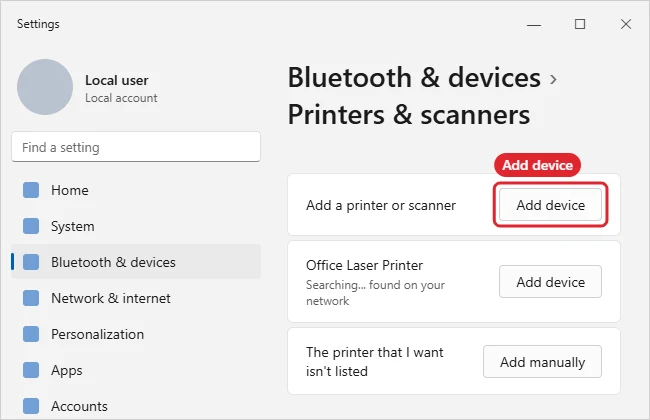
- Select Bluetooth and devices, then Printers and scanners.
- Next to Add a printer or scanner, click Add device.
- Wait for the search to finish, then click Add device next to your printer.
- Windows installs the driver. When the printer appears in the list, open it and choose Print test page to check it works.
If Your Printer Is Not Listed
- After the search, click Add a new device manually next to The printer that I want isn’t listed.
- Choose an option in the Add Printer wizard: Add a printer using an IP address or hostname for most network printers, or Add a Bluetooth, wireless or network discoverable printer.
- Enter the printer’s IP address (print it from the printer’s own network menu), then click Next.
- Choose the driver if asked, or click Have Disk if you downloaded one from the maker.
- Name the printer and print a test page.
Related: How to Print on Windows 11.
Add a Printer by IP Address
Network printers that Windows can’t find on its own can almost always be added by IP address. Print a network configuration page from the printer’s menu, or check its screen, to find the address, then:
- In Printers & scanners, click Add device, then Add a new device manually next to “The printer that I want isn’t listed.”
- Choose Add a printer using an IP address or hostname and click Next.
- Leave Device type on Autodetect, type the IP address, and click Next.
- Windows looks for the printer and installs a driver. If asked, choose the manufacturer and model from the list or click Windows Update to load more models.
- Name the printer, choose whether to share it, and click Finish. Print a test page to confirm.
If the printer’s IP address keeps changing, reserve an address for it in your router’s settings so the connection doesn’t break later.
USB, Wi-Fi or Shared Printer: What to Expect
| Connection | What happens |
|---|---|
| USB cable | Windows usually detects the printer as soon as you plug it in and installs it automatically |
| Wi-Fi or Ethernet | The printer must be on the same network as the PC; then Add device finds it |
| Printer shared from another PC | Use Add a new device manually, then “Select a shared printer by name” |
| Bluetooth | Pair it first under Bluetooth & devices, then it appears in Printers & scanners |
Get the Full Driver and Printer App
Microsoft notes that a Find drivers button may appear next to a newly added printer. The printer should still work, but some features may be missing until the full driver is installed, and Windows Update is the recommended place to get it: open Settings > Windows Update > Advanced options > Optional updates and look under driver updates. Many manufacturers also offer a companion app in the Microsoft Store for ink levels, scanning and maintenance. For driver steps, see how to install a printer driver in Windows 11.
After You Add the Printer
- Make it your default: see how to set a default printer in Windows 11. Turn off Let Windows manage my default printer if the default keeps changing.
- Rename it from the printer’s Printer properties so it’s easy to pick in print dialogs.
- Remove old printers you no longer use to keep the list tidy: how to remove a printer from Windows 11.
Troubleshooting
- Printer not found on Wi-Fi: make sure the PC and printer are on the same network, not a guest network, and restart both.
- Only basic features work: open Windows Update, Advanced options, Optional updates for driver updates, or install the full driver from the printer maker’s website.
- Printer shows as offline: check the cable or Wi-Fi, then remove the printer and add it again.
- Printing still fails: see how to update drivers.
Microsoft’s own steps are in Add or install a printer in Windows. Need a PDF instead of paper? See how to print to PDF on Windows.
Related: Clear the printer queue in Windows 11.

Kermit Matthews is a freelance writer based in Philadelphia, Pennsylvania with more than a decade of experience writing technology guides. He has a Bachelor’s and Master’s degree in Computer Science and has spent much of his professional career in IT management.
He specializes in writing content about iPhones, Android devices, Microsoft Office, and many other popular applications and devices.