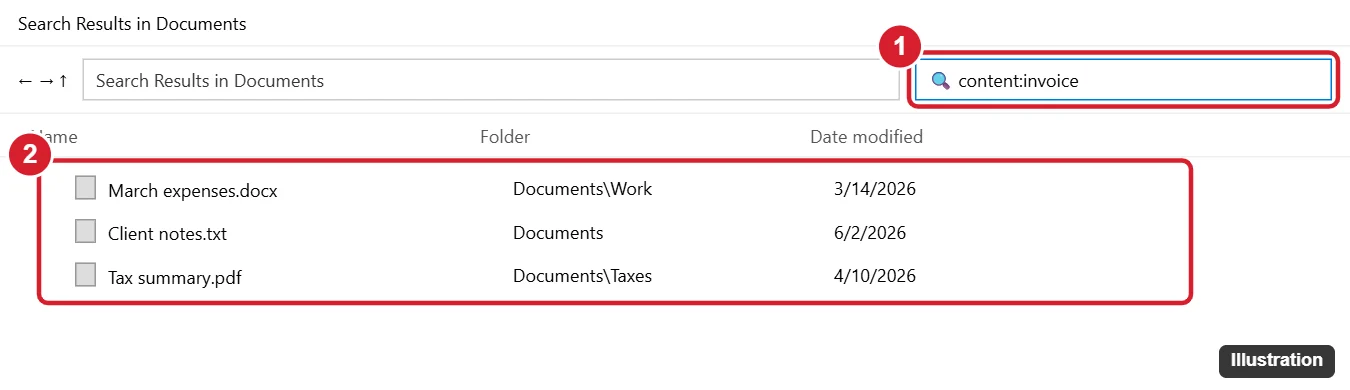
To search for a word on Windows, press Ctrl + F in almost any app, including web browsers, Word, PDF readers, and Notepad, then type the word. Matches are highlighted, and you can press Enter to jump to the next one. To find a word inside files on your PC, open File Explorer, go to the folder, and type content: followed by the word in the search box, like content:invoice.
These steps work on Windows 11 and Windows 10. Below you’ll find how to search within specific apps, search file contents reliably, and use a command for advanced searches.
Search for a word in a web page, document, or PDF
| App | How to search |
|---|---|
| Chrome, Edge, Firefox | Ctrl + F, type the word, then Enter or the arrows to move between matches |
| Microsoft Word | Ctrl + F opens the Navigation pane with all results. Ctrl + H finds and replaces. |
| PDF in Edge or Acrobat Reader | Ctrl + F |
| Notepad | Ctrl + F, or F3 to find the next match |
| Excel | Ctrl + F searches the current sheet. Click Options to search the whole workbook. |
Search for a word inside files with File Explorer
- Press Windows + E and open the folder you want to search, such as Documents.
- Click the search box in the top-right corner.
- Type content: followed by the word, like content:invoice, and press Enter.
- Files containing the word appear in the results.
Make content searches faster and more complete
Windows searches file contents best in indexed locations. To check, search the Start menu for Indexing Options, click Advanced > File Types, select a file type like .txt, and choose Index Properties and File Contents. In File Explorer on Windows 10, you can also click Search > Advanced options > File contents to search non-indexed folders (slower).
Search your whole PC from the taskbar
Click the search box or icon on the taskbar (or press Windows + S) and type the word. Windows shows matching apps, settings, and documents. Click Documents at the top to filter to files.
Search file contents with a command
In Command Prompt, go to the folder and run findstr /s /i /m “invoice” *.txt. This lists every .txt file in the folder and its subfolders that contains “invoice.” It works with plain text files, not Word or PDF files.
Troubleshooting
- Search doesn’t find a file you know contains the word: The folder may not be indexed, or the file type isn’t set to index contents. Adjust Indexing Options as shown above.
- Search is slow or stuck: In Indexing Options, click Advanced > Rebuild. It can take a while to finish.
- Ctrl + F doesn’t work: Some apps use a different shortcut or have a search icon instead. Look for a magnifying glass in the app’s toolbar.
Frequently asked questions
Can Windows search inside PDFs?
Yes, if a PDF filter is installed and the folder is indexed. Many PDF readers install one.
How do I search for an exact phrase?
Put it in quotes, like content:”quarterly report” in File Explorer.
Is there a shortcut to search in File Explorer?
Press Ctrl + E or F3 in File Explorer to jump to the search box.

Kermit Matthews is a freelance writer based in Philadelphia, Pennsylvania with more than a decade of experience writing technology guides. He has a Bachelor’s and Master’s degree in Computer Science and has spent much of his professional career in IT management.
He specializes in writing content about iPhones, Android devices, Microsoft Office, and many other popular applications and devices.