To reinstall the Realtek audio driver in Windows 10, right-click Start and open Device Manager, expand Sound, video and game controllers, right-click Realtek Audio (or Realtek High Definition Audio), and choose Uninstall device. Check Delete the driver software for this device if you want a clean reinstall, click Uninstall, and restart your PC. Windows reinstalls a working driver automatically; for the best version, install the audio driver from your PC or motherboard maker’s support website.
This guide covers the reinstall step by step, where to get the right driver, how to fix “No audio output device is installed,” and what to do if sound still doesn’t work.
Before you start
- Find your PC or motherboard model (on a sticker, or in System Information via msinfo32) so you can download the correct driver.
- Download the driver first, since you may lose sound while reinstalling (internet access isn’t affected).
- Create a restore point: search for Create a restore point and click Create.
Step 1: Uninstall the Realtek audio driver
- Right-click Start and choose Device Manager.
- Expand Sound, video and game controllers.
- Right-click Realtek Audio or Realtek High Definition Audio and choose Uninstall device.
- Check Delete the driver software for this device (or Attempt to remove the driver for this device) for a clean reinstall.
- Click Uninstall.
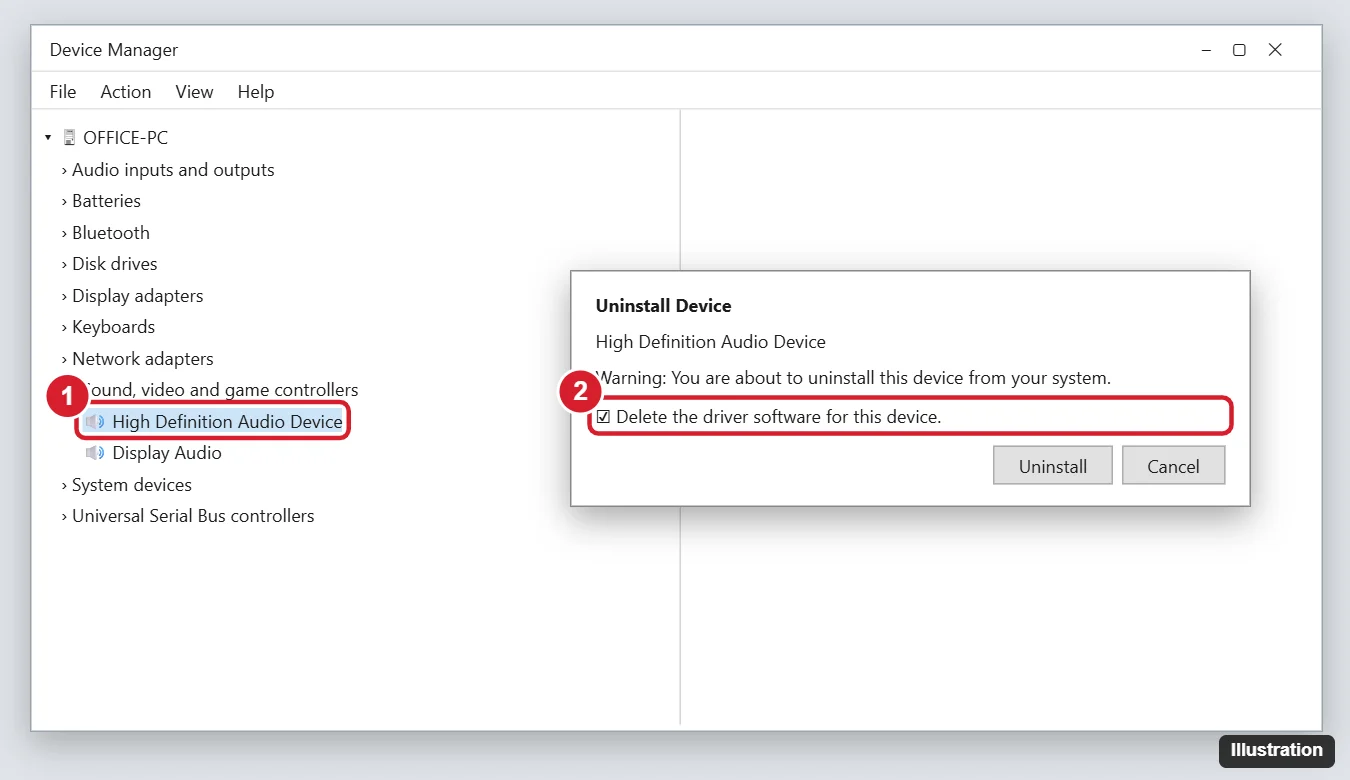
If you see an extra Realtek entry under Software components or Audio Processing Objects (APOs), you can uninstall it too for a full clean install.
Step 2: Reinstall the driver
Option A: Let Windows reinstall it
- Restart the PC. Windows detects the audio hardware and installs a driver.
- Or, in Device Manager, click Action > Scan for hardware changes.
Option B: Install from your PC maker (recommended)
- Go to your PC or motherboard maker’s support website (for example, Dell, HP, Lenovo, ASUS, MSI, or Gigabyte) and enter your model or serial number.
- Download the latest Realtek audio driver for Windows 10.
- Run the installer and restart.
PC makers often customize Realtek drivers with features like speaker tuning, jack detection, and audio control apps, so their version usually works best.
Option C: Windows Update
Go to Settings > Update & Security > Windows Update > View optional updates > Driver updates, and install any audio driver listed.
Step 3: Check your sound settings
- Click the speaker icon on the taskbar and select the right output device.
- In Settings > System > Sound, choose your speakers or headphones and test.
- If you use the front headphone jack, open the Realtek Audio Console app (if installed) and check jack settings.
Troubleshooting
- “No audio output device is installed” – in Device Manager, click View > Show hidden devices, and look for disabled audio devices. Right-click and choose Enable device. Also run the audio troubleshooter in Settings > Update & Security > Troubleshoot.
- Realtek isn’t listed – your PC may use a different audio chip, or audio is disabled in BIOS/UEFI.
- Windows keeps installing an older driver – install the maker’s driver after uninstalling, and avoid generic third-party driver updater tools.
- Realtek Audio Console missing – it’s a Microsoft Store app that installs with some drivers; get it from your PC maker or the Store if your driver supports it.
Frequently asked questions
Will uninstalling the audio driver break my PC?
No. You’ll lose sound temporarily until Windows or the new driver installs.
Should I download Realtek drivers from Realtek’s website?
Realtek provides generic codec drivers, but your PC maker’s driver is usually better matched to your hardware.
Does this work on Windows 11?
Yes. The Device Manager steps are the same.

Kermit Matthews is a freelance writer based in Philadelphia, Pennsylvania with more than a decade of experience writing technology guides. He has a Bachelor’s and Master’s degree in Computer Science and has spent much of his professional career in IT management.
He specializes in writing content about iPhones, Android devices, Microsoft Office, and many other popular applications and devices.