To put Windows 11 on a USB drive, use Microsoft’s Media Creation Tool. Download it from the Download Windows 11 page, run it, accept the terms, choose USB flash drive, select your drive, and click Next. The tool downloads Windows 11 and makes the drive bootable. You need a USB drive of at least 8 GB, and everything on it will be erased.
The USB drive is used to install or reinstall Windows 11 on a PC. You’ll still need a valid Windows license to activate it.
Quick Answer
Download the Media Creation Tool > run it > Create installation media > USB flash drive > select the drive > Next.
Before You Start
- A USB flash drive with at least 8 GB of space. Back up anything on it first.
- A Windows PC with an internet connection to run the tool.
- The target PC should meet Windows 11’s requirements, including TPM 2.0 and a supported processor.
Create a Windows 11 USB Drive
- Go to Microsoft’s Download Windows 11 page and, under Create Windows 11 Installation Media, click Download Now.
- Run MediaCreationTool.exe and accept the license terms.
- Confirm the language and edition, or clear Use the recommended options for this PC to change them.
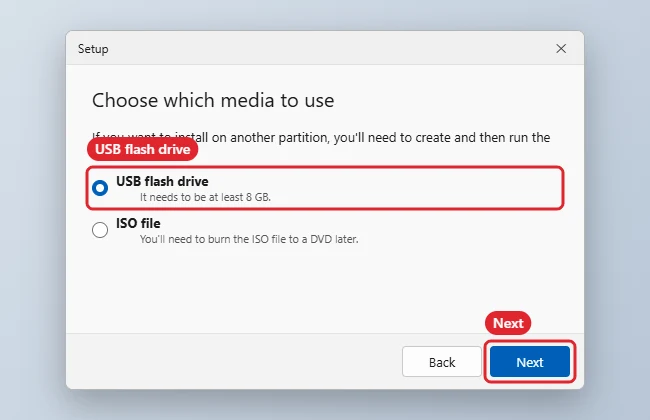
- Choose USB flash drive and click Next.
- Select your drive from the list and click Next.
- Wait while the tool downloads Windows and prepares the drive, then click Finish.
Other Ways to Make the USB
| Method | When to use it |
|---|---|
| Media Creation Tool | Simplest; runs on Windows |
| Download the ISO, then write it with a USB tool | When you need the ISO file for other uses, or you’re preparing the drive on a Mac or Linux PC |
| Recovery drive (Control Panel > Create a recovery drive) | A repair and reset drive for this specific PC |
Boot and Install From the USB
- Plug the USB drive into the PC.
- Restart and press the boot menu key (often F12, F11, F9, or Esc, depending on the maker), or change the boot order in the firmware settings.
- Choose the USB drive and follow the Windows Setup prompts.
For a fresh start on the same PC without a USB drive, Windows’ built-in reset is often easier; see how to factory reset a Windows laptop.
To change the boot order, open the BIOS from Windows 11.
Replacing Linux? See how to install Windows on a PC running Ubuntu.
Prefer the command line? Learn how to create a bootable USB manually with diskpart.
Upgrading an old PC? Learn how to find your Windows 7 product key first.
Troubleshooting
- The USB drive isn’t listed: Unplug other drives, reinsert it, and click Refresh drive list.
- The PC won’t boot from USB: Make sure UEFI boot is enabled and try a different USB port.
- “This PC can’t run Windows 11”: The PC doesn’t meet the requirements. Check PC Health Check, or stay on your current version.
- Want to try Linux instead? See how to install Linux on Windows.
Frequently Asked Questions
Can I run Windows 11 directly from a USB drive?
Not in a supported way for home users. The USB drive is an installer; Windows runs from the PC’s internal drive after installation.
How long does it take?
Usually 20 minutes to an hour, depending on your internet speed and USB drive.
Do I need a product key?
Not to create the USB. A PC that had Windows 10 or 11 activated usually reactivates automatically.
Summary
- Get an 8 GB or larger USB drive.
- Download and run the Media Creation Tool.
- Choose USB flash drive and select the drive.
- Boot from the USB to install Windows 11.

Kermit Matthews is a freelance writer based in Philadelphia, Pennsylvania with more than a decade of experience writing technology guides. He has a Bachelor’s and Master’s degree in Computer Science and has spent much of his professional career in IT management.
He specializes in writing content about iPhones, Android devices, Microsoft Office, and many other popular applications and devices.