You can run Linux on a Windows 10 PC without wiping Windows or buying a second computer. The easiest way is Windows Subsystem for Linux (WSL), a built-in feature that installs Ubuntu or another distribution with one command and runs it alongside your Windows apps. This guide covers installing WSL step by step, choosing a distribution, using Linux and sharing files with Windows, and the two other options, a virtual machine and dual boot, for when you need a full Linux desktop.
Quick Answer
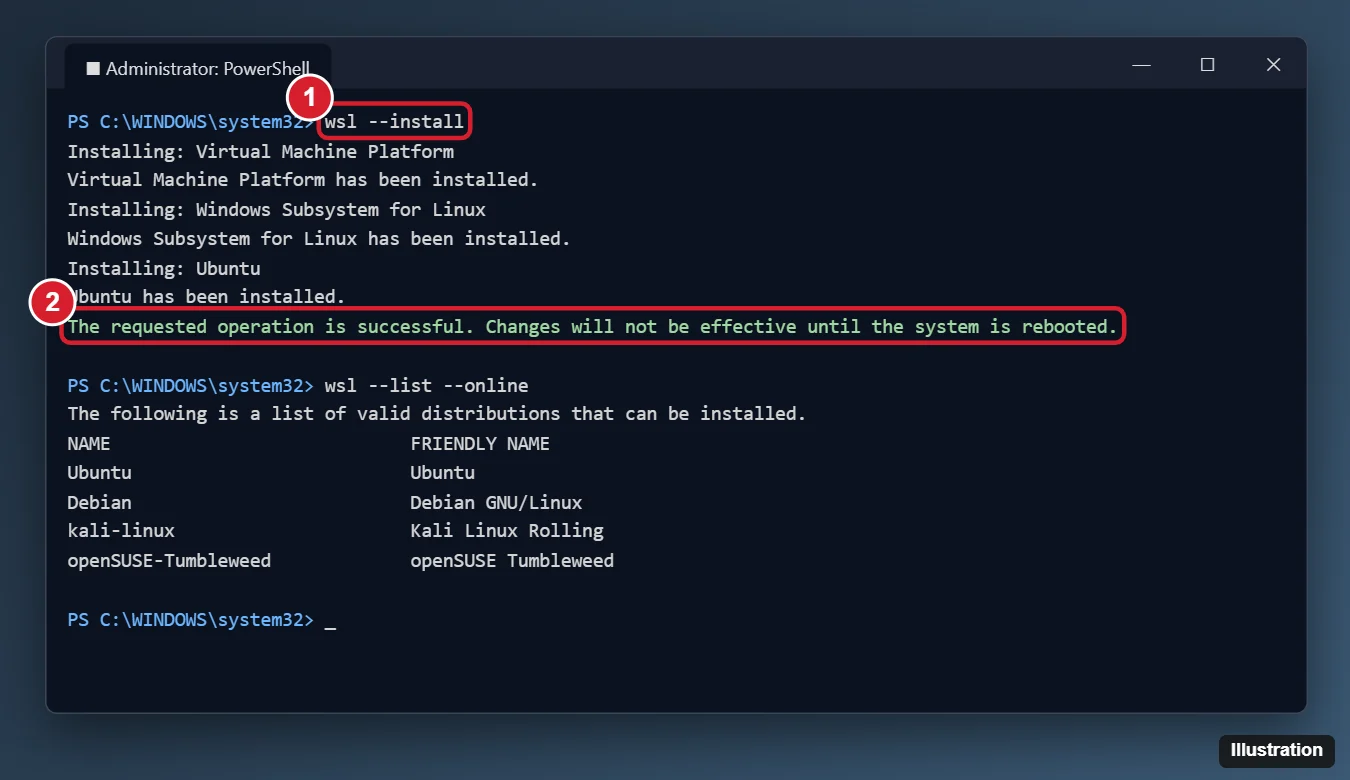
Right-click Start, open Windows PowerShell (Admin), and run wsl --install. Restart the PC when asked. Ubuntu opens automatically after the restart. Create a Linux username and password, and you’re ready. To install a different distribution, run wsl --list --online, then wsl --install -d DistroName.
Which Way Should You Run Linux?
| Method | Best for | Pros | Cons |
|---|---|---|---|
| WSL 2 | Developers, command-line tools, learning Linux | One command, fast, shares files with Windows, runs Linux GUI apps on recent versions | Not a full Linux desktop experience |
| Virtual machine (VirtualBox, Hyper-V) | Trying a full Linux desktop safely | Complete desktop in a window, easy to delete | Uses more RAM, slower graphics |
| Dual boot | Using Linux as a main OS | Full hardware performance | Partitioning risk, restart to switch |
Requirements for WSL
- Windows 10 version 2004 (build 19041) or later. Check with
winver. Windows 11 works too. - Hardware virtualization enabled in BIOS/UEFI (for WSL 2). Check Task Manager > Performance > CPU > Virtualization: Enabled.
- An administrator account.
Windows 10 reached end of support in October 2025. WSL still works, but keep in mind that the underlying Windows no longer gets regular security updates.
Method 1: Install Linux with WSL
- Right-click Start and choose Windows PowerShell (Admin).
- Run
wsl --install. This turns on the required Windows features, installs the latest WSL, and installs Ubuntu. - Restart the PC.
- After restarting, the Ubuntu window opens and finishes setup. If it doesn’t, open Ubuntu from the Start menu.
- Enter a new UNIX username and password. These are separate from your Windows account. The password doesn’t show as you type.
- Update the system with
sudo apt update && sudo apt upgrade.
Useful WSL commands
| Command (PowerShell) | What it does |
|---|---|
wsl --list --online |
Shows distributions you can install |
wsl --install -d Debian |
Installs a specific distribution |
wsl -l -v |
Lists installed distributions and their WSL version |
wsl --set-default-version 2 |
Makes new installs use WSL 2 |
wsl --update |
Updates WSL |
wsl --shutdown |
Stops all running distributions |
wsl --unregister Ubuntu |
Deletes a distribution and all its files |
Using Linux and Windows Together
- Open Linux: launch your distribution from Start, or type
wslin any terminal. - Linux files from Windows: in File Explorer, click Linux in the sidebar, or go to
\\wsl$. From inside Linux, runexplorer.exe .to open the current folder. - Windows files from Linux: your drives are under
/mnt/c,/mnt/d, and so on. - Performance tip: keep project files inside the Linux file system (your home folder) for much faster tools.
- Code editors: VS Code with the WSL extension edits Linux files seamlessly.
Method 2: Run Linux in a Virtual Machine
- Download a Linux ISO, such as Ubuntu Desktop, from the distribution’s official site.
- Install VirtualBox (free), or turn on Hyper-V on Windows 10 Pro and use Quick Create.
- Create a new VM with at least 2 CPU cores, 4 GB RAM, and 25 GB of disk space, and attach the ISO.
- Start the VM and follow the Linux installer. It only affects the virtual disk.
Method 3: Dual Boot (Advanced)
Back up everything first. Shrink your Windows partition in Disk Management, create a bootable Linux USB, boot from it, and choose the option to install alongside Windows. You’ll pick an operating system each time the PC starts. Turn off BitLocker, or save your recovery key, beforehand.
Troubleshooting
Error 0x80370102 or “Please enable the Virtual Machine Platform”
Turn on virtualization (Intel VT-x or AMD SVM) in BIOS/UEFI, then run wsl --install again.
“wsl –install” only shows help text
WSL is already partly installed. Run wsl --install -d Ubuntu, or update Windows to the latest version.
WSL 2 requires an update to its kernel component
Run wsl --update.
Linux GUI apps don’t open
GUI app support (WSLg) needs recent versions of WSL. Run wsl --update and restart.
Related: downgrade Ubuntu 22.04 to 20.04.
Related: dual boot Windows 10 and Kali Linux.
Related: Dual boot Windows 11 and Ubuntu.
Related: How to install and run Ubuntu on Windows 10.
Frequently Asked Questions
Is WSL free?
Yes. WSL and the distributions in the Microsoft Store are free.
Will installing Linux delete my Windows files?
No, with WSL or a virtual machine. Dual boot involves partitioning, so back up first.
Which distribution should I pick?
Ubuntu is the default and has the most tutorials. Debian is lighter, and Kali is for security testing.
Summary
- Open PowerShell as administrator and run
wsl --install. - Restart and create your Linux username and password.
- Access Linux files through Linux in File Explorer, and Windows drives under
/mnt. - Use a virtual machine or dual boot for a full Linux desktop.

Kermit Matthews is a freelance writer based in Philadelphia, Pennsylvania with more than a decade of experience writing technology guides. He has a Bachelor’s and Master’s degree in Computer Science and has spent much of his professional career in IT management.
He specializes in writing content about iPhones, Android devices, Microsoft Office, and many other popular applications and devices.