The easiest way to create a bootable Windows 11 USB drive is Microsoft’s free Media Creation Tool. Plug in a USB drive with at least 8 GB (everything on it will be erased), download the tool from Microsoft’s Download Windows 11 page under Create Windows 11 Installation Media, run it, accept the license terms, choose USB flash drive, pick your drive, and click Next. It downloads Windows 11 and makes the drive bootable, which usually takes 20 to 60 minutes.
You can also make one from a Windows 11 ISO file with the free tool Rufus. Both methods are below, along with how to boot from the drive and fix common problems.
What you need
- A USB flash drive with at least 8 GB. A USB 3.0 drive is much faster. Back up anything on it first, since it will be erased.
- A working Windows PC with an internet connection.
- A valid Windows license for the PC you’ll install it on. Most PCs that came with Windows 10 or 11 activate automatically.
Method 1: Microsoft’s Media Creation Tool (recommended)
- Go to Microsoft’s Download Windows 11 page (microsoft.com/software-download/windows11).
- Under Create Windows 11 Installation Media, click Download Now.
- Open the downloaded file, click Yes if asked for permission, and click Accept on the license terms.
- Choose the language and edition, or keep Use the recommended options for this PC checked. Click Next.
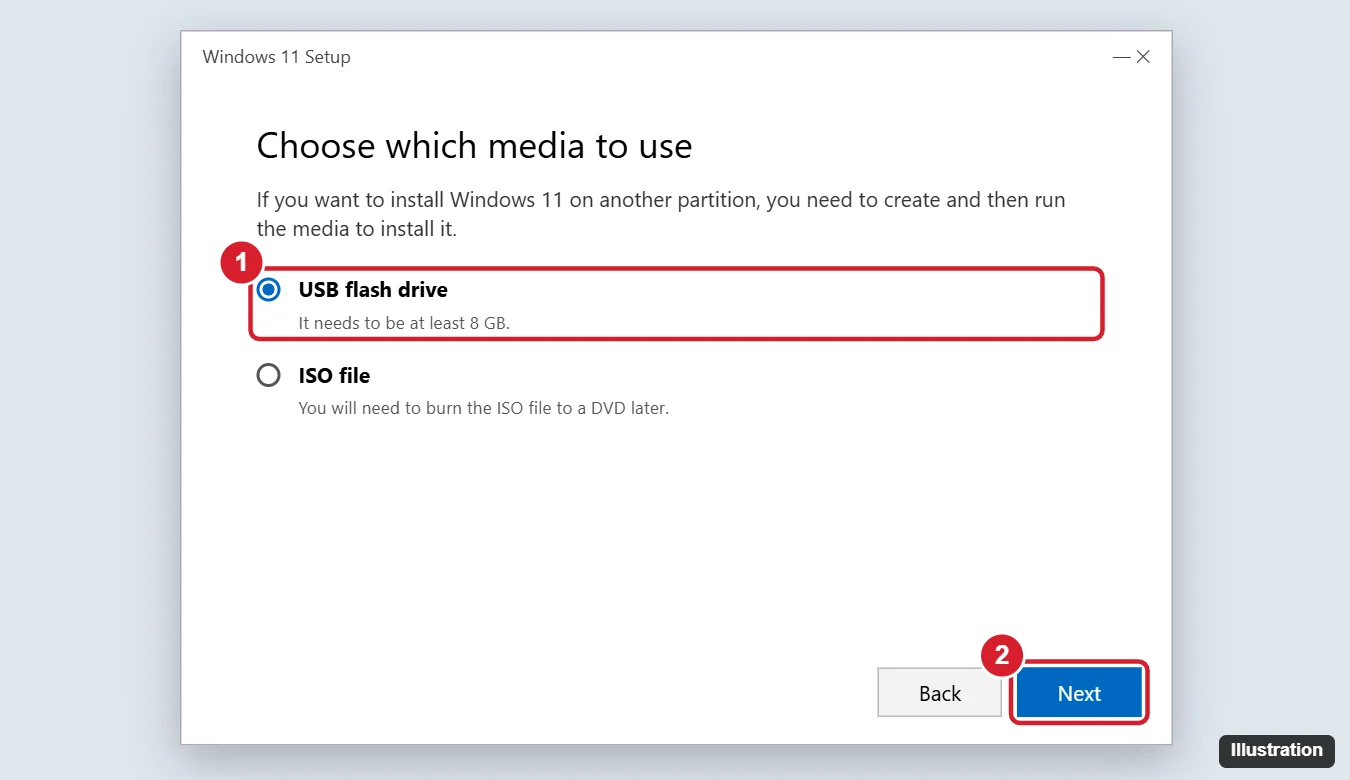
- Select USB flash drive and click Next.
- Choose your USB drive from the list and click Next.
- Wait for the download and setup to finish, then click Finish.
Method 2: Use a Windows 11 ISO with Rufus
This works well if the Media Creation Tool fails, or if you’ve already downloaded an ISO.
- On the same Microsoft page, under Download Windows 11 Disk Image (ISO), select Windows 11, click Download Now, choose a language, and download the 64-bit ISO.
- Download Rufus from its official site, rufus.ie, and open it.
- Under Device, pick your USB drive.
- Click SELECT and choose the Windows 11 ISO.
- Leave Partition scheme as GPT and Target system as UEFI (non CSM) for modern PCs.
- Click START. If Rufus shows a Windows customization window, leave the options unchecked unless you know you need them, then click OK.
- Confirm that the drive will be erased, and wait until the status bar says READY.
Only download Windows from Microsoft. ISO files from other websites may be altered or contain malware.
How to boot from the USB drive
- Plug the USB drive into the PC you want to install Windows on.
- Turn on the PC and immediately press its boot menu key. Common keys are F12, F11, F9, F8, or Esc. The key often appears briefly on the startup screen.
- Choose the USB drive (it may be listed as UEFI: USB or by the drive’s brand).
- Press any key if you see “Press any key to boot from CD or DVD.” Windows Setup starts.
If the PC already runs Windows, you can also go to Settings > System > Recovery > Advanced startup > Restart now, then choose Use a device and pick the USB drive.
For the full setup process, see how to install Windows 11 on a new PC.
Troubleshooting
- The Media Creation Tool shows an error like 0x80042405 or 0x8007001F. Try a different USB port or drive, run the tool from your PC’s desktop instead of the USB drive, or use Method 2.
- The USB drive doesn’t appear in the tool. Make sure it’s at least 8 GB, plugged directly into the PC (not a hub), and isn’t an external hard drive, which the tool may not list. Formatting it as FAT32 or NTFS in File Explorer first can help.
- The PC won’t boot from the USB. Check the boot order in the BIOS or UEFI settings and make sure UEFI boot is enabled. See how to turn on Secure Boot in Windows 11 for help with firmware settings.
- “This PC can’t run Windows 11.” The target PC doesn’t meet Windows 11’s requirements, such as TPM 2.0 and a supported processor. Check Microsoft’s system requirements before installing.
Frequently asked questions
Is the Windows 11 USB drive free to make?
Yes. The Media Creation Tool and ISO are free from Microsoft. You still need a valid license to activate Windows after installing it.
Can I use the USB drive on more than one PC?
Yes. The same drive can install Windows 11 on any compatible PC. Each PC needs its own license.
Can I still use the USB drive for files afterward?
Not while it’s an installer. To reuse it for storage, format it in File Explorer (right-click the drive > Format).
Can I make a bootable USB on a Mac?
It’s possible but more complicated, because Windows 11’s install file is larger than the FAT32 file-size limit. Using a Windows PC with the tools above is much easier.

Kermit Matthews is a freelance writer based in Philadelphia, Pennsylvania with more than a decade of experience writing technology guides. He has a Bachelor’s and Master’s degree in Computer Science and has spent much of his professional career in IT management.
He specializes in writing content about iPhones, Android devices, Microsoft Office, and many other popular applications and devices.