Google Docs doesn’t include footnotes in its word count, and there’s no setting to change that. According to Google’s help page, Tools > Word count counts everything except headers, footers, and footnotes. To include footnotes, count them separately by selecting the footnote text and opening Word count (Ctrl + Shift + C, or Command + Shift + C on a Mac) to see the selected words, then add that number to the main total. For an automatic total, download the file as a Word document and use Microsoft Word’s Include textboxes, footnotes and endnotes option, or use a word count add-on.
This guide covers each method step by step, which one is most accurate for long documents, and answers common questions about what counts toward assignment and publication limits.
What Google Docs counts
| Part of the document | Included in Word count? |
|---|---|
| Body text, headings, tables, and lists | Yes |
| Footnotes | No |
| Headers and footers | No |
| Comments and suggestions | No (suggested insertions may count depending on the view) |
Method 1: Count footnotes separately in Google Docs
- Open Tools > Word count and write down the Words total for the main text. Click OK.
- Scroll to the footnotes at the bottom of a page and drag to select the footnote text. Depending on the document, you may need to select one page’s footnotes, or one footnote, at a time.
- Press Ctrl + Shift + C (Command + Shift + C on a Mac). The dialog shows the selected count, such as 26 of 58.
- Repeat for footnotes on other pages and add the numbers to the main total.
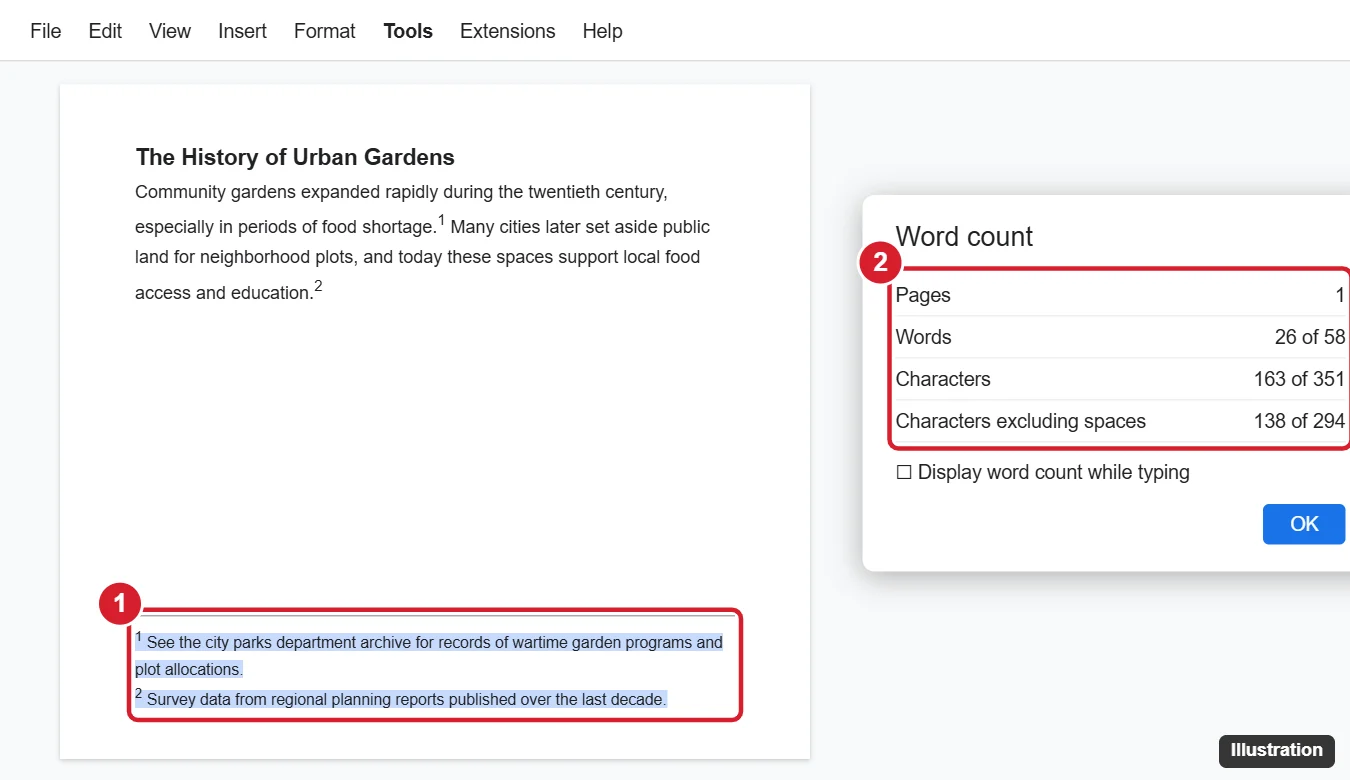
This works well for short papers. For documents with dozens of footnotes, Method 2 is faster.
Method 2: Use Microsoft Word for a combined total
- In Google Docs, click File > Download > Microsoft Word (.docx).
- Open the file in Microsoft Word (desktop, or Word for the web).
- Click Review > Word Count.
- Check Include textboxes, footnotes and endnotes. The total now includes your footnotes.
Formatting may shift slightly in the download, but footnotes carry over, so the count is reliable.
Method 3: Use a word count add-on
- In Google Docs, click Extensions > Add-ons > Get add-ons.
- Search for a word counter and check its description to confirm it can include footnotes.
- Review the permissions carefully before installing, especially for school or work documents.
Method 4: Copy footnotes into a scratch document
Copy each footnote’s text into a new blank document, then use Tools > Word count there to get the footnote total in one step. This is handy when you want to track footnotes as a separate number.
Show a live word count
In the Word count dialog, check Display word count while typing. A box appears in the bottom-left corner showing the count for the document or your selection. It still excludes footnotes.
Tips for assignments and submissions
- Check the rules – many schools and journals exclude footnotes, references, and bibliographies from word limits, while others include them. Follow your instructor’s or publisher’s guidelines.
- Report consistently – say whether your stated word count includes footnotes.
- Bibliographies – a reference list in the body text is counted by Google Docs. Select everything except it to get a count without references.
Frequently asked questions
Does Google Docs count endnotes?
Google Docs doesn’t have a built-in endnotes feature. If you type endnotes as regular text at the end of the document, they’re counted like body text.
Does the Google Docs mobile app include footnotes in the word count?
No. The mobile app follows the same rules as the desktop version.
Why doesn’t my word count match Microsoft Word’s?
The two apps count some items differently, such as hyphenated words, URLs, and numbers with symbols. Small differences are normal.

Kermit Matthews is a freelance writer based in Philadelphia, Pennsylvania with more than a decade of experience writing technology guides. He has a Bachelor’s and Master’s degree in Computer Science and has spent much of his professional career in IT management.
He specializes in writing content about iPhones, Android devices, Microsoft Office, and many other popular applications and devices.