Word doesn’t have an “Export comments” button, but there are several good ways to get every comment out of a document: as a printable list, a PDF, a table in a new Word file, or rows in Excel. Which one you choose depends on whether you need to read them, share them or work through them as a to-do list. This guide covers all the methods in Word for Microsoft 365, Word 2021, 2019 and 2016, including a short macro that builds a comments table automatically.
Quick Answer
For a quick list, go to File > Print, choose List of Markup in the first drop-down under Settings, and print to Microsoft Print to PDF. For a table you can edit or paste into Excel, run the macro in Method 4 below.
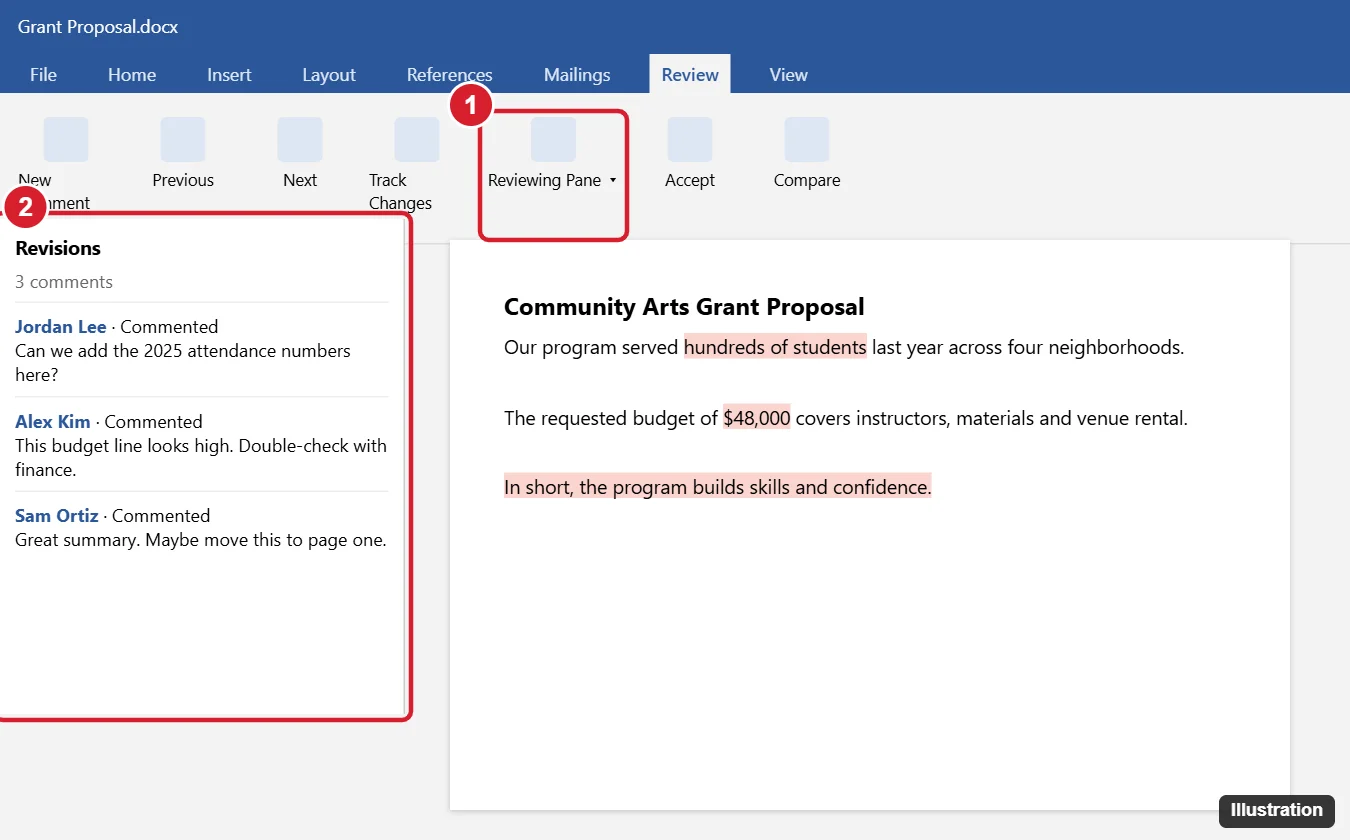
Method 1: Print or Save a List of Comments as PDF
- On the Review tab, click Show Markup and uncheck everything except Comments, so the list includes only comments.
- Click File > Print.
- Click the first drop-down under Settings and choose List of Markup.
- Choose Microsoft Print to PDF as the printer (or a real printer) and click Print.
The result lists each comment with the page number, reviewer, date and comment text, but not the text it’s attached to.
Method 2: Save the Document as a PDF With Comments
- Set the Review tab to All Markup so comment balloons show in the margin.
- Click File > Save As (or Export > Create PDF/XPS) and choose PDF.
- Click Options and make sure Document showing markup is selected.
- Save. Recipients see each comment next to the text it refers to.
Method 3: Copy From the Reviewing Pane
- Click Review > Reviewing Pane > Reviewing Pane Vertical.
- Click in the pane, press Ctrl + A to select all its contents, and press Ctrl + C.
- Paste into a new Word document or email.
In some versions with modern comments, the pane can’t be selected this way; use Method 1 or 4 instead.
Method 4: Export Comments to a Table With a Macro
This macro creates a new document with a table listing the page, author, date, commented text and comment for every comment. You can then copy the table into Excel.
- Open the document with comments and press Alt + F11 to open the Visual Basic editor.
- Click Insert > Module and paste this code:
Sub ExportComments() Dim src As Document, out As Document, c As Comment, t As Table, i As Long Set src = ActiveDocument If src.Comments.Count = 0 Then MsgBox "No comments found.": Exit Sub Set out = Documents.Add Set t = out.Tables.Add(out.Range, src.Comments.Count + 1, 5) t.Cell(1, 1).Range.Text = "Page" t.Cell(1, 2).Range.Text = "Author" t.Cell(1, 3).Range.Text = "Date" t.Cell(1, 4).Range.Text = "Commented text" t.Cell(1, 5).Range.Text = "Comment" i = 2 For Each c In src.Comments t.Cell(i, 1).Range.Text = c.Scope.Information(wdActiveEndPageNumber) t.Cell(i, 2).Range.Text = c.Author t.Cell(i, 3).Range.Text = Format(c.Date, "yyyy-mm-dd") t.Cell(i, 4).Range.Text = c.Scope.Text t.Cell(i, 5).Range.Text = c.Range.Text i = i + 1 Next c t.Style = "Table Grid" End Sub - Press F5 to run it (or close the editor and run ExportComments from View > Macros).
- Save the new document, or select the table and paste it into Excel.
You don’t need to save the original document as a macro-enabled file; the macro only has to run once.
Method 5: Word for the Web and Mac
- Word for the web: open the Comments pane, then use Print (List of Markup isn’t available), or open the document in the desktop app for Methods 1–4.
- Word for Mac: use File > Print, choose the Microsoft Word section, and set Print What to List of Markup, then save as PDF. The macro also works in Word for Mac.
Frequently Asked Questions
Can I export replies to comments?
Methods 1 and 2 include replies. The macro lists replies as separate rows in most versions.
Does exporting remove comments from the document?
No. All methods leave the original comments in place.
Can I export comments from a Google Doc the same way?
Download the Google Doc as a Word file (comments are included), then use these methods.
Summary
- Print List of Markup to PDF for a quick comments list.
- Save as PDF with markup to keep comments beside the text.
- Copy from the Reviewing Pane for simple lists.
- Use the macro for a table you can paste into Excel.

Kermit Matthews is a freelance writer based in Philadelphia, Pennsylvania with more than a decade of experience writing technology guides. He has a Bachelor’s and Master’s degree in Computer Science and has spent much of his professional career in IT management.
He specializes in writing content about iPhones, Android devices, Microsoft Office, and many other popular applications and devices.